

Add a quote and split it across lines
PlanStandard and Professional
Use Quotes to record what a supplier has quoted and to say which parts of your budget it covers. A quote can go against one sub-category (also called a line) or be split across several.
Steps
- Go to the Quotes page. On a desktop, choose Quotes in the menu on the left. On a phone, tap the Project tab at the bottom of the screen, then the Quotes tab at the top.
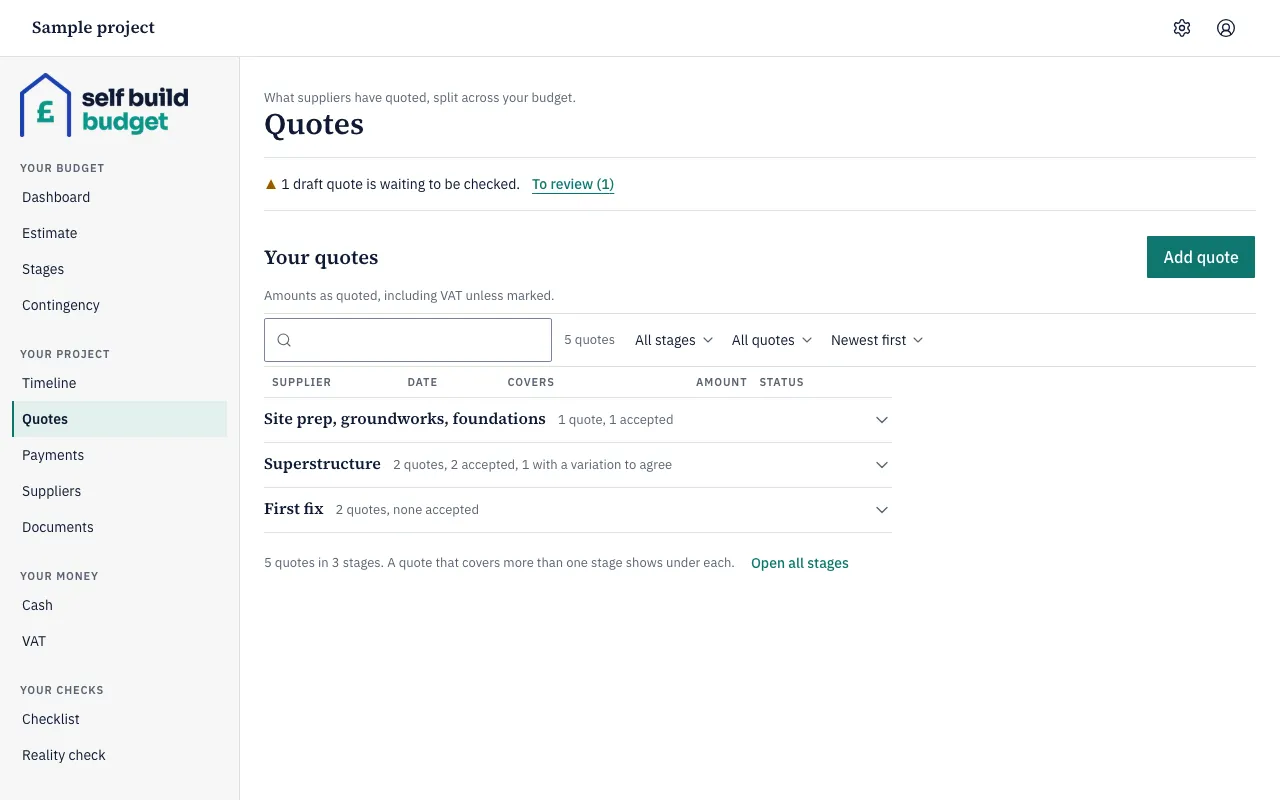
- Choose Add quote. On a desktop the form opens in a panel at the side. On a phone it opens full screen.
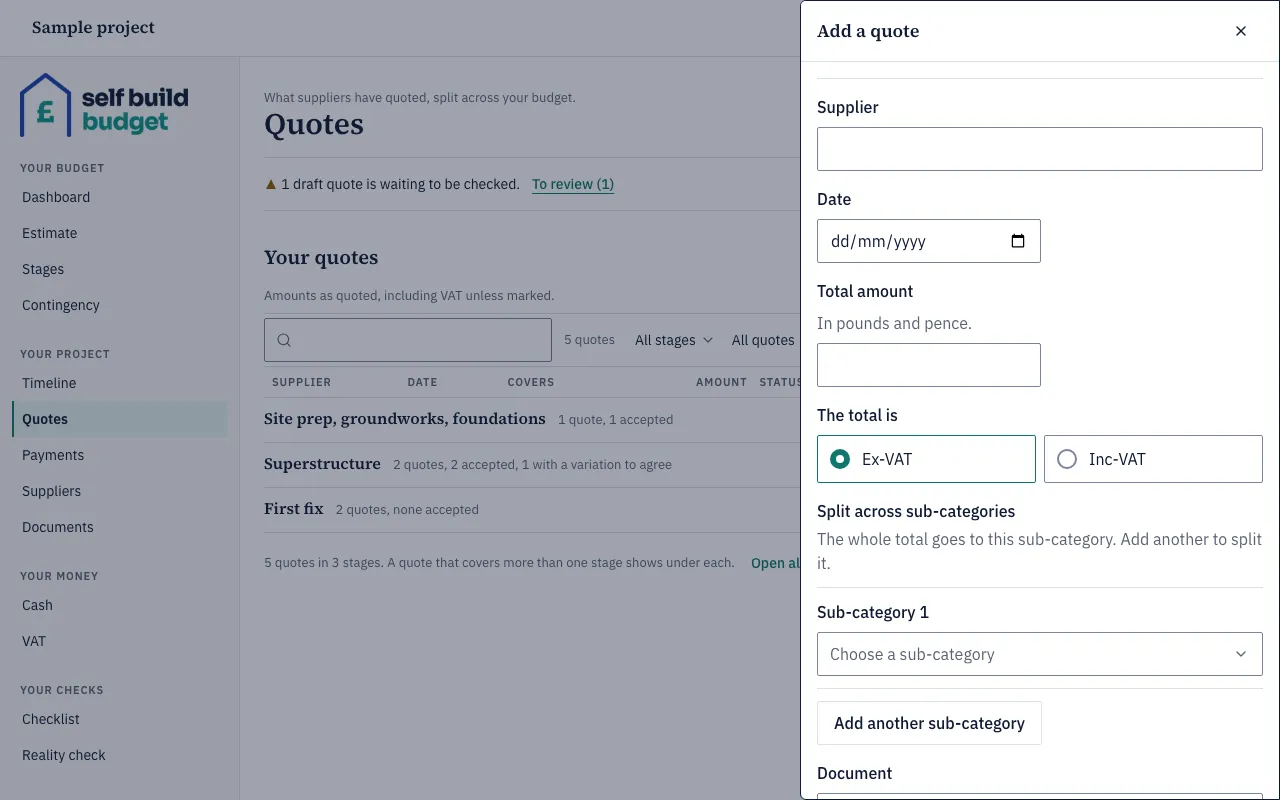
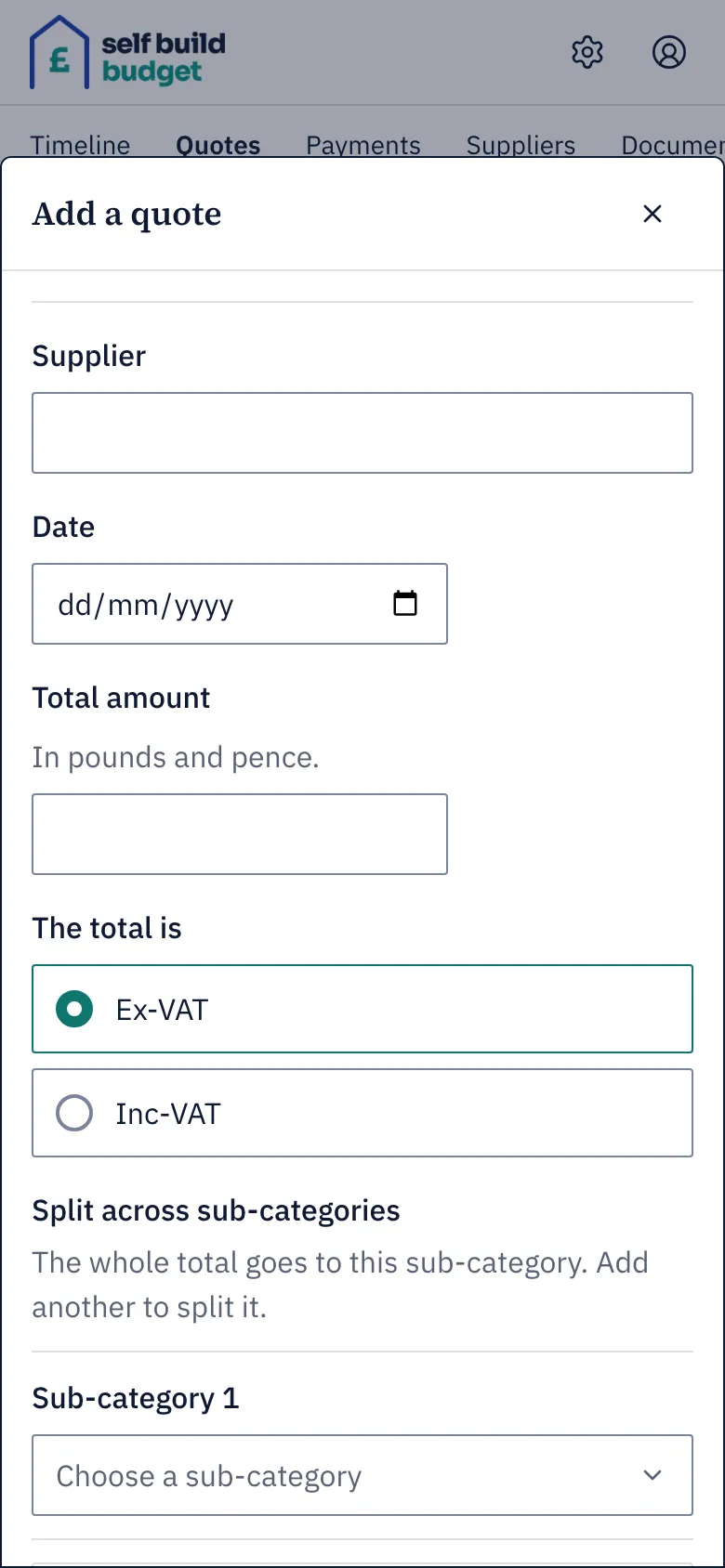
- In Supplier, enter the supplier’s name.
- In Date, choose the date of the quote.
- In Total amount, enter the whole quote in pounds and pence, as the supplier gave it.
- Under The total is, choose Ex-VAT or Inc-VAT, to match how the supplier gave the total.
- Under Sub-category 1, choose Choose a sub-category and pick the line the quote covers. The list is grouped by stage, and you can type to search it.
- If the quote covers more than one line, choose Add another sub-category and pick the next line. Enter the amount for each line. If you add only one sub-category, the whole total goes to it.
- To attach the quote itself, add it under Document. You can leave this empty and save the quote without a document.
- Save the quote with the button at the bottom of the panel. The panel closes and the quote appears in the list under its stage.
To find your quote afterwards, choose its stage in the list to open it, or choose Open all stages. Choose a quote to see its split and its document, with Edit and Delete. On a desktop it opens beside the list, and on a phone it opens under its row.
Good to know
- The allocations must add up to the full total. If you split £30,000.00 but allocate only £20,000.00, you see “Allocations add up to £20,000.00 but the quote is £30,000.00” and the quote isn’t saved. For example, £18,000.00 on one line and £12,000.00 on another adds up to £30,000.00.
- Enter the quote as the supplier gave it. On the line, a quote counts ex VAT. A £24,000.00 quote that includes £4,000.00 VAT shows on its line as Accepted quotes £20,000 ex VAT, while the figures headed Including VAT show it with VAT.
- A quote counts towards a line only once it is accepted. See Compare and accept quotes.
- A quote that covers more than one stage shows under each of those stages.
- If you close the panel after typing, you are asked whether to discard what you typed.
- To change a quote, choose it in the list, then choose Edit, for example to correct the amount. To remove it, choose Delete and confirm. A deleted quote no longer appears under any sub-category.
The figures in the app are a guide, not financial or tax advice.
Questions about the VAT claim? Email us.
Who can do this
Owners and partners can add, edit and delete quotes. Viewers can see Quotes but can’t change anything.
On Free, this page is locked. See what each plan includes