

Create your project and first estimate
PlanAll plans, including Free
Your project starts with an estimate: the floor area of your build multiplied by a low and a high cost per m². Here is how to set it up, see the result, and turn it into your first budget.
Steps
- Start on the Create your project page.
- In Project name, type a name for your build.
- In Region, choose where you are building.
- Under Quality level, choose Basic, Standard or High spec.
- Read the Suggested range box. It shows a low and high cost per m² for that region and quality, and where the figures come from.
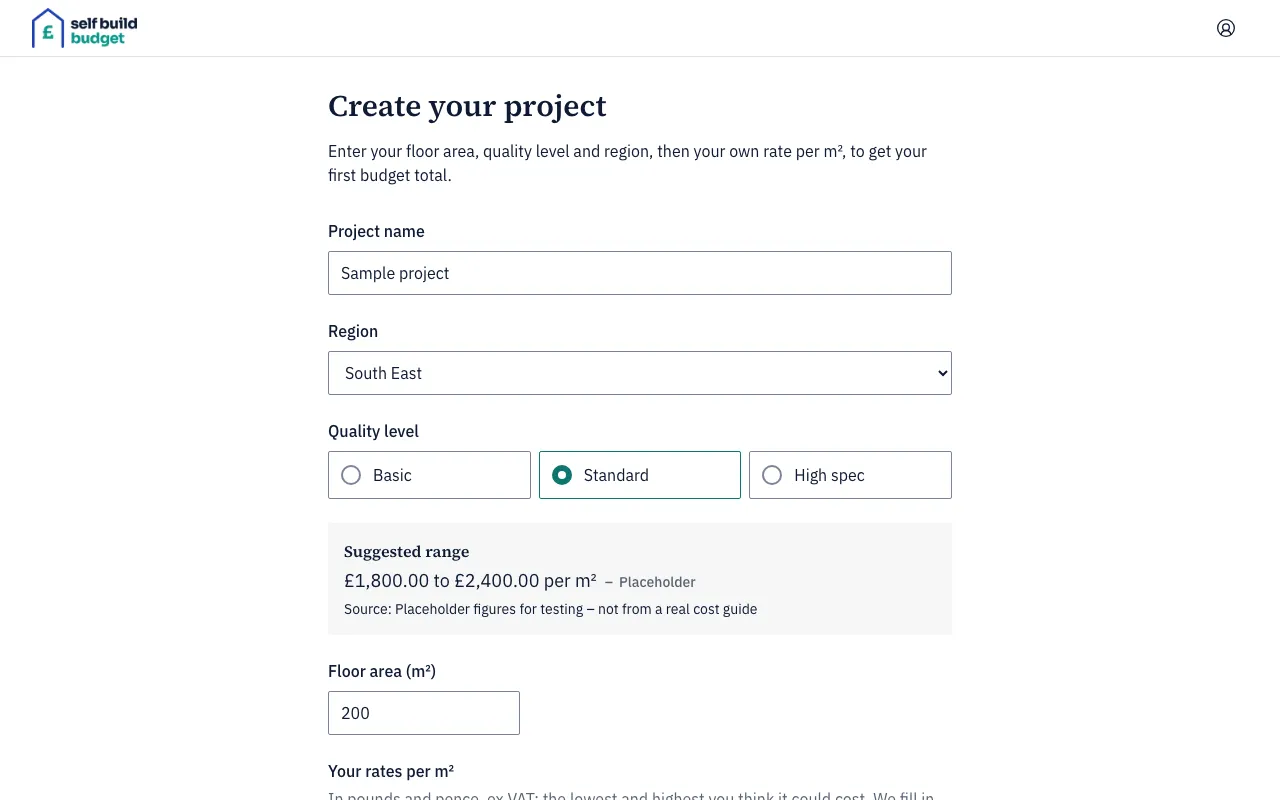
- In Floor area (m²), enter the floor area of your build.
- Under Your rates per m², check the low and high rates. They are filled in from the suggested range. Change them to your own rates if you have a better idea. Enter them in pounds and pence, ex VAT.
- Use the button at the bottom of the form to create the project. You become its owner.
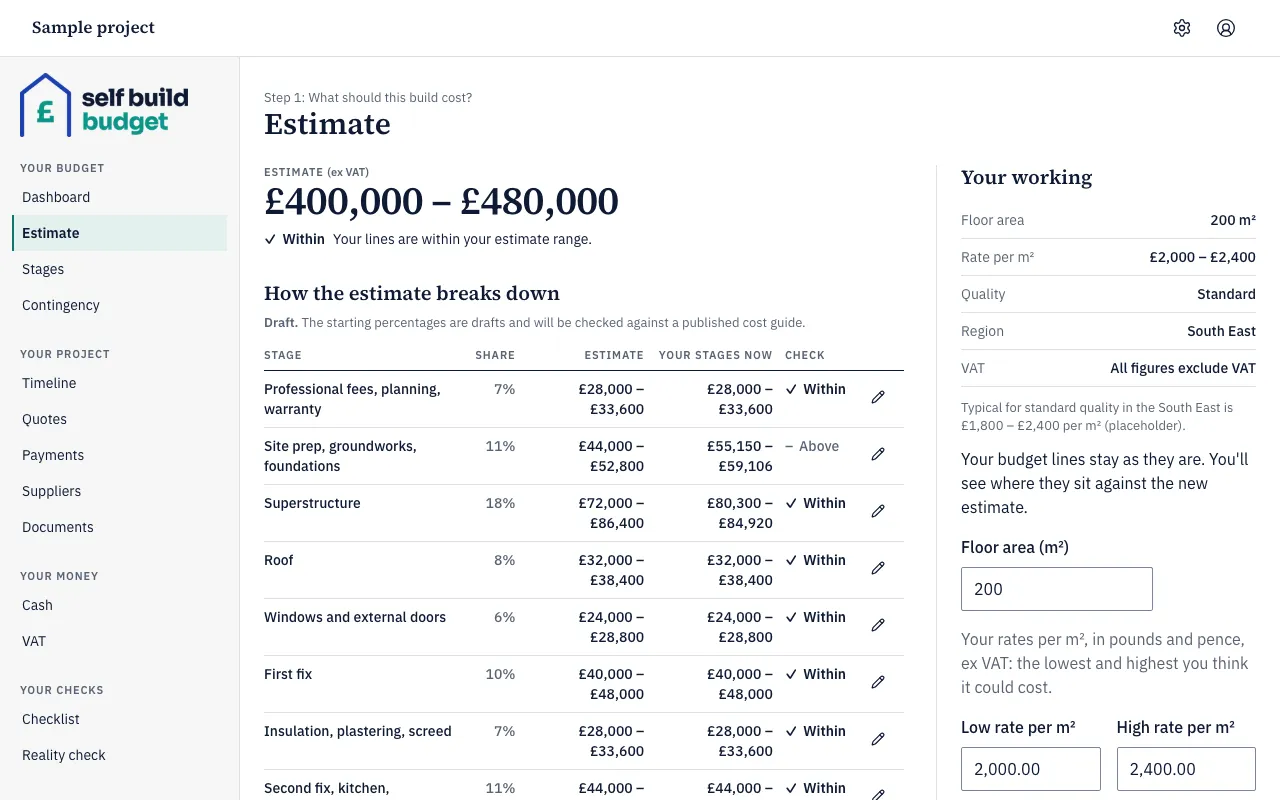
- Open the Estimate page. On a desktop, choose Estimate in the menu on the left. On a phone, tap the Budget tab at the bottom of the screen, then the Estimate tab at the top.
- Read your estimate at the top of the page. In our Sample project, 200 m² at £2,000 to £2,400 per m² gives £400,000 – £480,000.
- Look at Your working on the right. It shows the floor area, rate per m², quality, region and VAT that your estimate is built from.
- Scroll to How the estimate breaks down to see the estimate split across the build stages.
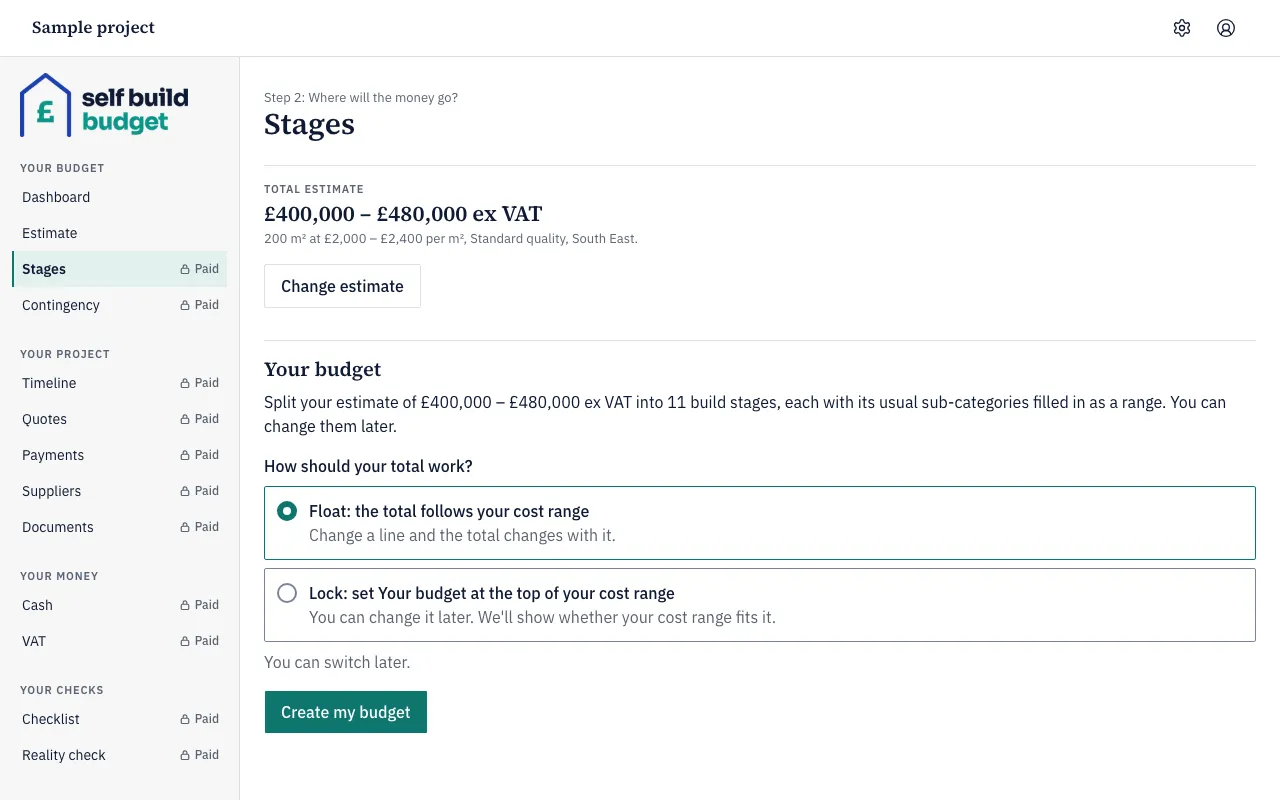
- To turn the estimate into your first budget, open Stages. On a desktop, choose Stages in the menu on the left. On a phone, tap the Budget tab, then the Stages tab.
- Under How should your total work?, leave Float: the total follows your cost range selected, or choose Lock: set Your budget at the top of your cost range. You can switch later.
- Choose Create my budget. Your estimate is split into 11 build stages, each with its usual sub-categories filled in as a range.
Good to know
- You can have one project per account for now.
- Every estimate figure is ex VAT. The Your working panel says “All figures exclude VAT”.
- If you enter a rate outside the suggested range, the app accepts it and shows a gentle note that it is outside the typical range.
- The form asks for a project name, a floor area above 0, a rate above £0.00, and a low rate that is not more than the high rate. If one of these is missing or wrong, you’ll see a message saying which.
- You can change the floor area or the rates later on Estimate, or by choosing Change estimate on Stages. Lines you have already edited stay as they are, and you’ll see where they sit against the new estimate. See Update your estimate.
- Each new line starts as a Rough guess and is flagged Not reviewed until you change it. On Free, Stages is a read-only preview. Editing the stages needs Standard.
Who can do this
The person who creates the project is its owner. Owners and partners can change the estimate and choose Create my budget. A viewer can see the Estimate and Stages but can’t change them, and sees “The budget hasn’t been created yet” on Stages until the budget exists.