

Find your way around
PlanAll plans, including Free
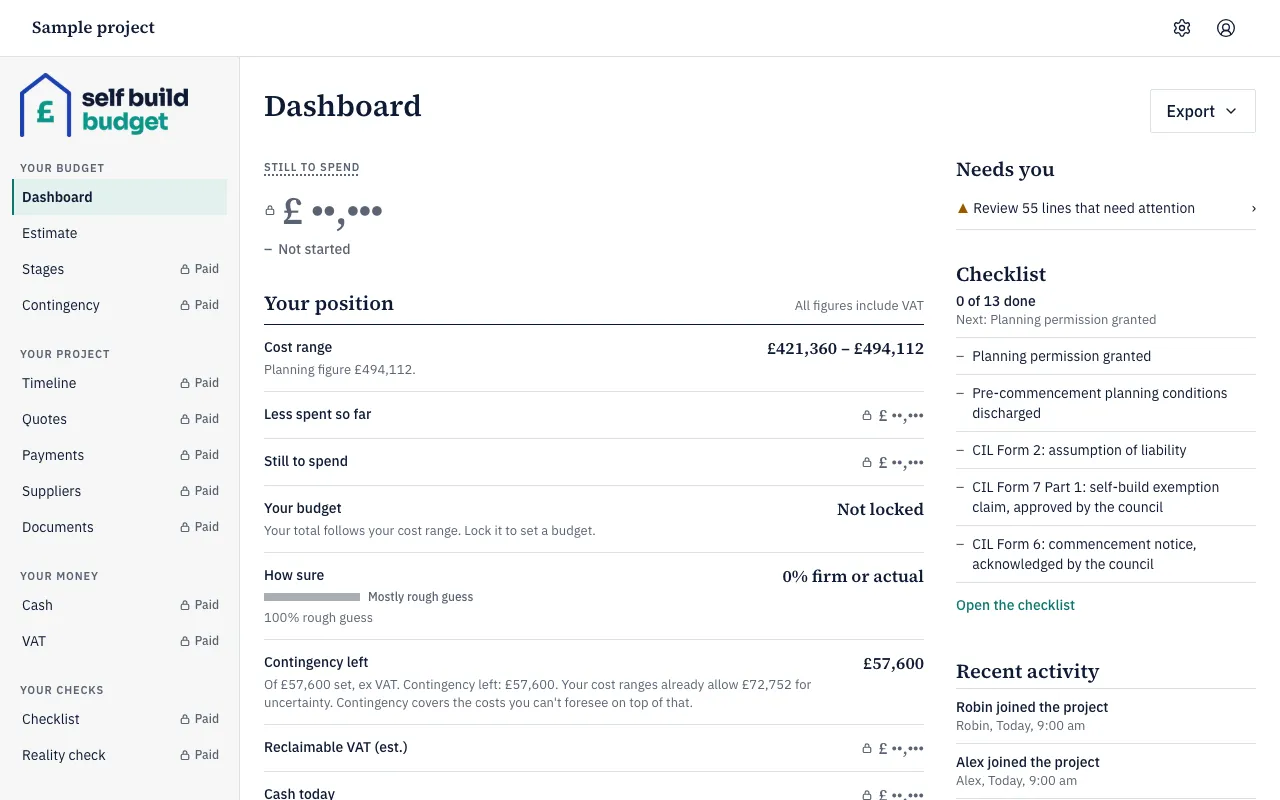
Self Build Budget groups its pages into four areas: Budget, Project, Money and Checks. This article shows you how to reach any page on a desktop or a phone, and how to find Settings.
Steps
- On a desktop, look at the menu on the left. It groups the pages under the headings Your budget, Your project, Your money and Your checks. Choose the page you want.
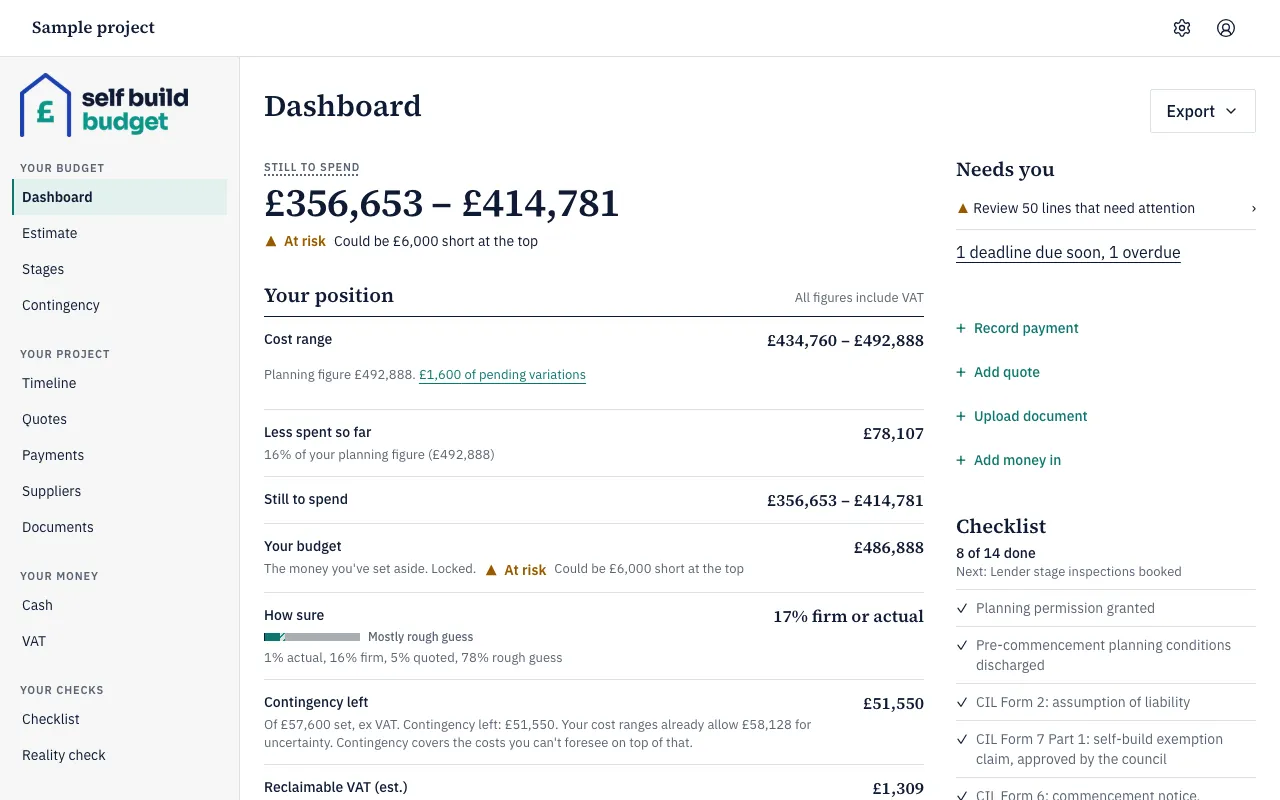
- On a phone, tap the area you want in the row of tabs at the bottom of the screen: Budget, Project, Money or Checks.
- Tap Budget to open the Dashboard. The Budget area has four pages: Dashboard, Estimate, Stages and Contingency.
- Tap the page you want in the tabs at the top of the screen.
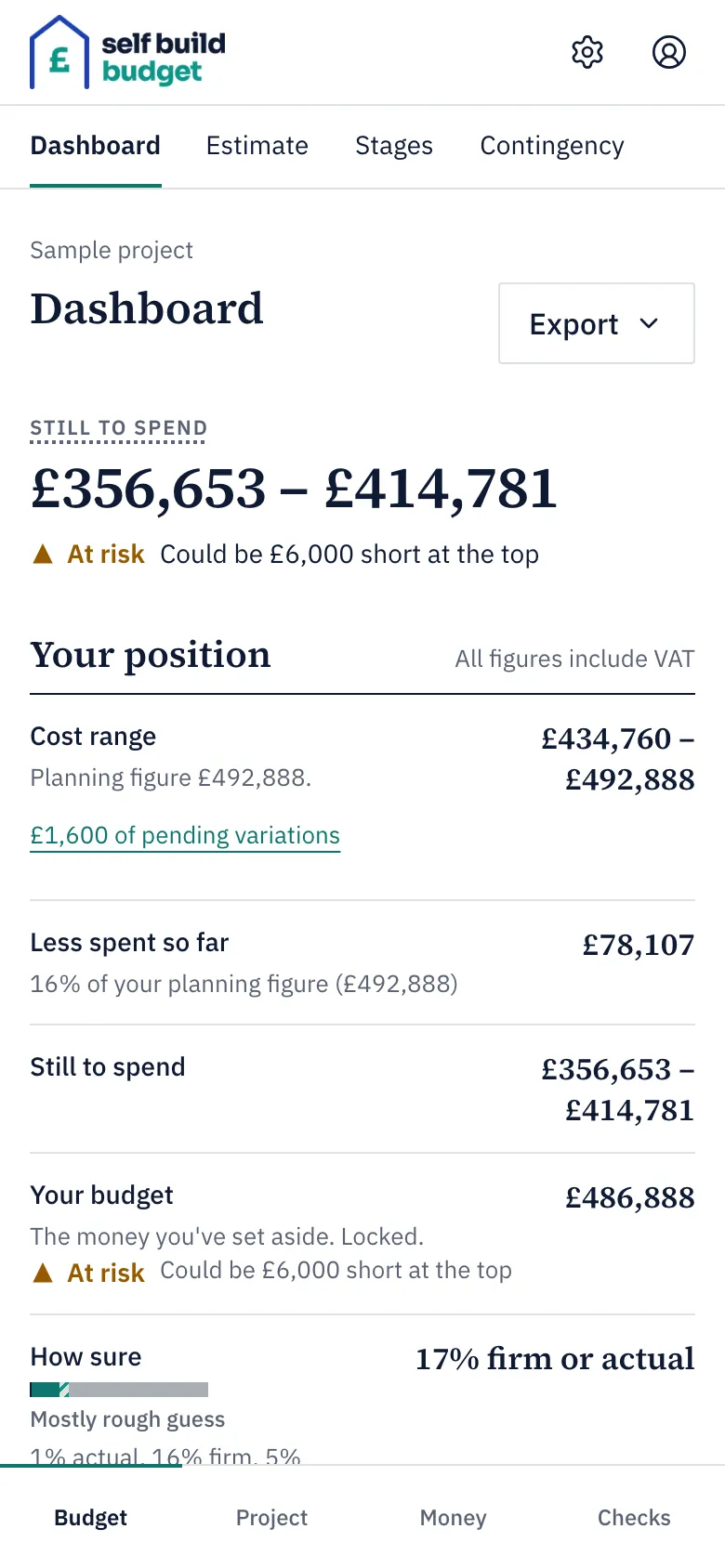
- To find the other pages, open their area first. Project has Timeline, Quotes, Payments, Suppliers and Documents. Money has Cash and VAT. Checks has Checklist and Reality check.
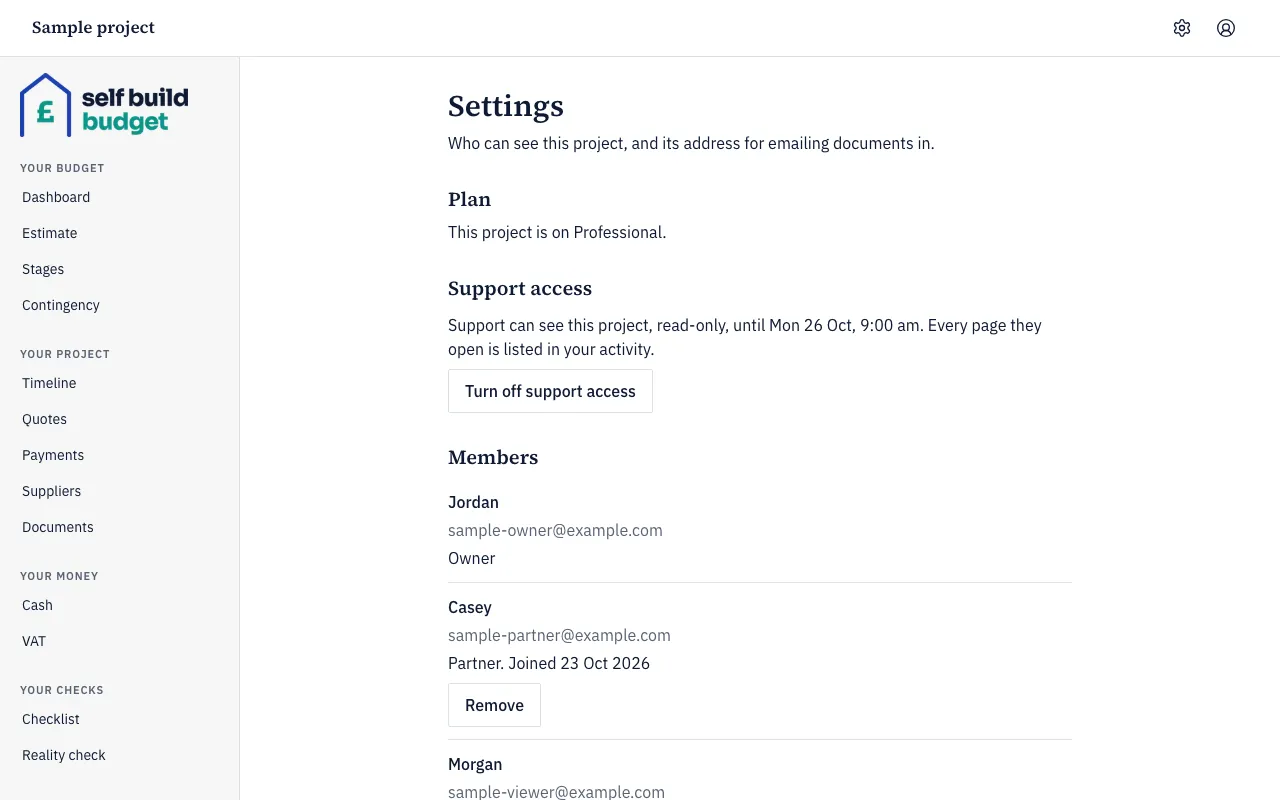
- To open Settings, choose the Settings (cog) icon in the header, on a desktop or a phone. The menu on the left doesn’t list Settings.
- In Settings, the owner sees Plan, Support access and Members.
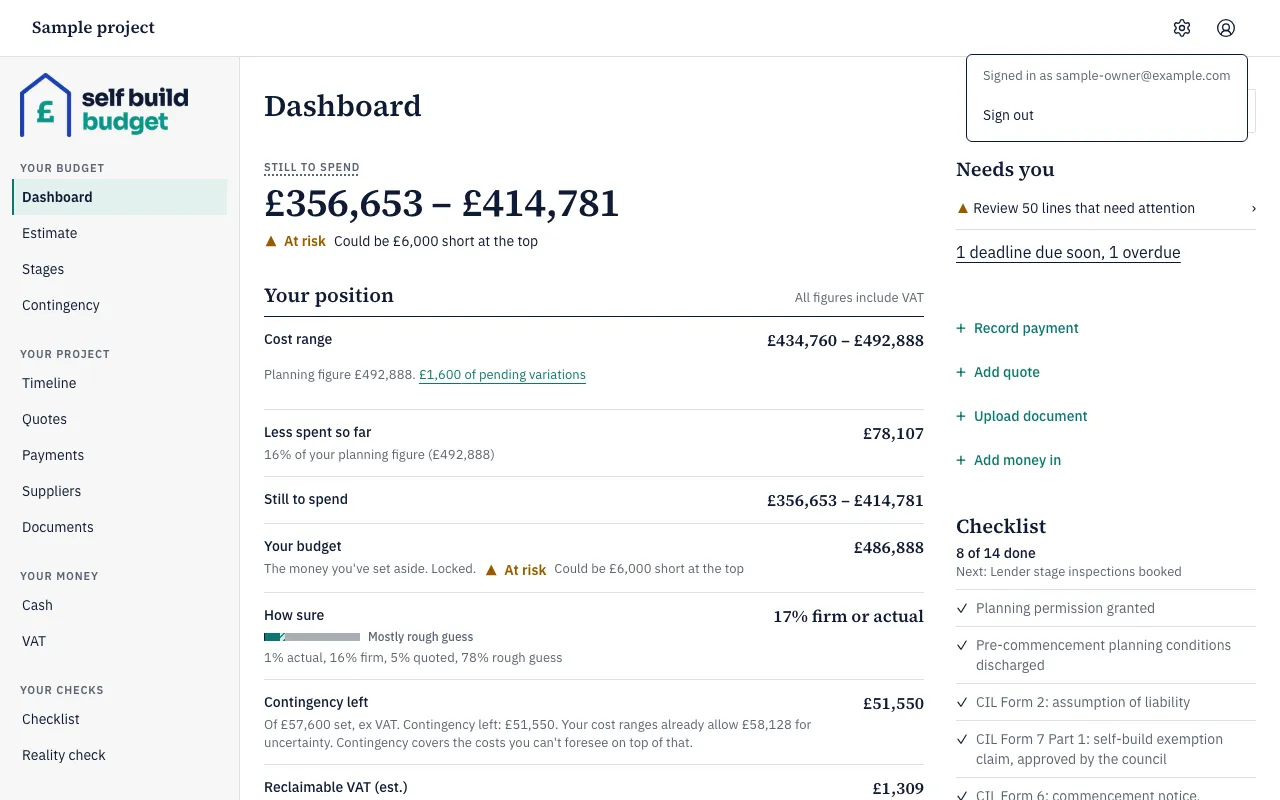
- To sign out, choose the account icon (the circle with a person in it) in the header, then choose Sign out. The menu that opens also shows the email address you’re signed in with.
Good to know
- Every page shows where you are. The heading names the page, and the menu or tabs mark the current area and page. The project name appears in the header on a desktop and above the heading on a phone. The browser tab shows the page name followed by Self Build Budget.
- There’s no separate back link. To get back to your budget, choose it in the menu on a desktop, or tap Budget on a phone.
- A narrow browser window on a desktop can show the phone layout, with the tabs at the bottom instead of the menu on the left.
- On Free, you can use the Dashboard and Estimate. Stages is a read-only preview, and editing it needs Standard. Several Dashboard figures show a lock and £ ••,•••, because the full Dashboard is part of Standard. Contingency, Timeline, Quotes, Payments, Suppliers, Documents, Checklist and Reality check show a blurred sample with a lock until you’re on Standard. Cash and VAT need Professional.
- A viewer is a read-only member, such as an architect or quantity surveyor. A viewer sees the Dashboard, Estimate, Stages, Quotes, Payments, Suppliers and Documents, and changes nothing. A viewer doesn’t see Cash, Timeline, VAT, Contingency, Checklist, Reality check, Members or unconfirmed AI suggestions. On the Dashboard, a viewer doesn’t see Contingency left, Reclaimable VAT (est.), Cash today, deadlines, quick actions or the checklist.
- If you bookmarked a page before the menu was reorganised, the bookmark still works. You reach the page, or you’re taken to its new address. You can also move through the menu with the Tab key and open an item with Enter.
Who can do this
Owners, partners and viewers can all move around the app and sign out. A viewer sees only the pages listed above.