

Let the app read your documents
PlanStandard and Professional
When you upload an invoice, receipt or quote, Self Build Budget reads it and suggests the details, so you don’t have to type them in. An invoice or a receipt becomes a draft payment, and a quote becomes a draft quote. You check each draft, then confirm it.
Steps
- Open the Documents page. On a desktop, choose Documents in the menu on the left. On a phone, tap the Project tab at the bottom of the screen, then the Documents tab at the top.
- Choose Add document to upload one file, or Bulk upload to upload several. The upload and organise documents article covers the upload itself.
- Wait for the app to read the file. When it has, a message at the top of the Documents page says your Self Build Budget has read the documents and suggested their details.
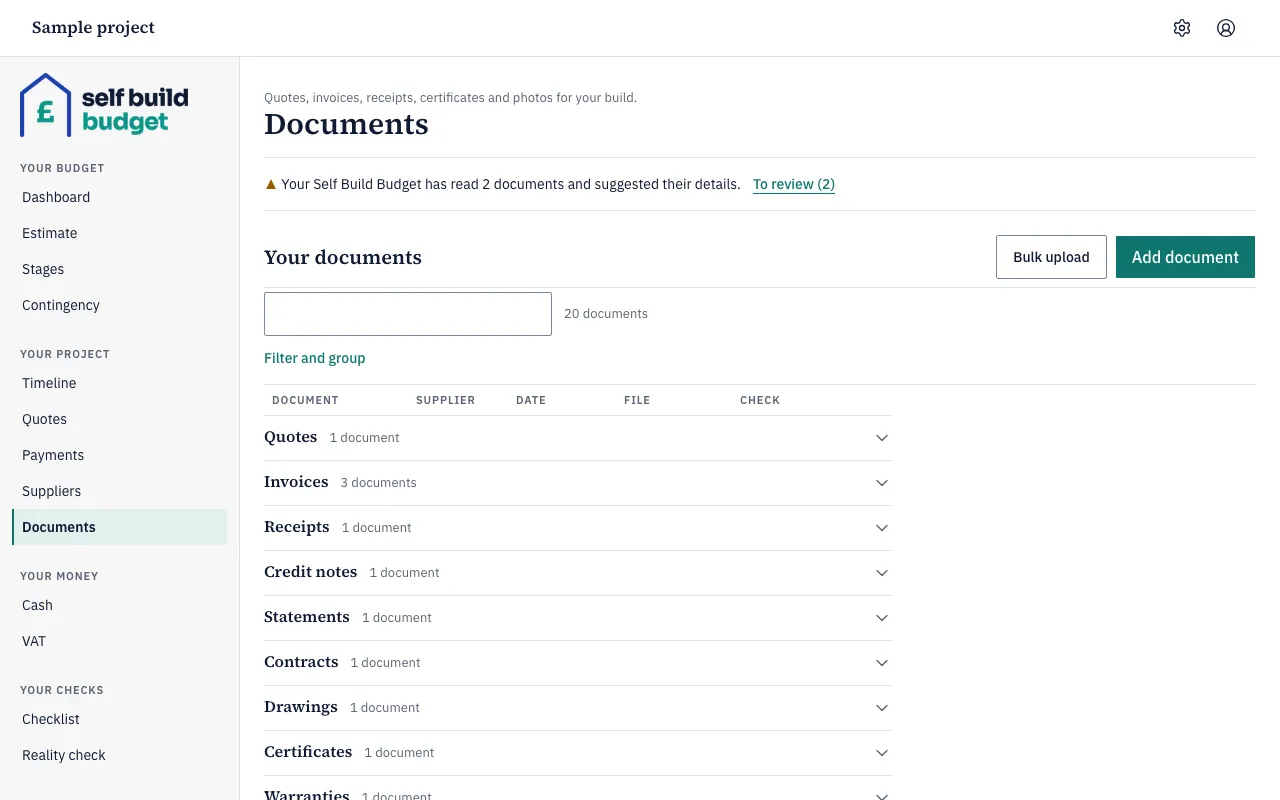
- Open the drafts:
- After a bulk upload, choose Review suggestions. This opens the Review uploaded documents page, which shows what the app read from each file.
- For a document you uploaded on its own, choose Review suggestion beside it. This opens that document’s page.
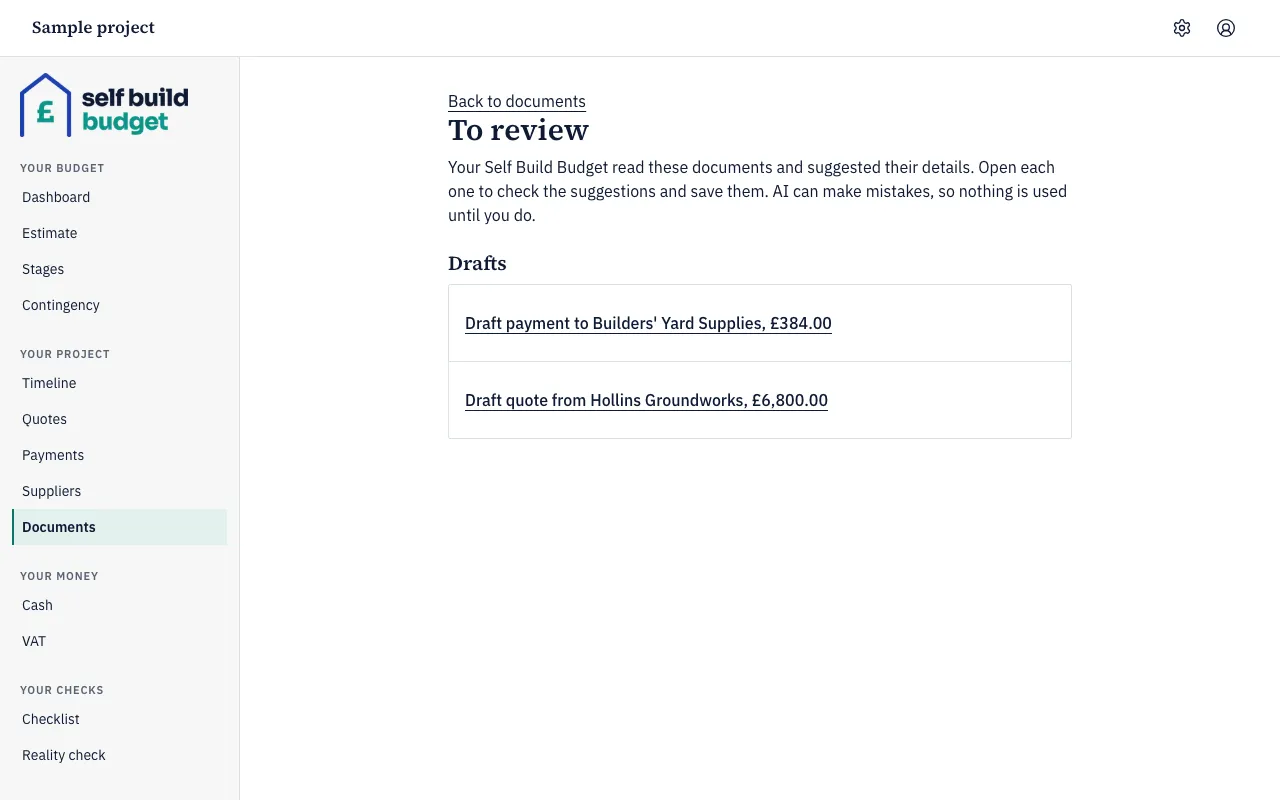
- Later, choose the To review link in the message at the top of the Documents page. A document from a bulk upload that is still waiting also shows To review, and its Review suggestion link opens the same Review uploaded documents page.
- On the To review page, find the Drafts list and choose a draft to open it.
- On the Review uploaded documents page, choose Open the document to see the original file. Choose Check and confirm to check that document’s draft.
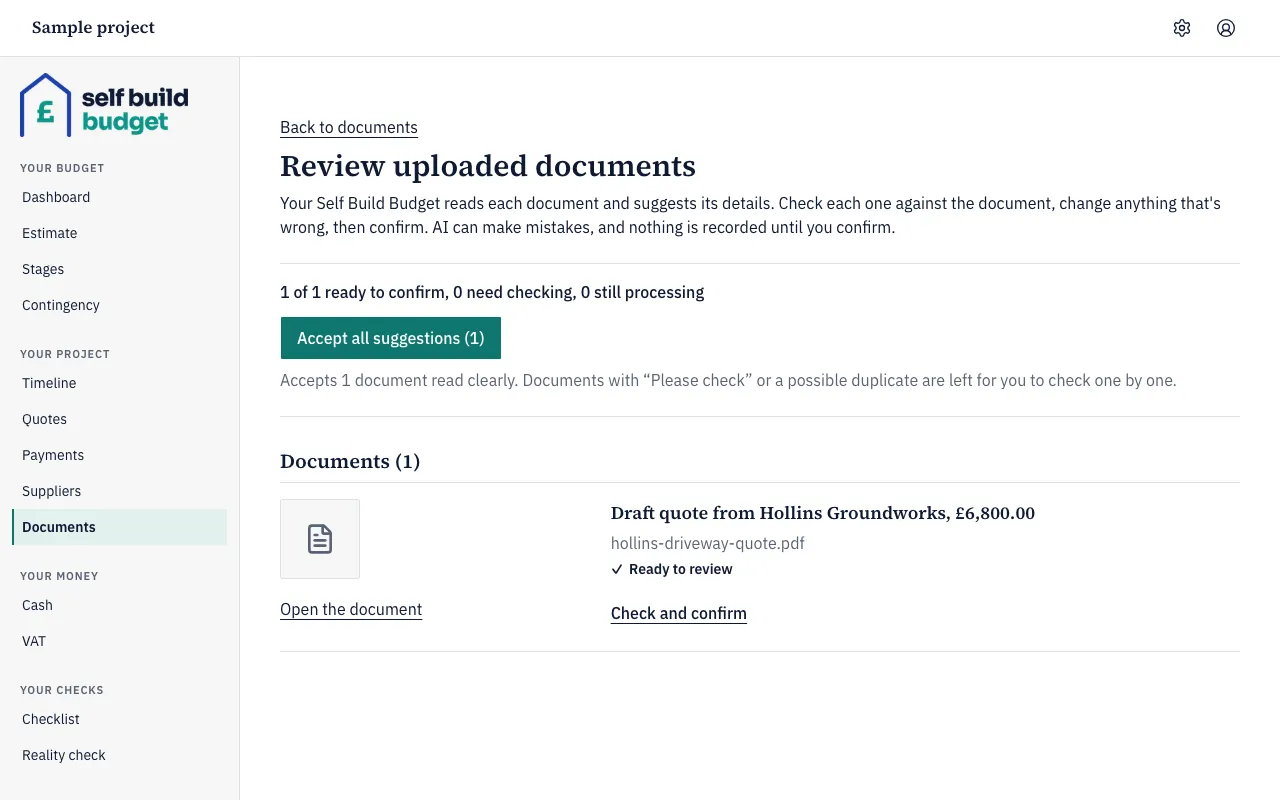
- To accept several at once, choose Accept all suggestions. This accepts only the documents the app read clearly. Any document marked Please check, or that may be a duplicate, is left for you to check one by one.
- On the draft’s page, compare the original document, shown under The document, with the form under Check and confirm. Each value the app read is marked AI suggestion.
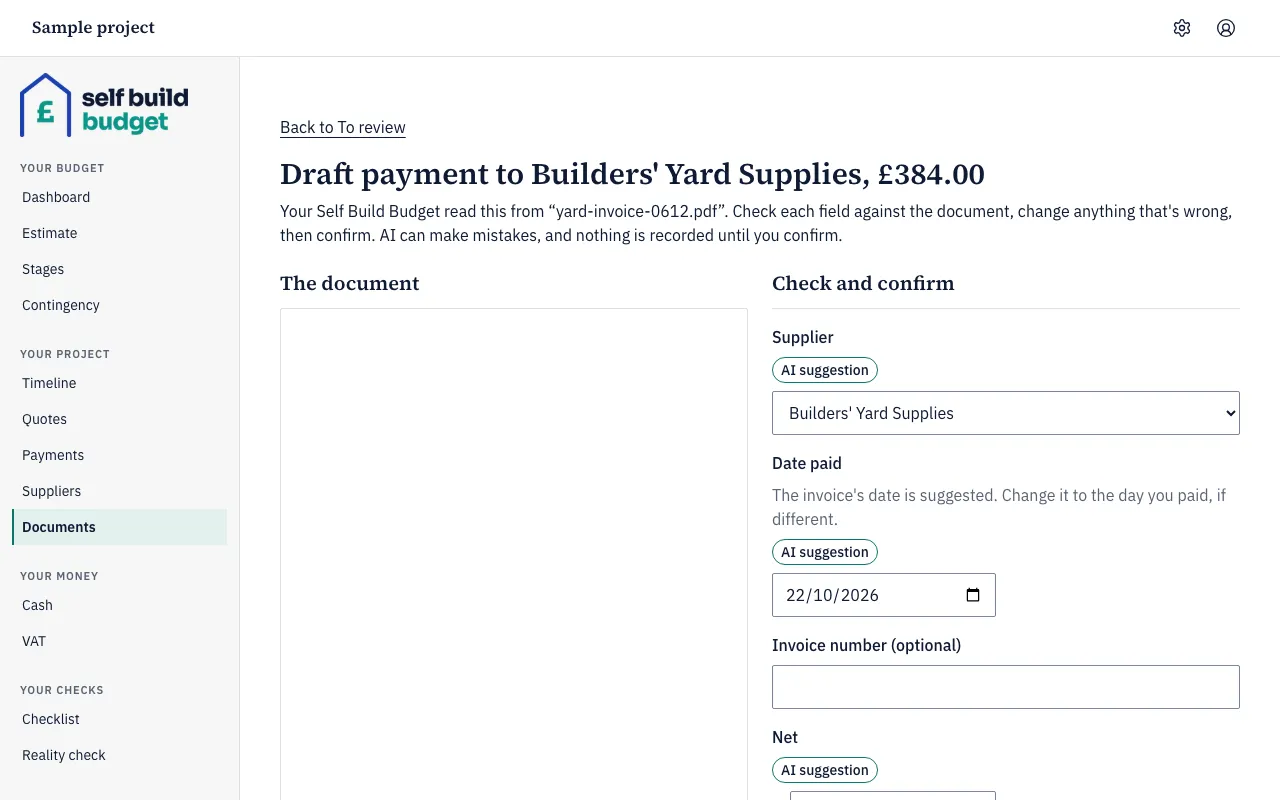
- Check Supplier. If the supplier isn’t in your list yet, the app suggests it as a new one, with “(new)” after the name.
- Check Date paid. The app suggests the invoice’s date, so change it to the day you paid if that’s different.
- Check Invoice number (optional), then Net and the amounts below it. Change anything that’s wrong.
- Check the budget line and the VAT treatment the draft suggests. The app bases the line on earlier payments to the same supplier.
- When everything matches the document, use the button at the end of the form to confirm the draft. The payment or quote is recorded, and the document is linked to it.
- To drop a draft instead, use the button at the end of the form to discard it. The document stays on the Documents page.
Good to know
- Nothing counts until you confirm it. A draft doesn’t appear on the Dashboard or anywhere else. Once you confirm a payment, it counts on the Dashboard (Spent so far) and on the budget screens, like any other payment.
- AI can make mistakes, so check every field against the document.
- A field the app is unsure of is highlighted Please check. If the net, VAT and total don’t add up, all three are highlighted Please check: these don’t add up.
- If a draft looks like a payment you’ve already recorded, it warns you with “This looks like a duplicate of a payment recorded on” and the date.
- Only invoices, receipts and quotes become drafts. For other documents, such as a warranty certificate, the app suggests only the type and the supplier.
- If a document can’t be read, you see “We couldn’t read this document. You can enter the details yourself.” The document is still saved.
Who can do this
The owner or a partner can confirm or discard a draft. Viewers don’t see drafts.
On Free, this page is locked. See what each plan includes