

Run the pre-start reality check
PlanStandard and Professional
The Reality check shows how your budget compares with typical builds like yours, and points out common budget mistakes to fix before you start building. It is advice only.
Steps
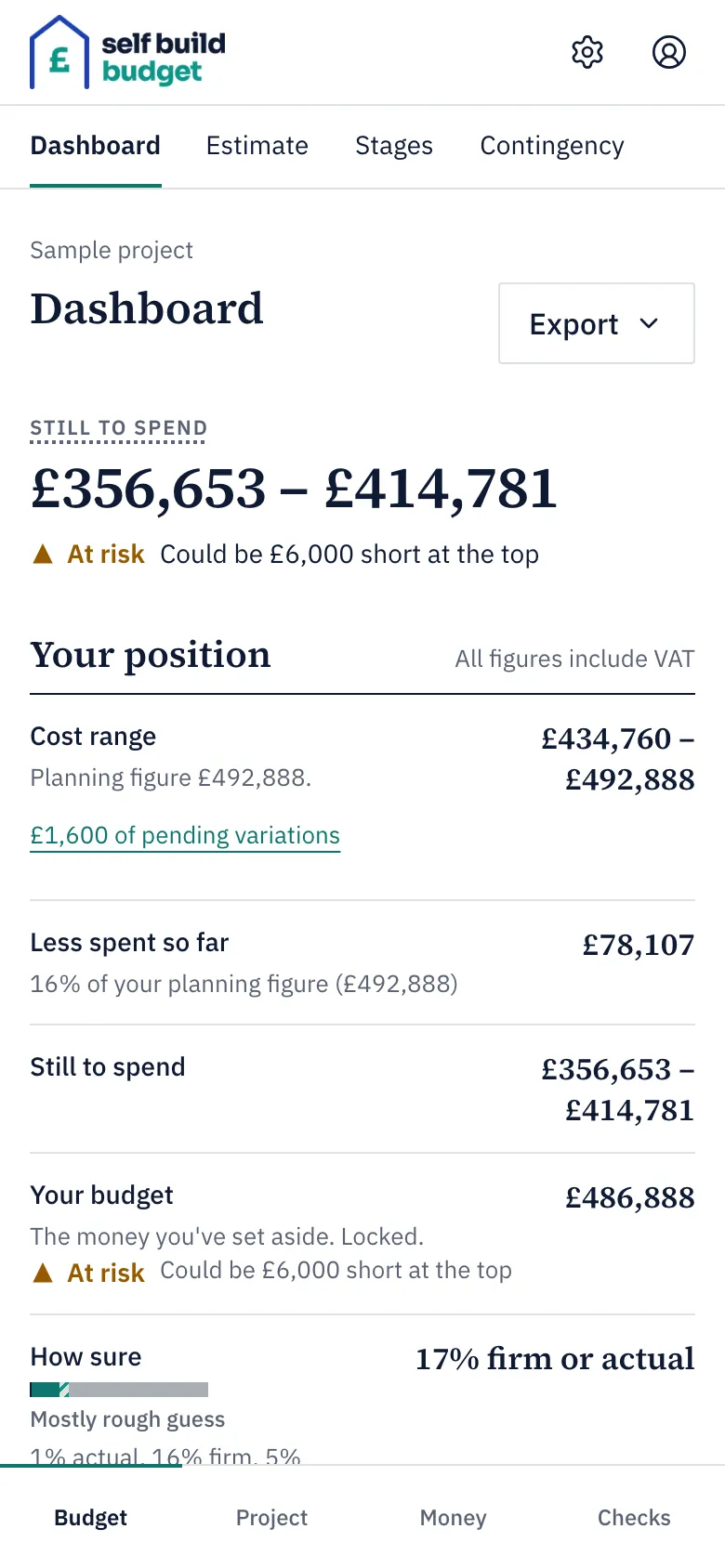
- Open the Reality check page. On a desktop, choose Reality check in the menu on the left. On a phone, tap Checks at the bottom of the screen, then Reality check at the top.
- Read the note under the heading. It says which figures are ex VAT and which include VAT (see Good to know below).
- Look for the label Illustrative only: not real benchmarks. If you see it, treat the comparisons as a rough guide only.
- Under Health checks, read the heading. It tells you how many things to look at, or says “No issues found” if every check passes.
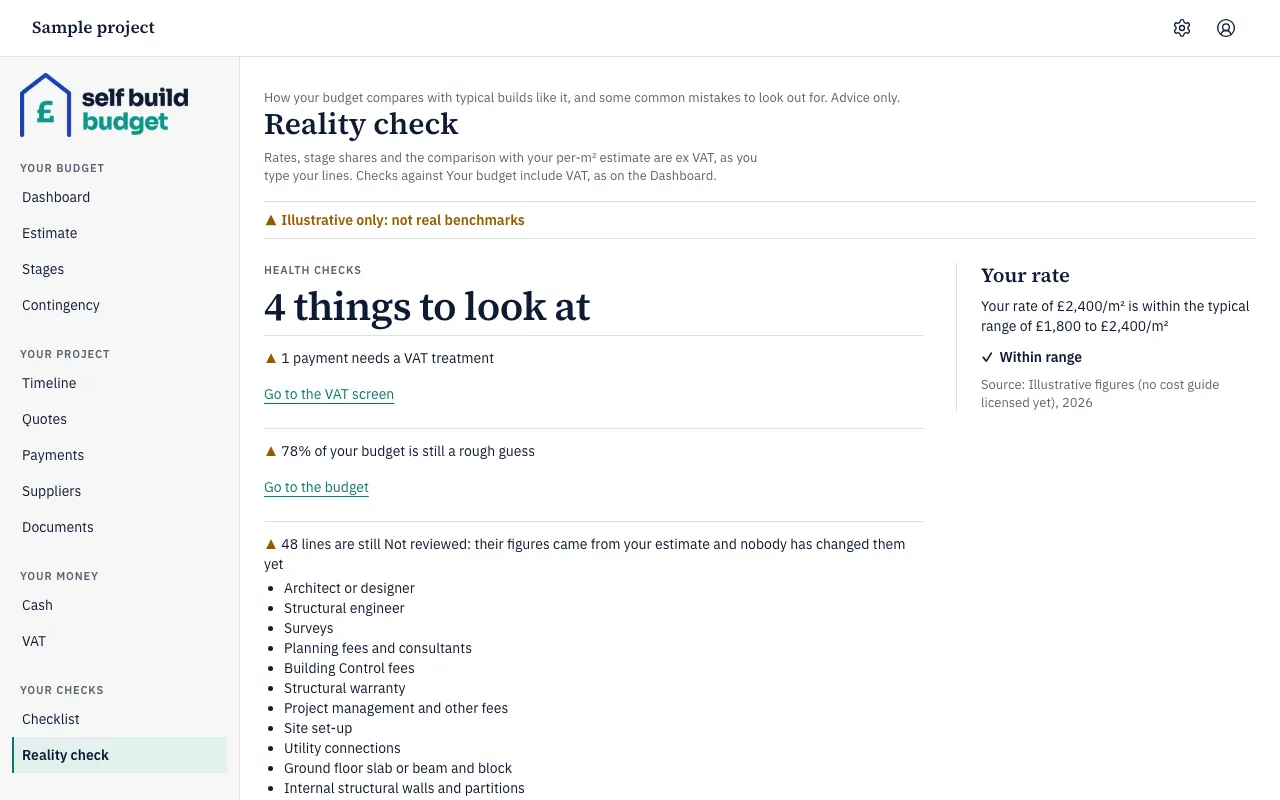
- Work down the health checks. The page can flag:
- a low contingency, shown as a percentage of your budget
- a stage with no budget
- a cost range that is well below your per-m² estimate
- payments that need a VAT treatment
- the share of your budget that is still a rough guess
- lines that are still Not reviewed, which are listed for you
- a line whose high is more than three times its low, listed as a very wide range
- a contingency that is small compared with the uncertainty in your ranges
- a warning such as “You could be £13,000 short at the top of your cost range”, when your budget is less than the top of your cost range
- Where a check has a link, such as Go to the budget, choose it to go to the place where you can fix the problem.
- Look at Your rate. It compares your rate per m² with the typical range for your region and quality level, and shows a result such as Within range. If your rate is below the range, it says so. Each comparison shows its source and year.
- Check how your stages compare. A stage whose share of your budget (excluding contingency) is below its typical share is flagged. For example, a Roof at 4% against a typical 6% to 9% is flagged as below its typical share.
- After you change your budget, come back to the Reality check page to see whether the checks have cleared.
Good to know
- Rates, stage shares and the comparison with your per-m² estimate are ex VAT, as you type your lines. Checks against Your budget include VAT, as on the Dashboard.
- If there is no benchmark for your region and quality level, you see “No benchmark yet for your region and quality level”. The health checks are still shown.
- Stage shares are worked out from your budget excluding contingency.
- The Go to the VAT screen link appears when payments need a VAT treatment. On Standard the VAT screen isn’t included, so the link takes you to Payments instead. The VAT screen is part of Professional.
- A Not reviewed line still holds the starting figures from your estimate. It clears the first time you change the line.
- The figures on this page are a guide, not financial or tax advice.
Questions about the VAT claim? Email us.
Who can do this
Owners and partners can use the Reality check. Viewers don’t see this page.
On Free, this page is locked. See what each plan includes