

Update your estimate
PlanAll plans, including Free
Your estimate is the starting figure for the whole build. It comes from your floor area and a low and a high cost per m². You can change it whenever your plans change, and the Estimate page shows how your budget lines compare.
Steps
- Open the Estimate page. On a desktop, choose Estimate in the menu on the left. On a phone, tap the Budget tab at the bottom of the screen, then the Estimate tab at the top.
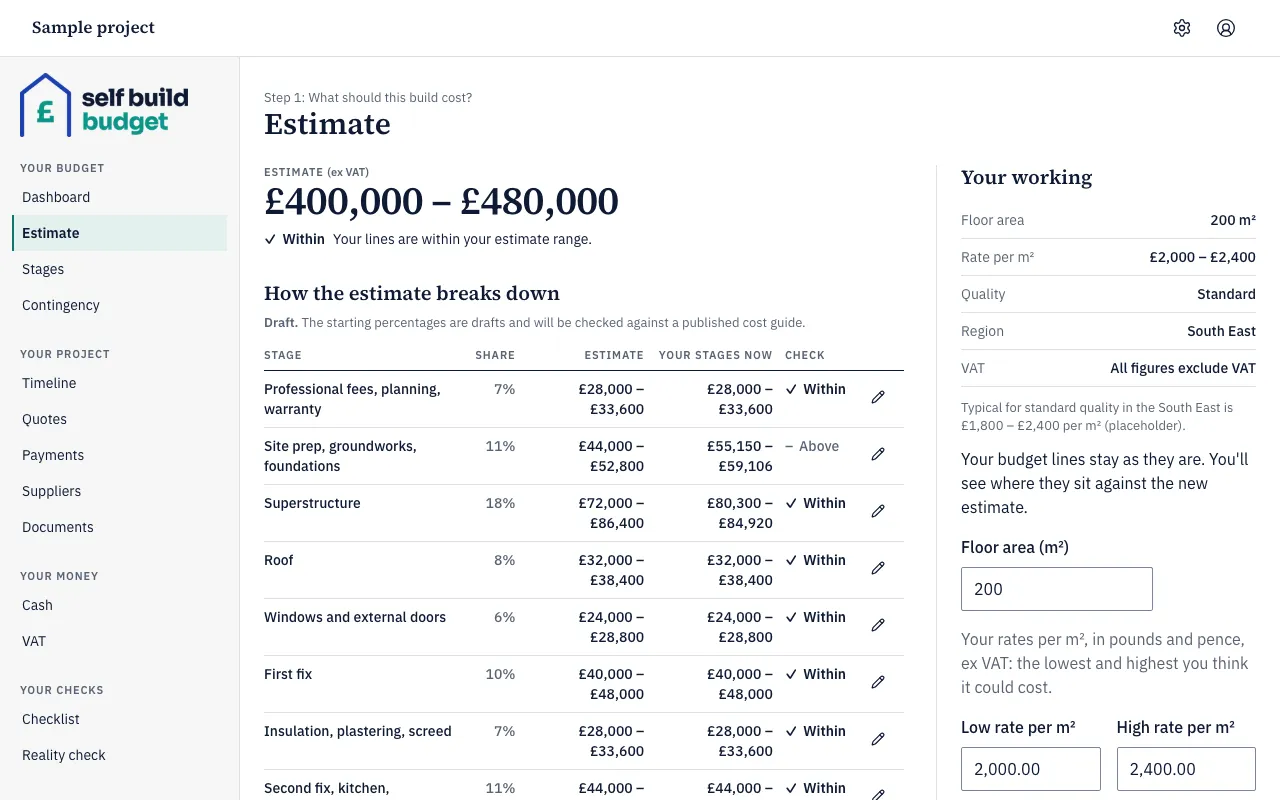
- Look at Your working. It shows your Floor area, Rate per m², Quality, Region and that all figures exclude VAT.
- In Floor area (m²), type the new floor area. For example, change 200 to 220.
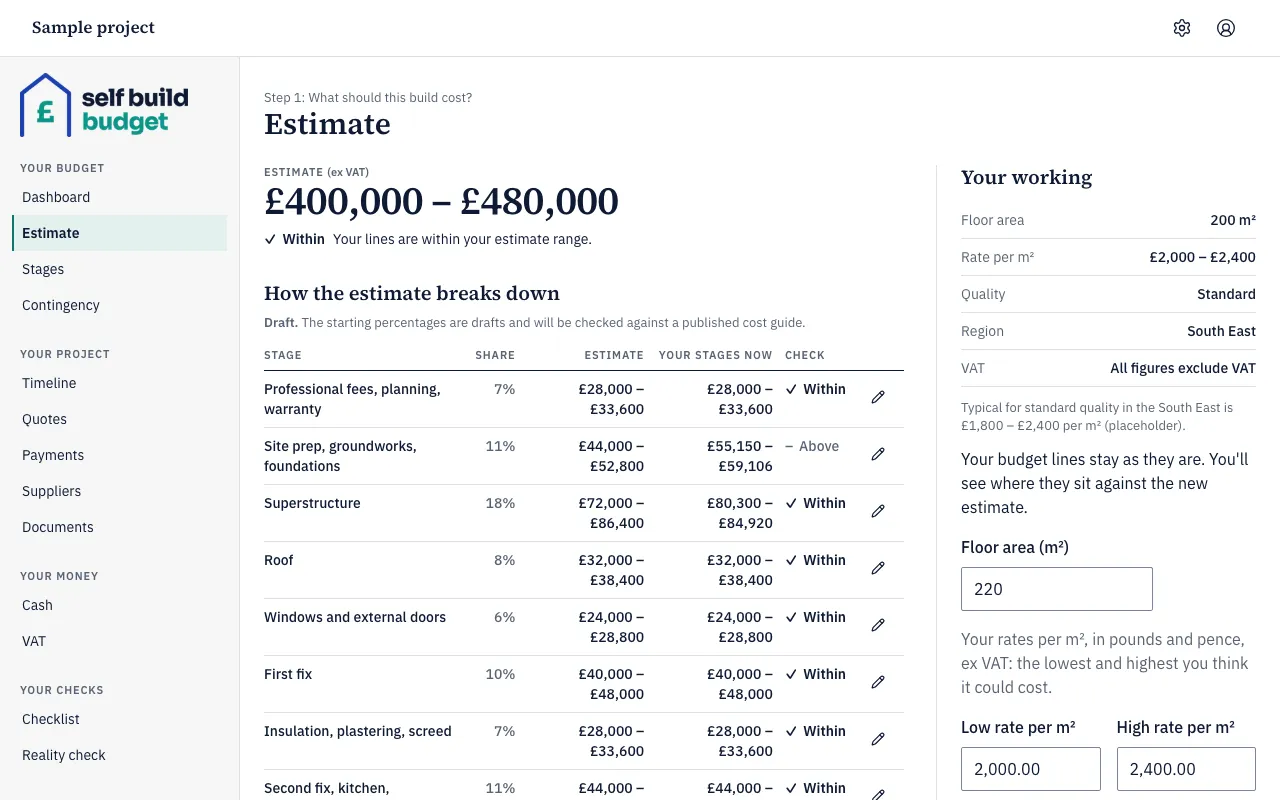
- If your rates have changed, type the new figures in Low rate per m² and High rate per m². Enter your rates in pounds and pence, excluding VAT: the lowest and highest you think it could cost.
- Save your change.
- Check the estimate at the top of the page, marked ESTIMATE (ex VAT). It now uses your new figures. With 220 m² at £2,000.00 and £2,400.00 per m², it becomes £440,000 to £528,000.
- Read the line under the estimate. It tells you how your budget lines compare with the new estimate. For the Sample project it says Within: “Your lines are within your estimate range.”
Good to know
- Your budget lines don’t change. Changing the estimate never changes your lines. The estimate is your plan and your lines are what you have itemised, so they don’t have to match. To change lines, use Work with stages and lines (editing there needs Standard).
- The estimate gap. The message under the estimate compares your cost range with your estimate. It says your lines are within your estimate range, below the low end of it, or above the top end of it.
- Check each stage. In How the estimate breaks down, each stage shows its ESTIMATE, YOUR STAGES NOW and a CHECK, such as Within or Above. A stage whose lines add up to less than its estimate shows a check saying it is below.
- Low can’t be above high. If Low rate per m² is more than High rate per m², you see “The low rate can’t be more than the high rate”.
- Older projects. If your project was created before ranged estimates, the low and high rate may be the same figure, with a note: “Add a low and high rate to turn your estimate into a range.” Enter both rates to make it a range. Your lines stay as they are.
- Stage shares. Use the pencil icon beside a stage to change its percentage. The percentages can’t add up to more than 100%. If they add up to less, the total row shows how much is unallocated.
The figures are a guide, not financial or tax advice.
Who can do this
The owner and partners can change the estimate. Viewers can see the Estimate page but can’t change anything on it.