

Keep your supplier list
PlanStandard and Professional
Your supplier list keeps each business or person you buy from in one place, so you enter their details once. You can see what you’ve agreed and paid with each of them, and tidy up any duplicates.
Steps
Add a supplier
- Open the Suppliers page. On a desktop, choose Suppliers in the menu on the left. On a phone, tap the Project tab at the bottom of the screen, then the Suppliers tab at the top.
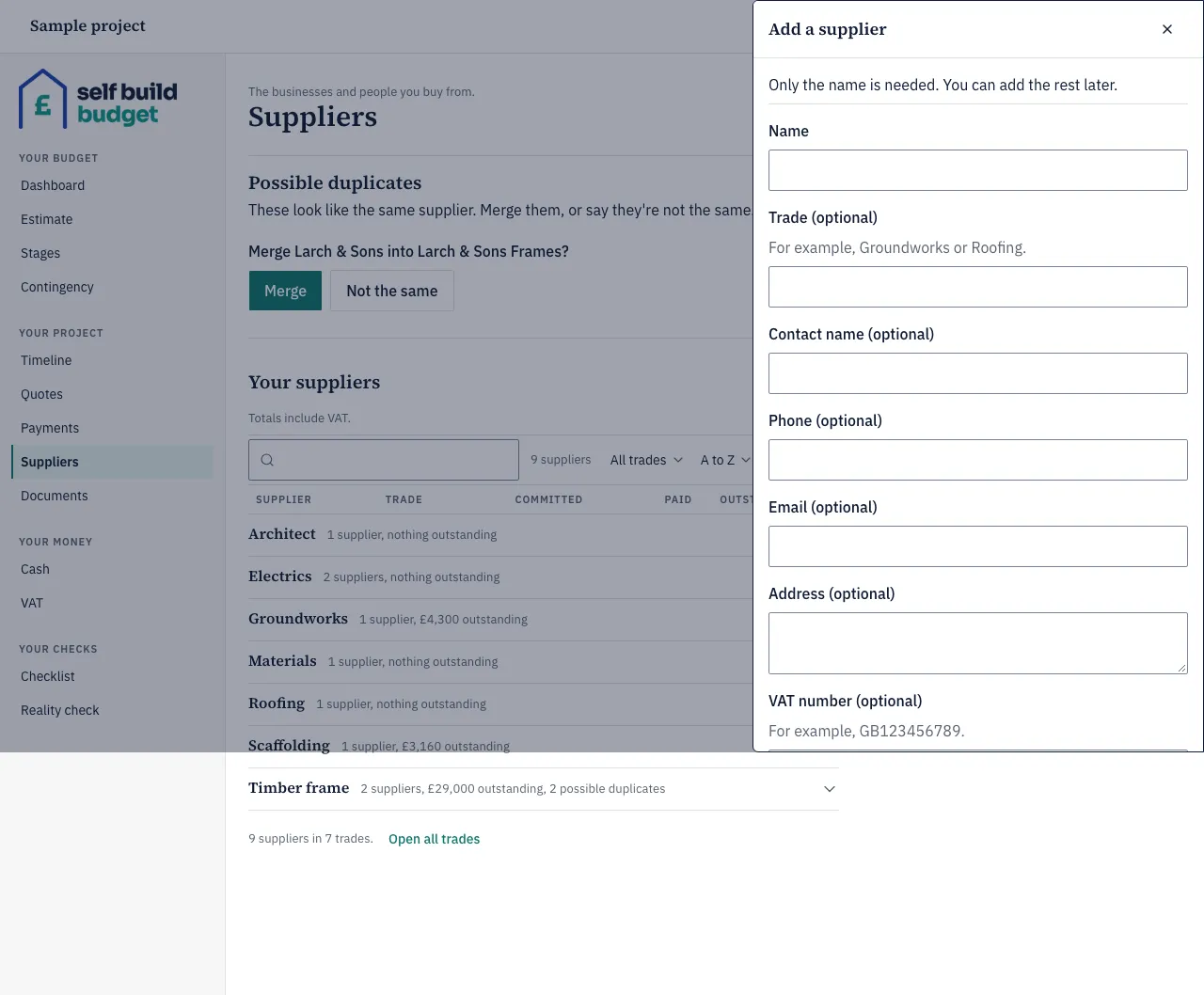
- Choose Add supplier. A form opens.
- Type the supplier’s name in Name. This is the only thing you must fill in.
- If you want to, fill in Trade (optional), Contact name (optional), Phone (optional), Email (optional), Address (optional) and VAT number (optional). You can add these later.
- Save the supplier with the button at the bottom of the form.
The supplier now appears in the list under its trade.
Find a supplier
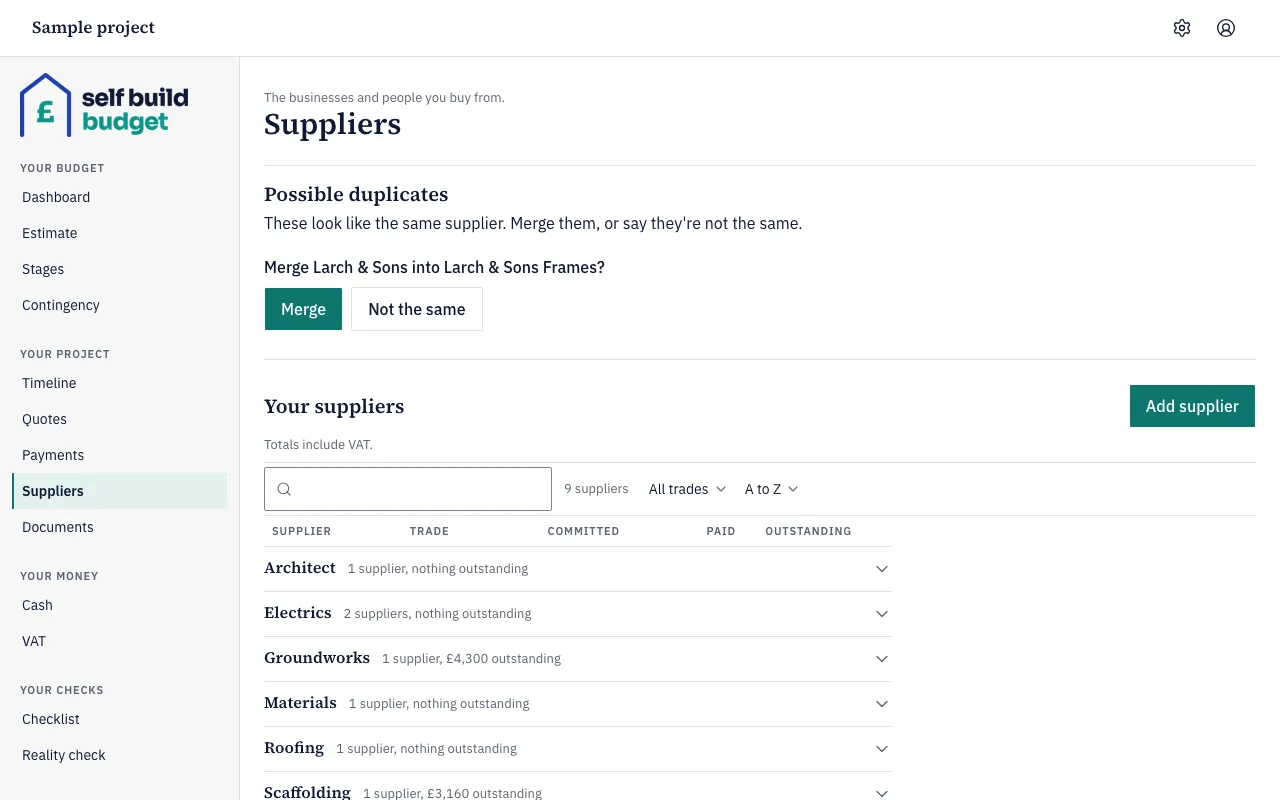
- Open the Suppliers page. The list is grouped by trade.
- Use the search box above the list, or the trade and sort menus next to it, to narrow the list.
- Choose a trade to open it and see its suppliers. Choose Open all trades to open every trade at once.
See what you’ve agreed and paid
- Choose a supplier’s name in the list. Their page opens.
- Look under Totals. It shows Quoted, Committed, Paid and Outstanding, all including VAT.
- Scroll down to see the quotes, payments and documents linked to that supplier.
- Choose Back to suppliers to return to the list.
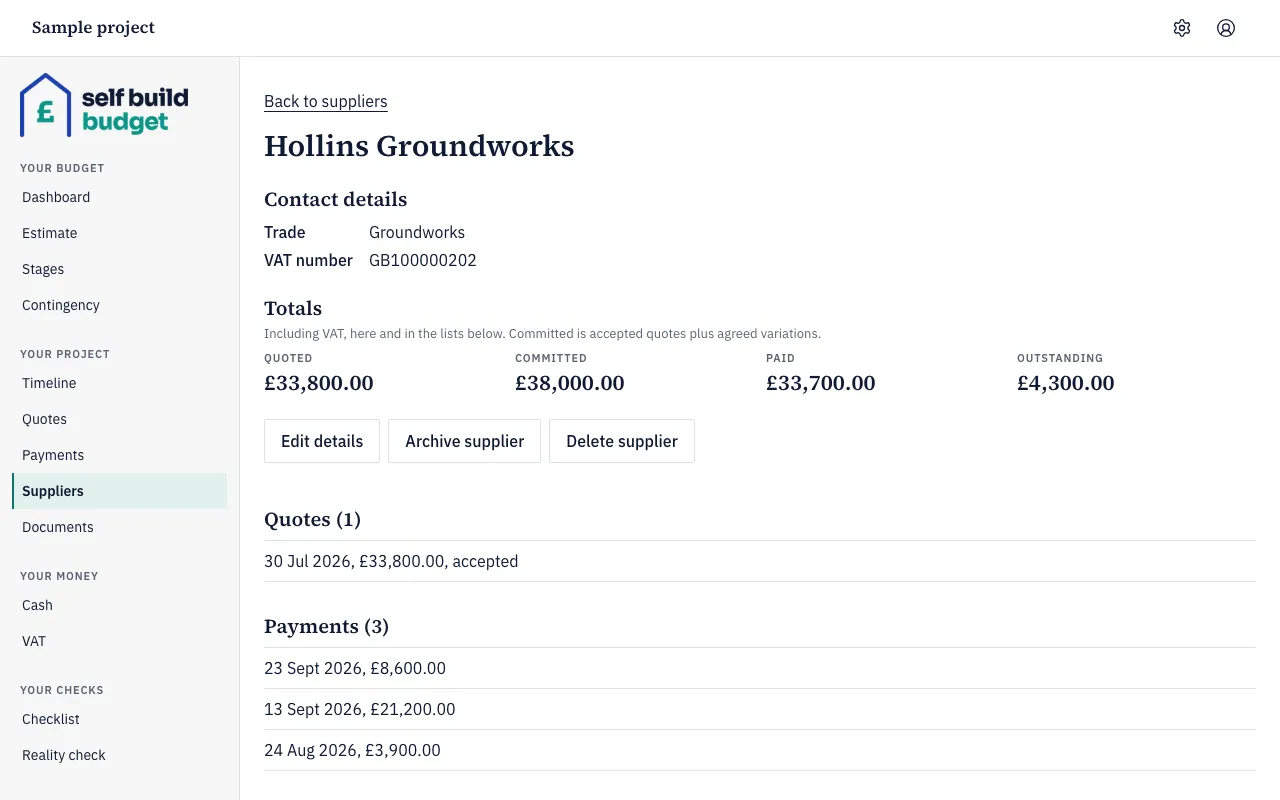
For example, a supplier with an accepted quote of £42,000, an agreed variation of +£2,800 and payments of £20,000 shows Committed £44,800.00, Paid £20,000.00 and Outstanding £24,800.00.
Change a supplier’s details
- Open the supplier’s page.
- Choose Edit details and make your changes.
If you rename a supplier, their payments show the new name straight away. Documents the app named automatically after the supplier are renamed too.
Pick a supplier on a quote or payment
- Start a new quote or payment. See Add a quote and split it across lines and Record a payment.
- In the supplier picker on the form, search for the supplier and choose them. The quote or payment is linked to that supplier.
- If the supplier isn’t there yet, add them from the picker while you record a quote. They then appear in your Suppliers list.
A payment uses the VAT number saved on its supplier.
Merge duplicates
- Open the Suppliers page.
- Look at Possible duplicates. When two suppliers look like the same one, the page asks, for example, “Merge one name into another?”
- If they are the same supplier, choose Merge. The quotes, payments and documents of both end up with the supplier you kept, and the other name no longer appears in your list.
- If they are different suppliers, choose Not the same.
- If the two have different VAT numbers, the app asks which one to keep.
Archive or delete a supplier
- Open the supplier’s page.
- Choose Archive supplier to hide a supplier you no longer use. Archived suppliers aren’t offered in the supplier picker.
- Choose Delete supplier only for a supplier with nothing linked to them.
Good to know
- Suppliers can’t share a name. The app treats names as the same even if the capital letters, extra spaces or an ending such as Ltd or Limited differ, and it won’t let you add the second one.
- A VAT number must be a UK VAT number, for example GB123456789.
- A supplier with quotes, payments or documents can’t be deleted. Archive them instead.
- Committed is the supplier’s accepted quotes plus any agreed variations.
- To use a different VAT number for one payment, don’t change the payment form. Use that payment’s invoice checks on the VAT page instead. Supplier’s VAT number starts as the supplier’s own, and a different number needs a note. It applies to that payment only. Invoice checks are part of the VAT claim, which is included in the Professional plan.
- Use Merge carefully: it combines everything linked to both suppliers into one.
Who can do this
Owners and partners can add, edit, merge, archive and delete suppliers. Viewers can see the Suppliers page but can’t change anything on it.
On Free, this page is locked. See what each plan includes