

Let support see your project
PlanStandard and Professional
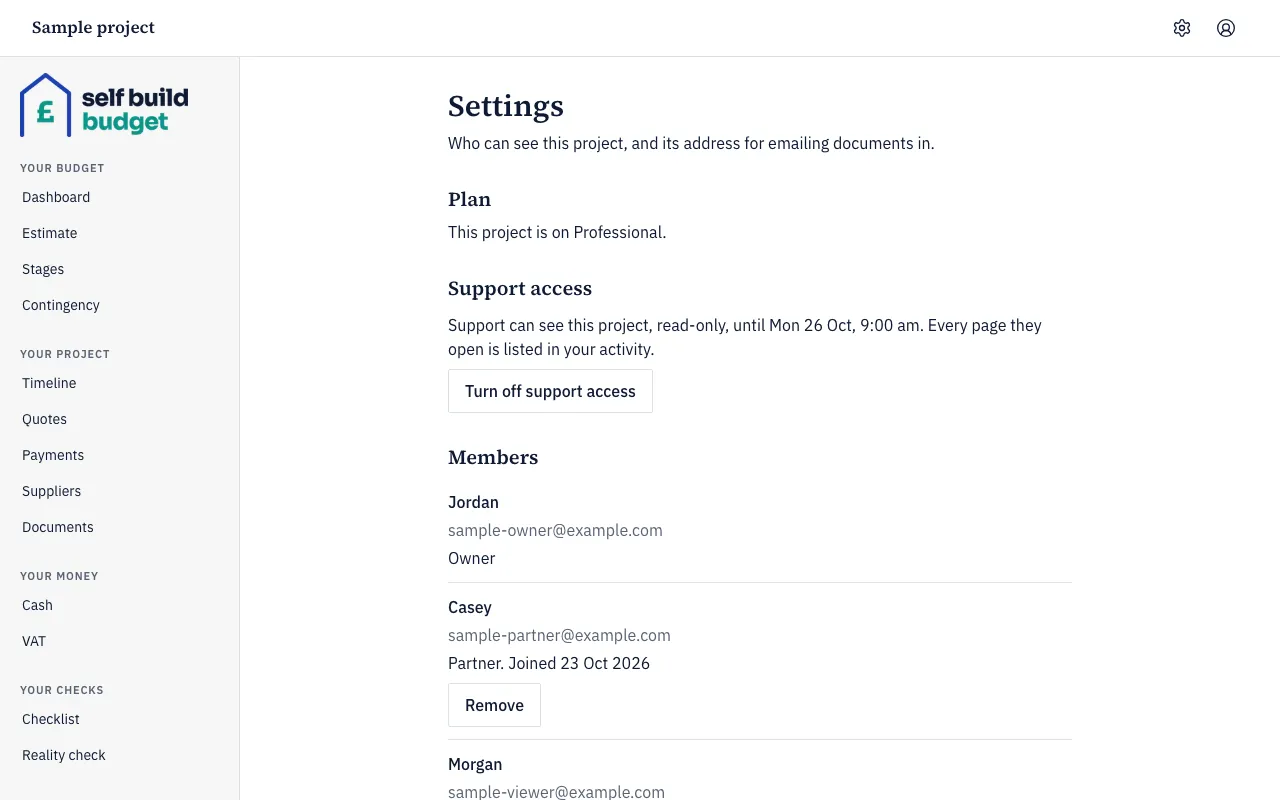
Support access lets Self Build Budget support look at your project, read-only, for a limited time, so you can get help without handing over your data for good.
Before you start
You need to be the owner of the project, and the project needs to be on Standard or Professional.
Steps
- Choose the Settings (cog) icon in the header. It is in the same place on a desktop and on a phone.
- Find the Support access heading.
- Turn on the option that lets support see your project. Support can see it straight away, and the access runs for 72 hours.
- Check the Support access section. It now says when support can see the project until, and shows Turn off support access.
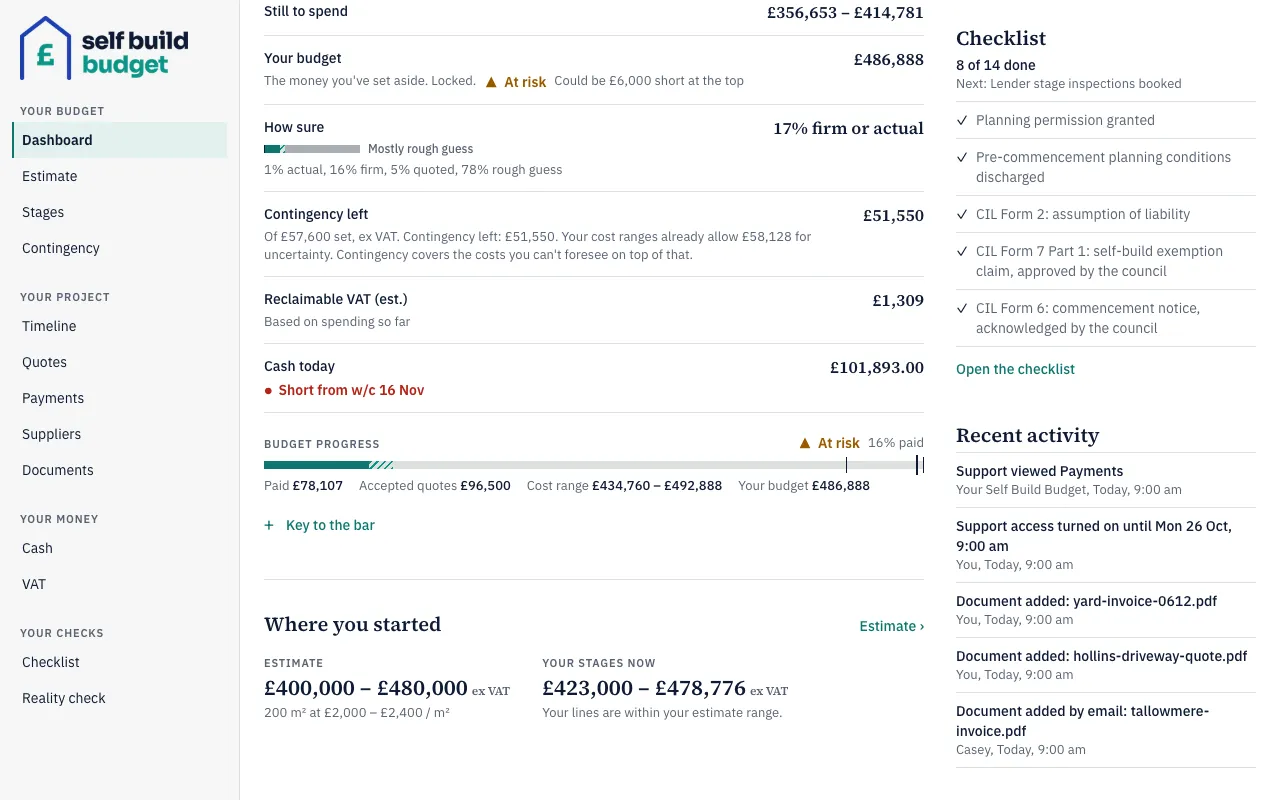
- To see what support has looked at, open the Dashboard. On a desktop, choose Dashboard in the menu on the left. On a phone, tap the Budget tab at the bottom of the screen, then the Dashboard tab at the top.
- Look at Recent activity. It shows that you turned support access on, and it lists each page support opens, such as “Support viewed Payments”.
- To end support access early, go back to Settings and choose Turn off support access. Support’s next request is refused.
Good to know
- Support access ends on its own after 72 hours. After that, support sees account details only, not your project.
- Support can only read your project. It can’t change anything.
- Every page support opens is listed in your activity, with the date and time.
- Partners can see in Settings that support access is on, and until when. They don’t see the control to turn it on or off.
- If your project drops to Free while support access is running, support can still read the project until the 72 hours end. You can still turn it off. Once it is off, you can’t start a new one unless the project is back on Standard or Professional.
- On a Free project, the Support access section tells you that letting support see your project is part of Standard and Professional, and shows a lock beside it.
Who can do this
Only the owner can turn support access on or off. Partners can see that it is on and until when, but can’t change it.
On Free, this page is locked. See what each plan includes