

Work through the paperwork checklist
PlanStandard and Professional
The checklist lists the paperwork a self build needs, so you don’t miss a step that costs money. You update each item as you go, and the app warns you when you’re about to start too early or a deadline is close.
Steps
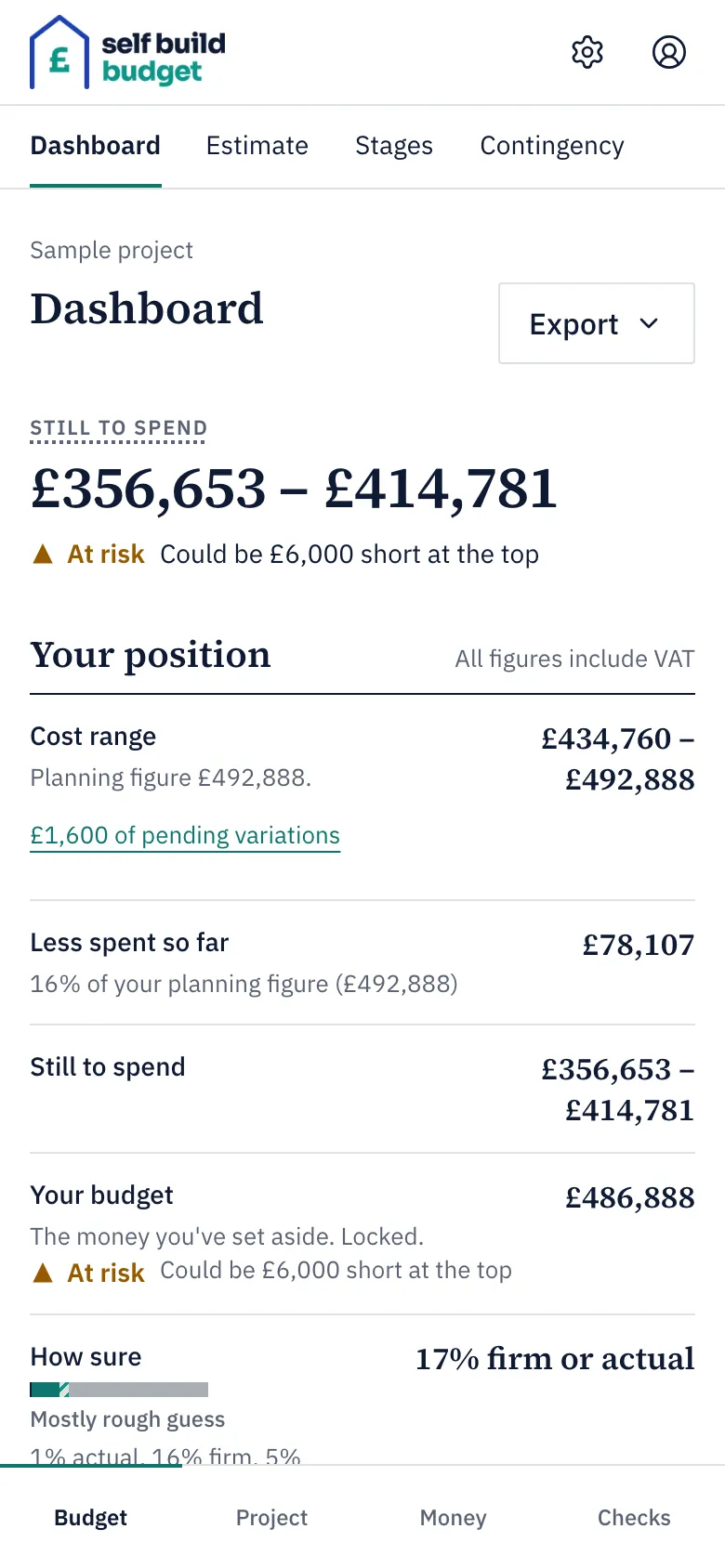
- Open the checklist. On a desktop, choose Checklist in the menu on the left. On a phone, tap the Checks tab at the bottom of the screen, then the Checklist tab at the top.
- Look at how the list is laid out. The items are grouped under Before start, During build, Completion and After completion. Each item shows its status, dates and documents. A new project starts with every item Not started.
- Look at the figure at the top, such as 6 of 15 items. It shows how many items are still outstanding.
- Choose an item to open it. On a wide desktop screen it opens beside the list. Choosing another item closes it.
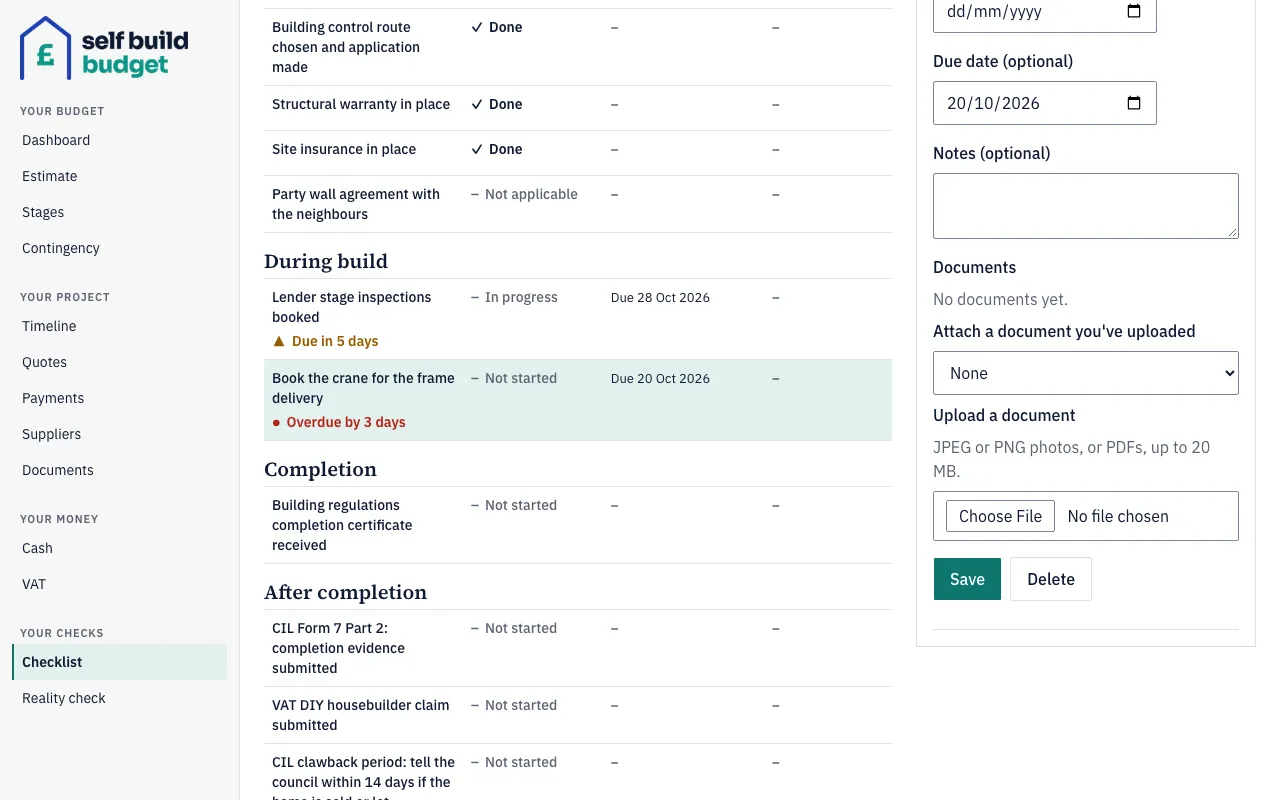
- Set the item’s status: Done, In progress, Not started or Not applicable.
- Enter the dates that apply. For example, for a form you send to the council, add the date you sent it and the date it was acknowledged. You can also fill in Due date (optional).
- Add anything useful in Notes (optional).
- To keep evidence with the item, choose a file under Attach a document you’ve uploaded. Or choose Choose File under Upload a document and pick a JPEG or PNG photo or a PDF.
- Choose Save. The item now shows its status, its dates and how many documents it holds.
- If a step doesn’t apply to your build, open it, set the status to Not applicable and choose Save.
- To add a step of your own, choose Add an item. Give it a name and choose the group it belongs in. It appears in that group alongside the standard items.
Dates and warnings
- When your building regulations completion certificate arrives, open Building regulations completion certificate received. Set it to Done and enter the date you received it. Then choose Save.
- Check the items in After completion. The app counts their deadlines from that completion date, including the one for your DIY housebuilders’ claim.
- Watch for the highlights on items that aren’t done and have a due date. An item shows a warning such as Due in 5 days as the date gets close. It shows Overdue by 3 days once the date has passed.
- Check the Dashboard too. When a deadline is close, it shows a line such as 1 deadline due soon. Choose it to go to the Checklist.
Good to know
- Items marked Not applicable aren’t counted as outstanding.
- Once you set a start date for your build, the app warns you not to start work until CIL Forms 2, 7 Part 1 and 6 are marked done. If they are all done, you don’t see the warning.
- On Professional, the VAT DIY housebuilder claim submitted item ticks itself when you record the date you sent your claim on the VAT screen. It then says it follows your VAT claim, and you can’t change it on the checklist.
- On Standard, you tick VAT DIY housebuilder claim submitted yourself and add the date you sent your claim. If you later move to Professional, it stays done with that date, and then follows the date you record on the VAT screen.
- The checklist is a guide only. Check with your council, lender and HMRC for guidance on your own build.
Questions about the VAT claim? Email us.
Who can do this
Owners and partners can work through the checklist. Viewers don’t see the Checklist page, or the checklist on the Dashboard.
On Free, this page is locked. See what each plan includes