

Work with stages and lines
PlanStandard and Professional
Use Stages to see where your money is going stage by stage, then open a stage to change its lines as quotes and decisions come in. Every change is kept in the line’s history.
Before you start
You need to have made your budget. If Stages shows Create my budget, choose it first. Lock or float your budget explains the choice you make there.
Steps
- Open Stages. On a desktop, choose Stages in the menu on the left. On a phone, tap the Budget tab at the bottom of the screen, then the Stages tab at the top.
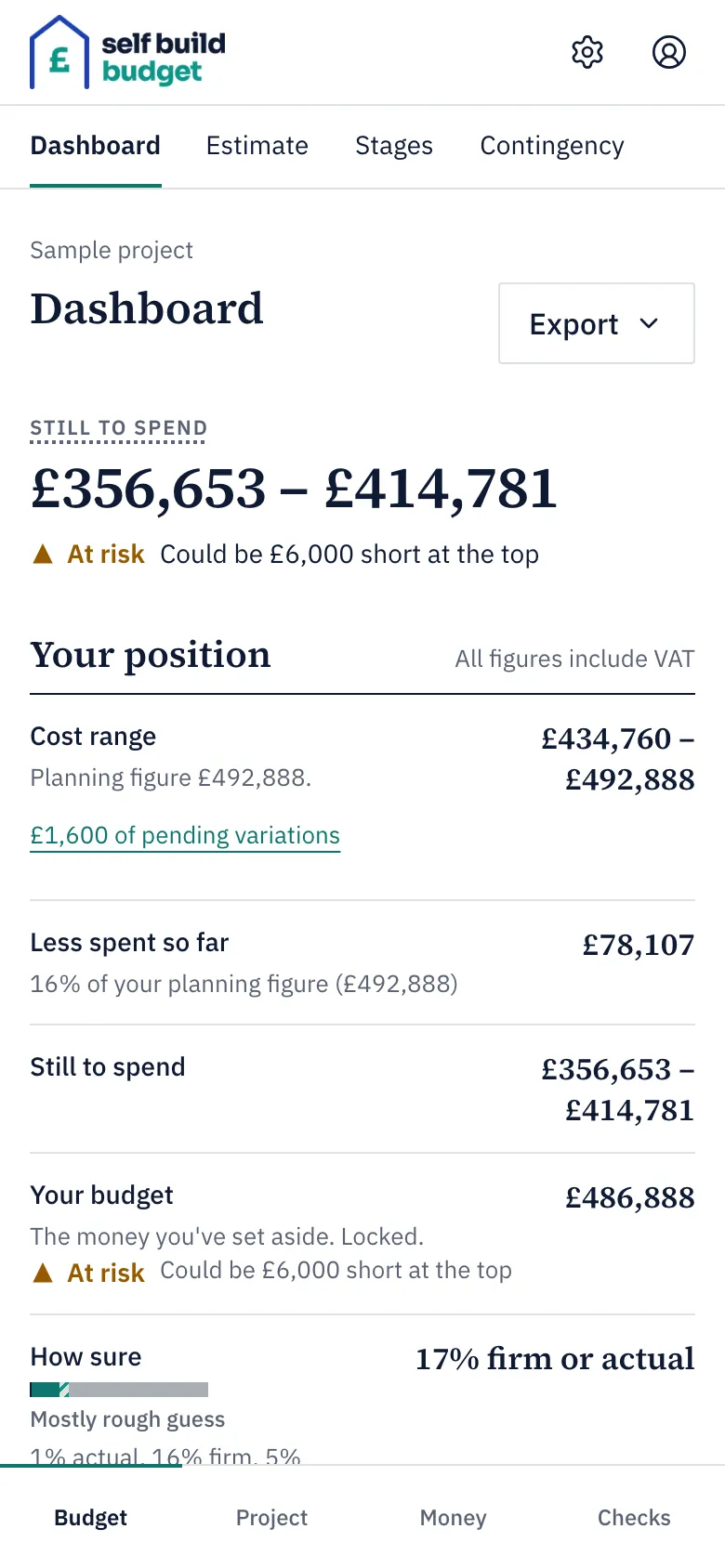
- Choose the stage you want from the list. On a desktop you can click anywhere on its row, including its bars. On a phone, tap the row.
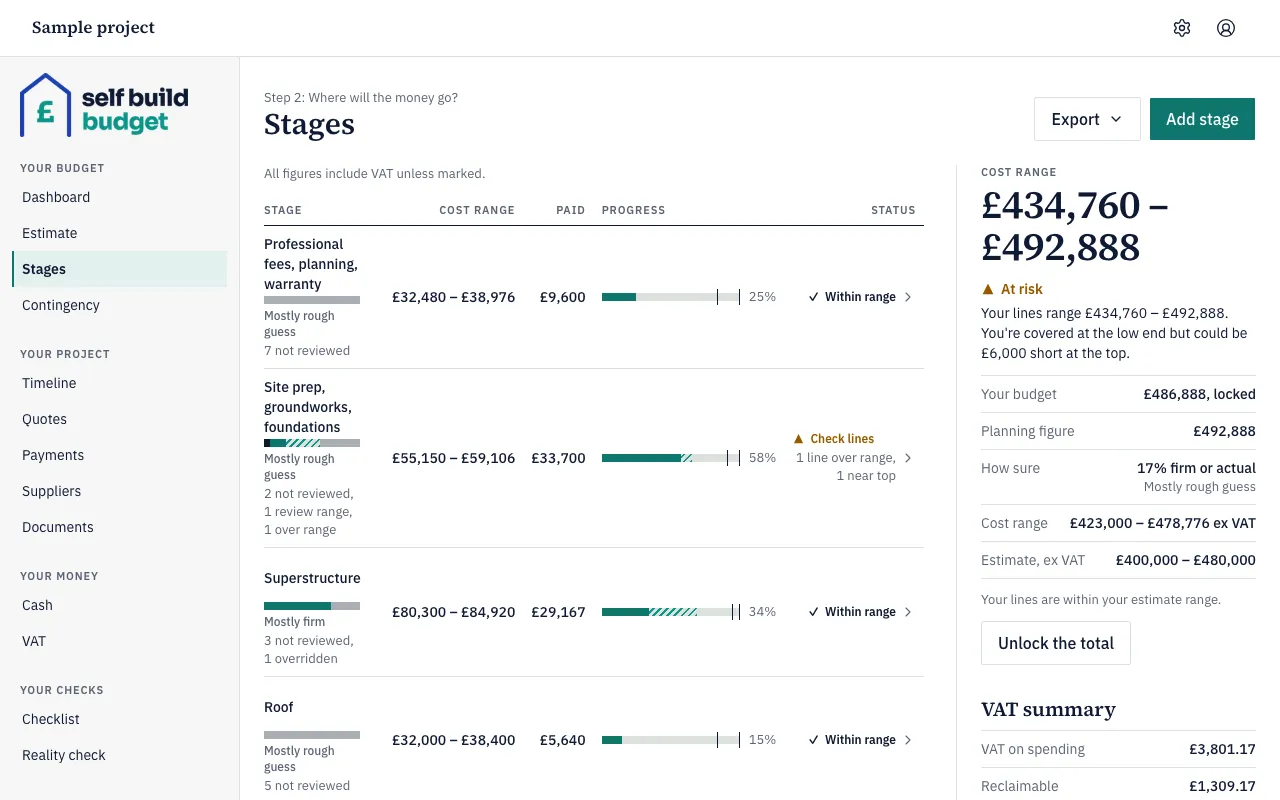
- On the stage’s page, find the line you want to change and choose Edit.
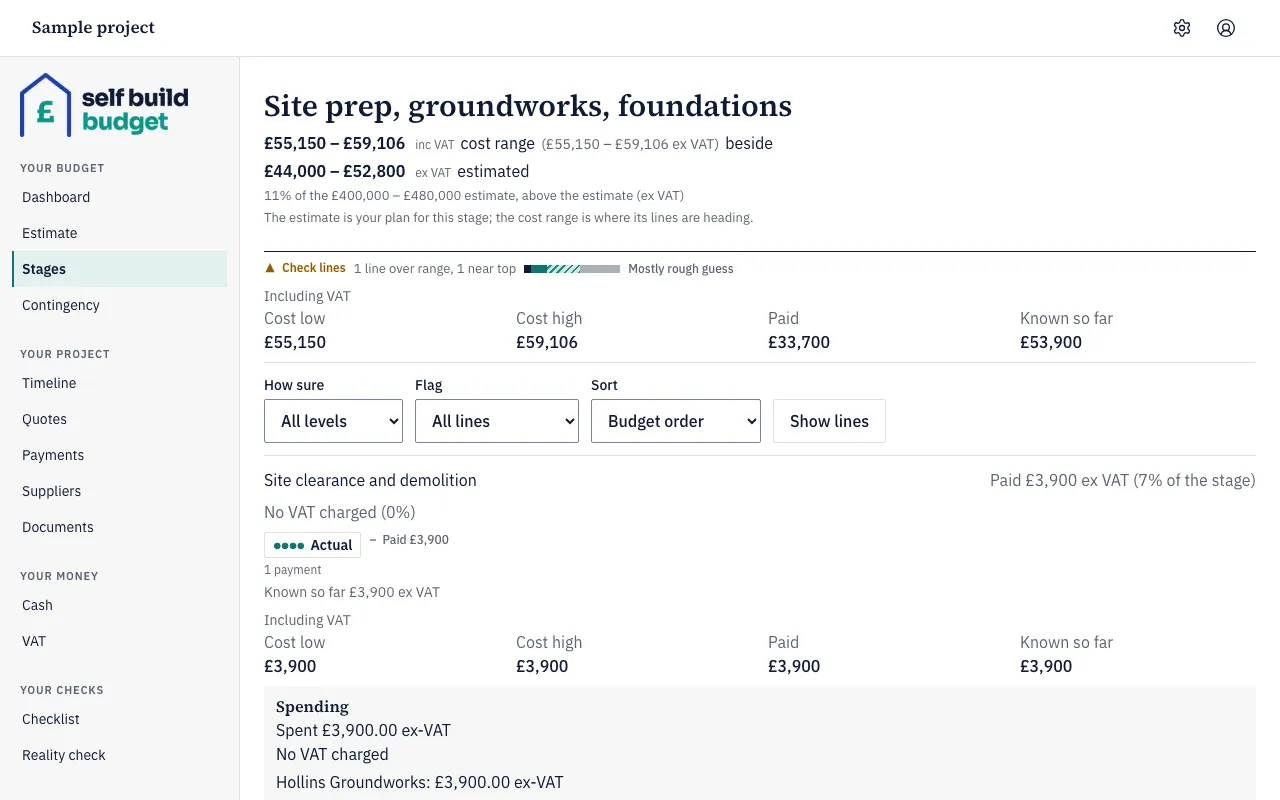
- Under How sure, choose Rough guess, Quoted, Firm or Actual. How sure explains what each level means.
- Type the Low and High for the line. They are in whole pounds, ex VAT.
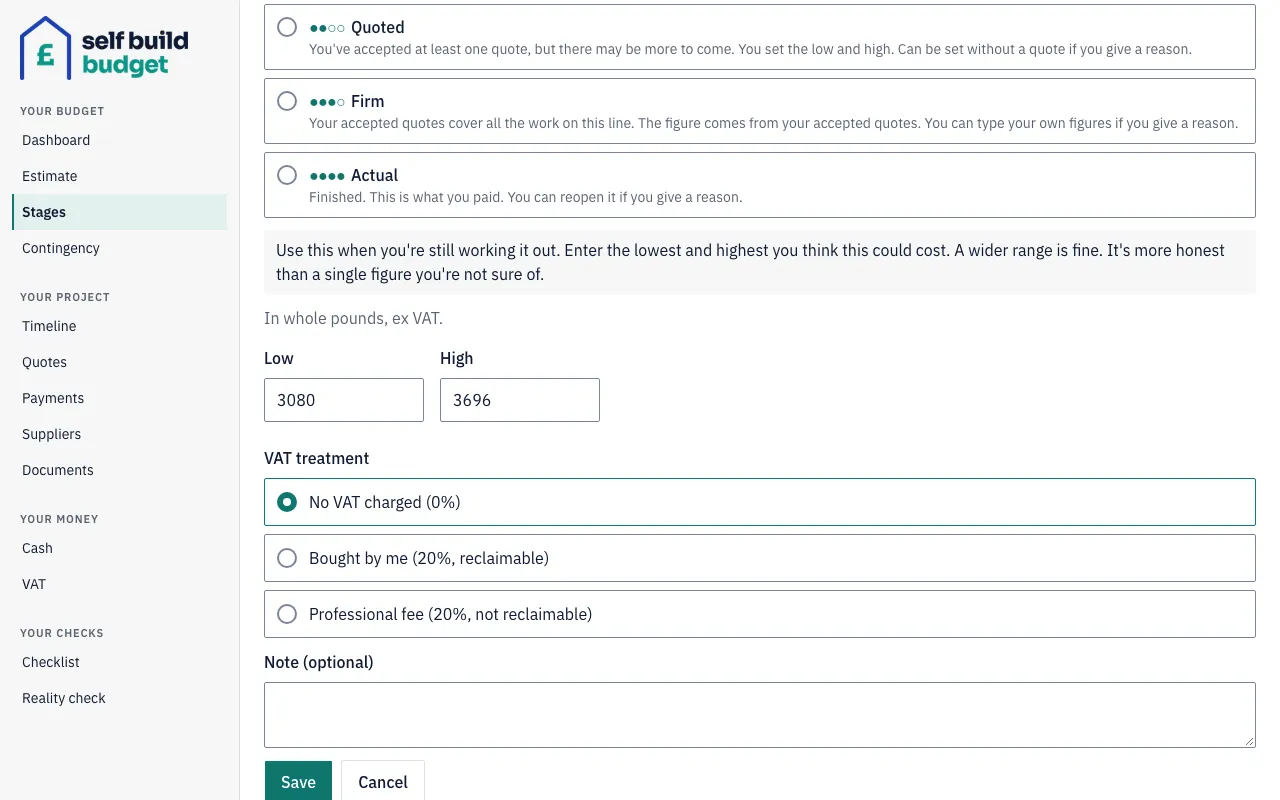
- Under VAT treatment, choose No VAT charged (0%), Bought by me (20%, reclaimable) or Professional fee (20%, not reclaimable).
- If you moved the line up to Quoted or Firm and it has no accepted quote, type your reason in Reason (required). For Firm, also type the figures yourself.
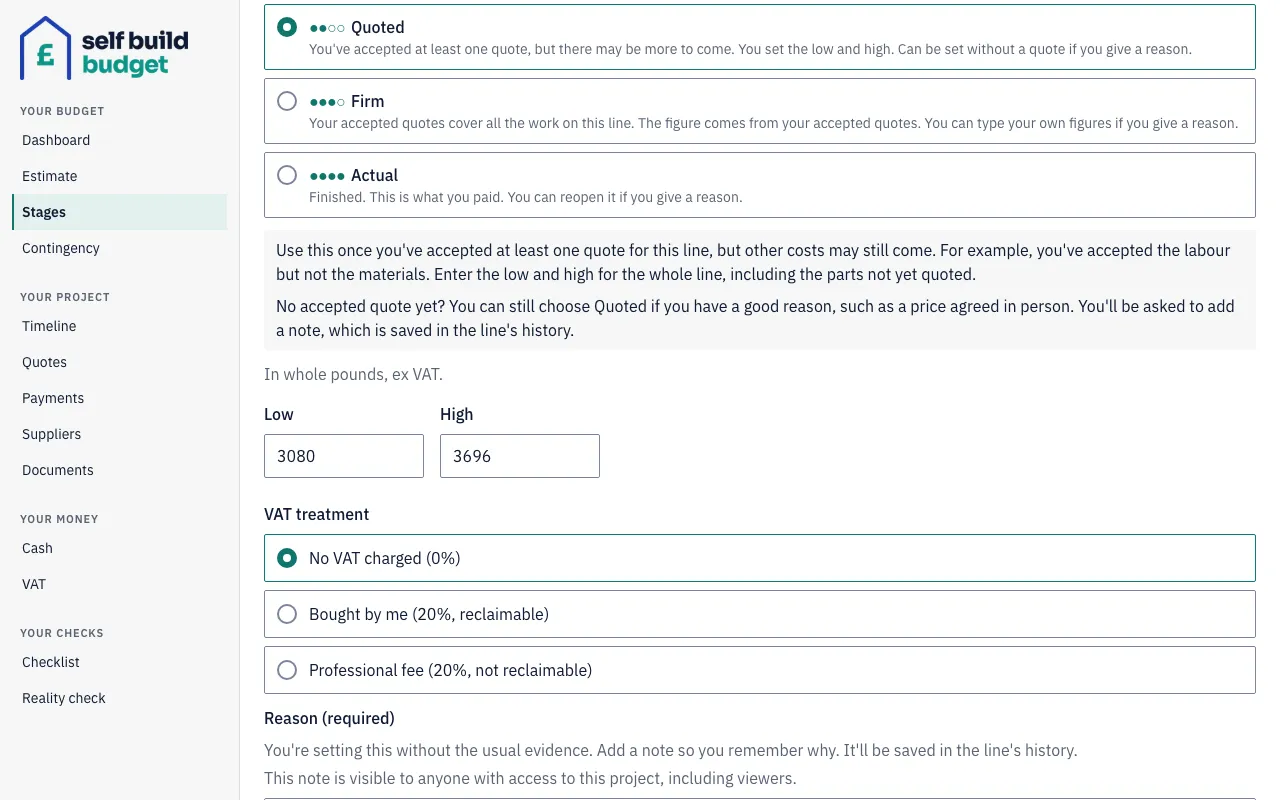
- If you like, add a Note (optional) to say why you made the change.
- Choose Save.
- To see what has changed on a line, choose More under it, then History. It shows the old and new low and high, the note, the date and who made the change.
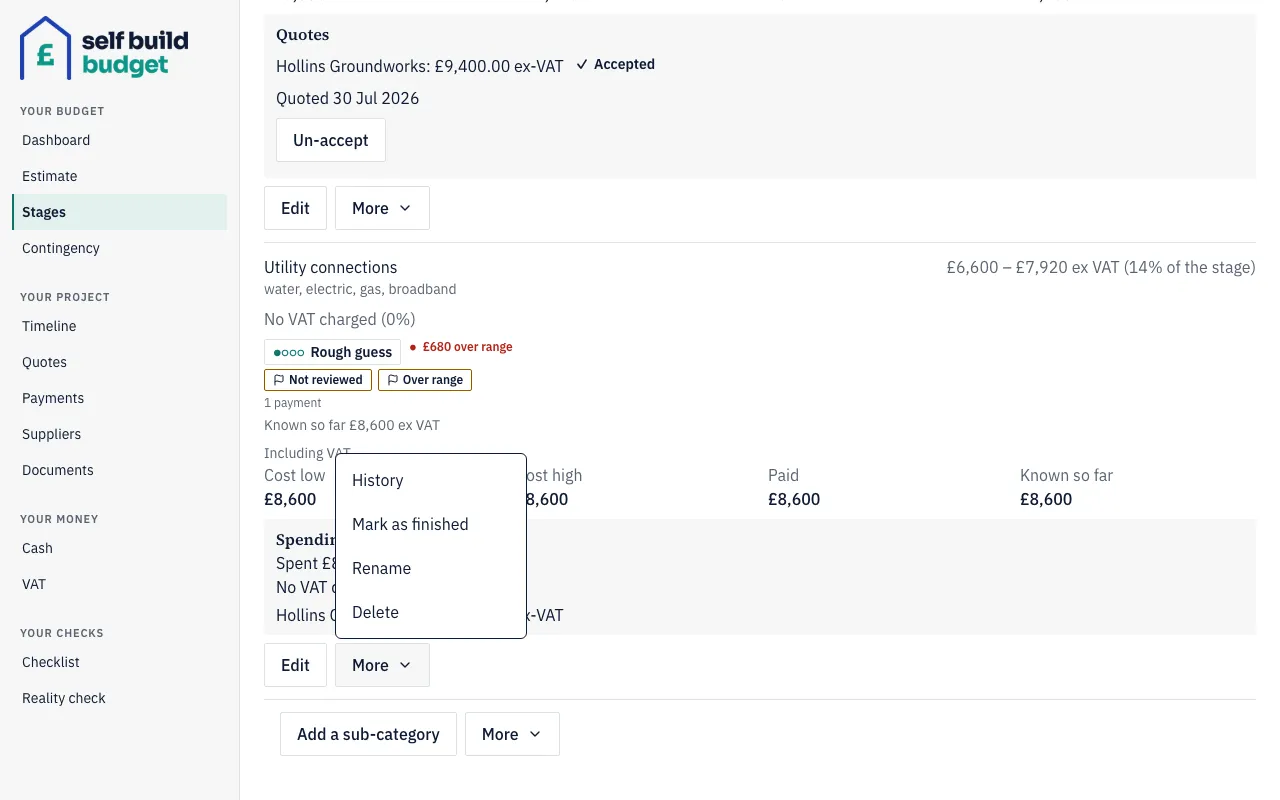
- To finish, rename or remove a line, choose More under it, then Mark as finished, Rename or Delete. If the line has an amount, you are asked to confirm before it is deleted. Mark a line finished, and reopen it covers finishing a line.
- To add a line to a stage, choose Add a sub-category at the bottom of the stage’s page and give it a name.
Good to know
- You type a line’s low and high in whole pounds, ex VAT, and the line also shows its figures including VAT. If you type pence, the app rounds to the nearest pound. A quote counts towards a line only once you accept it, and it counts ex VAT: a £24,000 quote that includes £4,000 VAT shows as Accepted quotes £20,000 ex VAT.
- A stage’s low and high are the sums of its lines. Its cost range can go above the High you typed if payments or accepted quotes pass it. Each line and stage then shows a status such as Within range, Near top of range, Over range, Check lines or Not started.
- A line marked Not reviewed still holds the starting figures from your estimate. The mark clears the first time you change the line.
- Moving a line up to Quoted or Firm without an accepted quote needs a reason. The line is then marked Overridden, with your reason in its history. You can find these lines with the Flag filter. Once a quote on a Quoted line is accepted, it is no longer marked Overridden. Your reason is visible to anyone with access to the project, including viewers.
- Moving a line down, for example from Quoted to Rough guess, needs no reason. A Firm line takes its figures from your accepted quotes unless you type your own and give a reason.
- On Free, Stages is a read-only preview. Editing lines needs Standard.
These figures are a guide, not financial or tax advice.
Questions about the VAT claim? Email us.
Who can do this
Owners and partners can edit lines and see their history. Viewers see the ranges, How sure levels, flags and override reasons, but can’t change anything.
On Free, Stages is a read-only preview: you can see your stages and lines, but not change them. See what each plan includes