

Forecast your cash
PlanProfessional only
Cash shows where the money for your build comes from and when, and the week your cash could run short. Cash is part of Professional.
Before you start
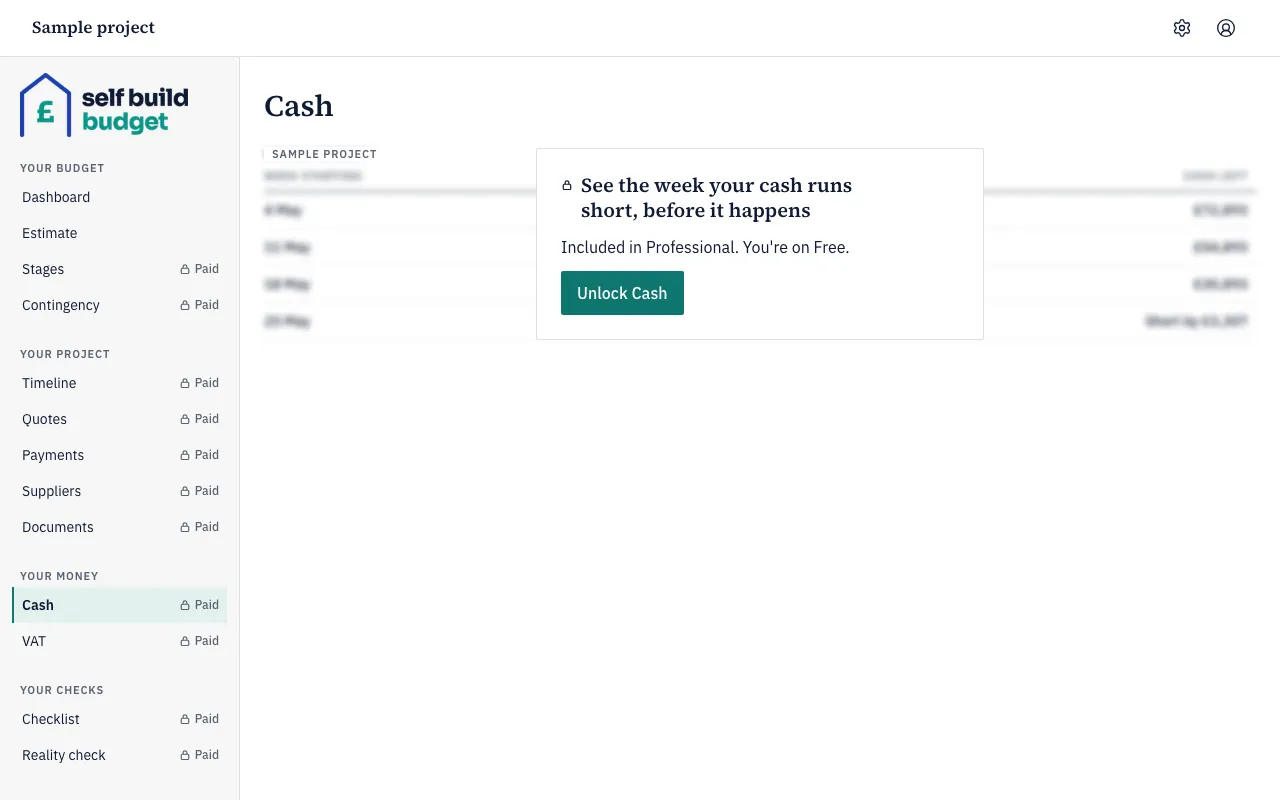
- Your project needs to be on the Professional plan. On Free and Standard, Cash shows a lock beside it in the menu and a blurred sample page. The owner sees an Unlock Cash button. A partner sees “Ask” followed by the owner’s first name and “to subscribe to unlock Cash”, with no button.
- To schedule instalments against a quote, you need an accepted quote first. See Compare and accept quotes.
Steps
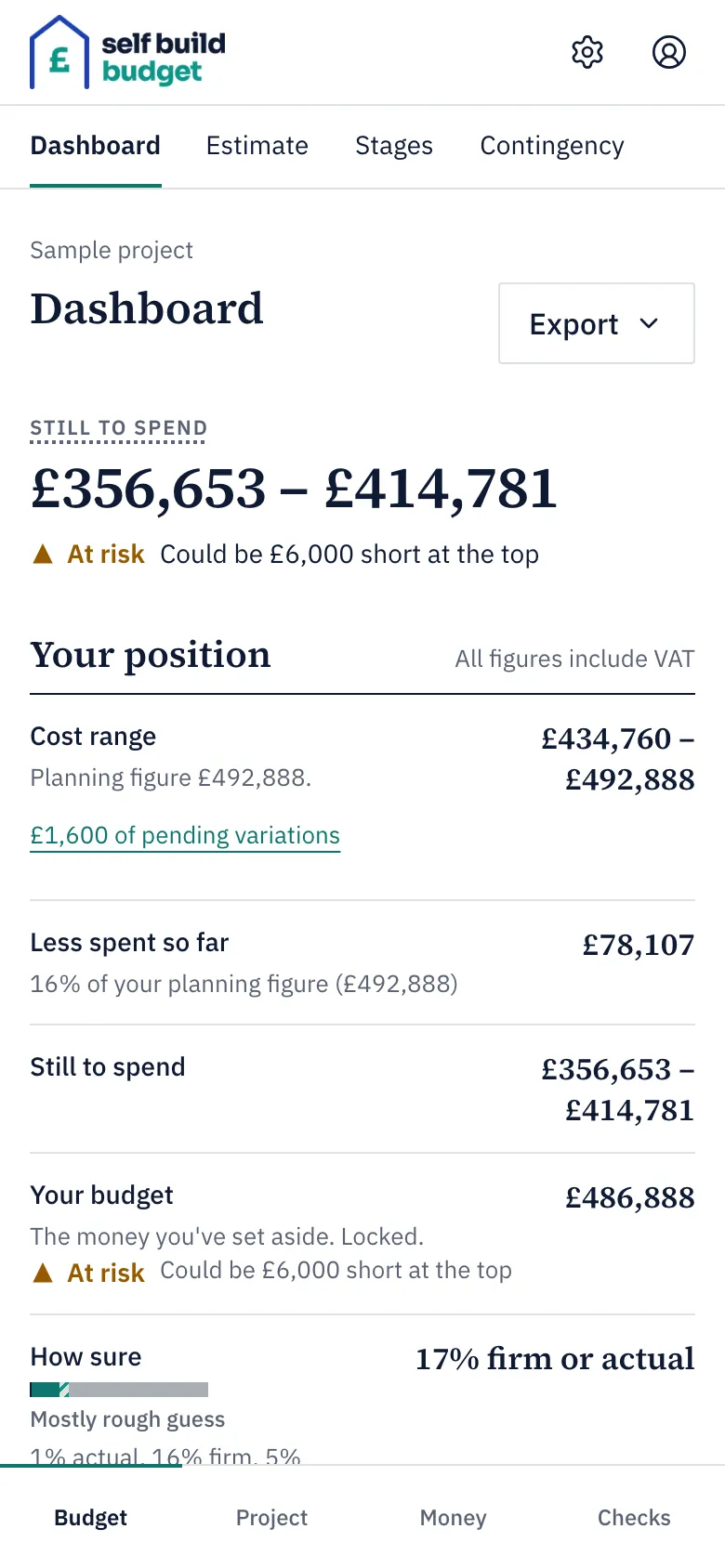
- Open Cash. On a desktop, choose Cash in the menu on the left. On a phone, tap the Money tab at the bottom of the screen, then the Cash tab at the top.
- Under Your money in, choose Add money in.
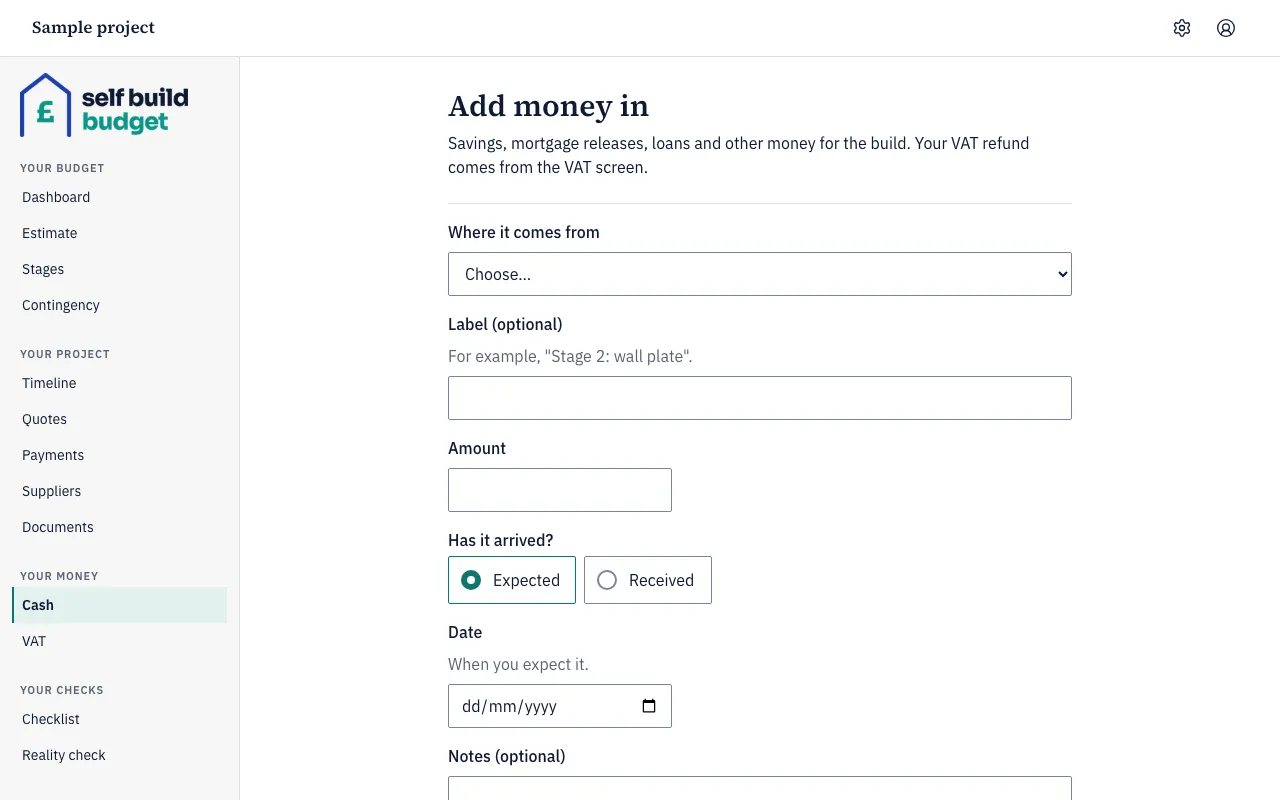
- In Where it comes from, choose the source, such as savings, a mortgage release or a loan.
- If you like, add a Label (optional), for example “Stage 2: wall plate”.
- Enter the Amount. It must be more than £0.
- Under Has it arrived?, choose Expected or Received.
- Enter the Date: when you expect the money, or when it arrived.
- Save the money in with the button at the bottom of the form.
- When an expected amount arrives, choose Mark as received beside it. You can change the amount if less or more arrived than you expected. If it was less, the entry shows how much less than expected.
- Under Scheduled payments, find the accepted quote or budget line you want to schedule. Open it with the arrow on the right.
- Enter an amount and a date for each instalment. For a quote with no instalments yet, the line shows the whole quote as unscheduled. As you schedule instalments, the line shows how much is scheduled and how much is still unscheduled.
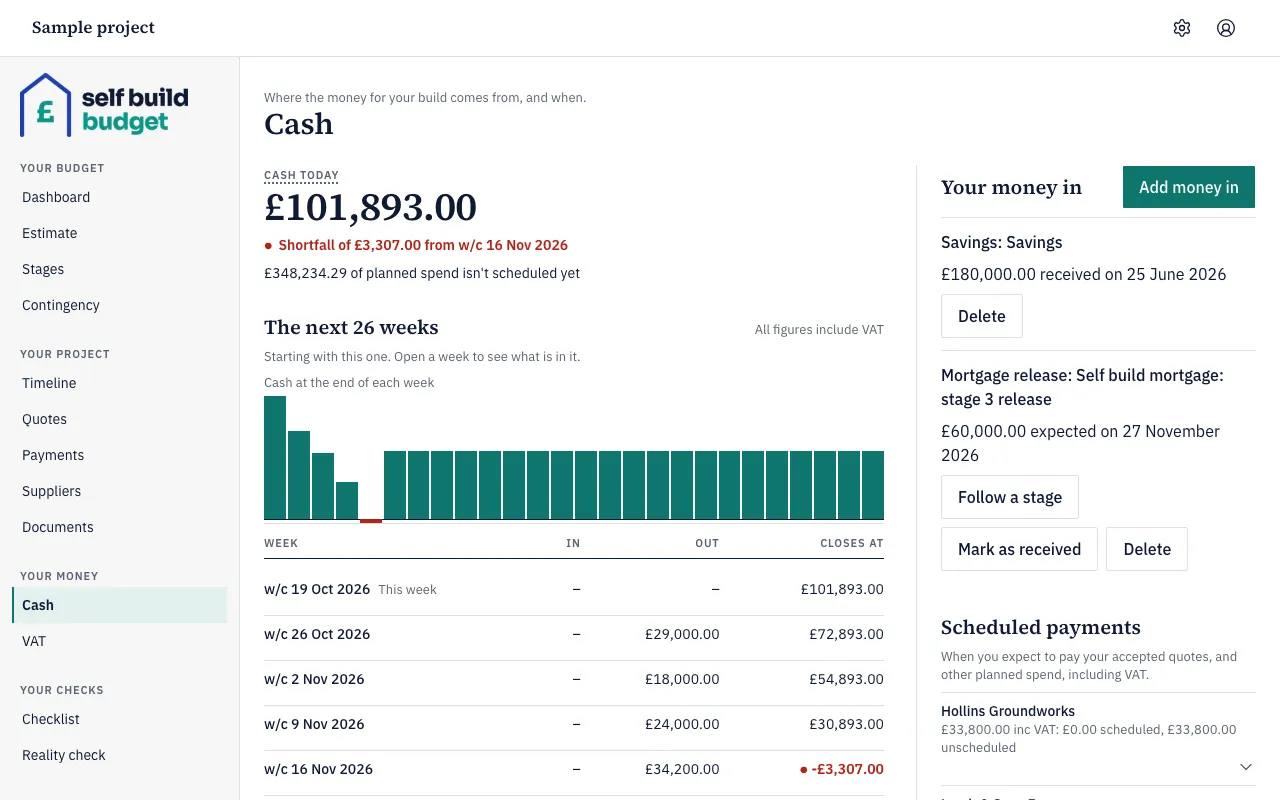
- Read Cash today at the top of the page. It is the money you’ve received so far, less what you’ve paid.
- Read The next 26 weeks. The chart shows the cash at the end of each week, and any week below £0 is in red. The table gives each week’s money IN, money OUT and what it CLOSES AT. Open a week to see what is in it.
- The forecast starts with 12 weeks. Choose Show 14 more weeks to see all 26.
Good to know
- Money you only expect doesn’t change Cash today. It appears in the forecast in the week of its date, and Cash today goes up when you mark it Received.
- You don’t add your VAT refund in the Add money in form. It comes from the VAT screen, which is part of Professional. Once it is on Cash as money in, you can change its expected date. The forecast says “All figures include VAT”. Your budget includes the VAT you pay, and the refund doesn’t reduce it.
- Instalments for a quote can’t add up to more than the quote. You can schedule part of a quote and leave the rest unscheduled. You can also schedule planned spend against a budget line that has no quote.
- Weeks start on a Monday, and an instalment shows in the week it falls in. An instalment that is past its date and unpaid shows as overdue. When you record a payment that settles an instalment, the instalment shows as paid and leaves the forecast. See Record a payment.
- A week that closes below £0 is a shortfall. The note under Cash today says when it starts, for example “Shortfall of £15,000 from w/c 2 Nov 2026”. The Dashboard shows a shorter note under Cash today, such as “Short from w/c 2 Nov”. If no week closes below £0, you see “No shortfall in the next 26 weeks”.
- Spend that isn’t paid or scheduled yet is shown separately, for example “£96,500 of planned spend isn’t scheduled yet”. It isn’t counted in any week. The forecast plans with the top of your cost ranges, and a note under it says how much less you’d need if everything came in at the low end.
The figures are a guide, not financial or tax advice.
Questions about the VAT claim? Email us.
Who can do this
The owner and partners can add money in, schedule payments and read the forecast, and a partner sees the same weeks and balances as the owner. Viewers can’t open Cash.
On Free and Standard, this page is locked. See what each plan includes