

Download the summary PDF
PlanStandard and Professional
The summary PDF is a one-page overview of your budget, spend and cash that you can share with your lender, your family or your adviser. This article shows how to download it and how to read it.
Steps
- Go to the Dashboard or Stages. On a desktop, choose Dashboard or Stages in the menu on the left. On a phone, tap the Budget tab at the bottom of the screen, then the Dashboard or Stages tab at the top.
- Choose Export.
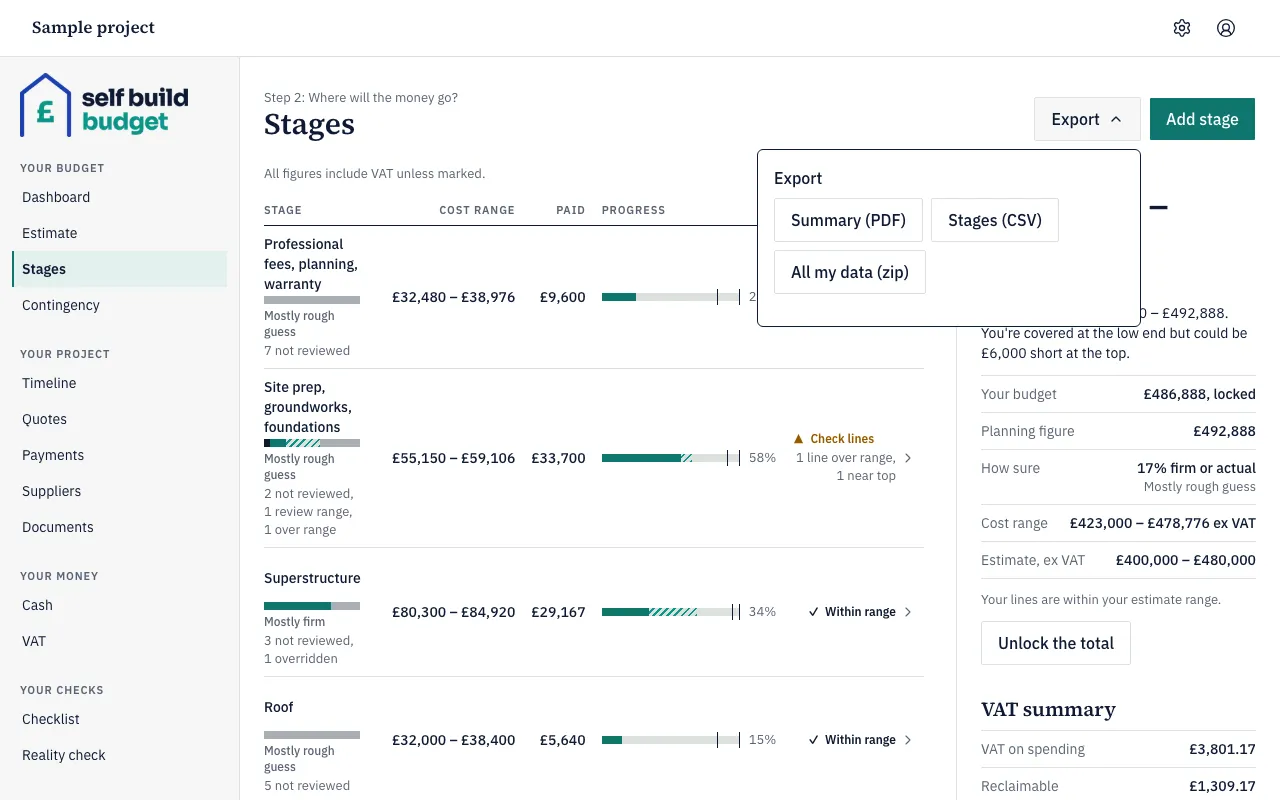
- Choose Summary (PDF). The summary downloads to your device.
- Open the file. At the top you’ll see your project’s name followed by “budget summary”, who created the summary and the date.
- Read the row of headline figures: Cost range, Your budget, Status, How sure and Spent so far. If you haven’t locked the total, Your budget reads Not locked. The summary says its figures include VAT, as the Budget screens do.
- Read the box headed How to read this.
- Read the list headed Stage (cost range inc VAT). Each stage shows its cost range, its How sure mix and its status.
- Look for Cash today, Cash forecast, Contingency left and Expected VAT refund. They appear only when there is something to show. Cash and VAT are part of Professional.
- Read the list headed Lines (range ex VAT, How sure, flags). Each line shows its range, its How sure level and any flags. If there are more lines than fit, the list ends with “and N more lines (see the app)”.
Good to know
- The summary PDF is part of Standard. On Free, Summary (PDF) in the Export menu has a lock beside it, but you can still choose All my data (zip). See Export all your data.
- Every figure in the summary PDF is in whole pounds. The spreadsheet and data exports keep pence.
- The status is Covered, At risk or Short once Your budget is locked, and Floating while it isn’t. Covered means even the top of the cost range fits within Your budget. At risk means the bottom fits but the top doesn’t. Short means even the bottom doesn’t fit.
- Contingency left on the summary reads “£X of £Y inc VAT”. The Contingency page and the Dashboard show it ex VAT. Your cost range already includes the contingency left, so don’t add it on. Your budget includes the VAT you pay, and the Expected VAT refund doesn’t reduce it.
- A section with nothing to show is left out. For example, there is no cash section until you’ve recorded some money in. If there is a shortfall in your cash forecast, the summary shows the first shortfall week.
- A viewer’s summary leaves out cash flow, the timeline, the VAT claim, Contingency left and draw-downs, and the checklist.
The figures are a guide, not financial or tax advice.
Questions about the VAT claim? Email us.
Who can do this
Owners, partners and viewers can all download the summary PDF. A viewer’s summary leaves out the cash, timeline, VAT claim, contingency and checklist information that a viewer can’t see in the app.
On Free, this page is locked. See what each plan includes