

Plan your build on the timeline
PlanStandard and Professional
The Timeline shows planned and actual dates for each stage, so you can see where the build is against plan. On Professional, those dates can also move the expected dates in your cash flow.
Steps
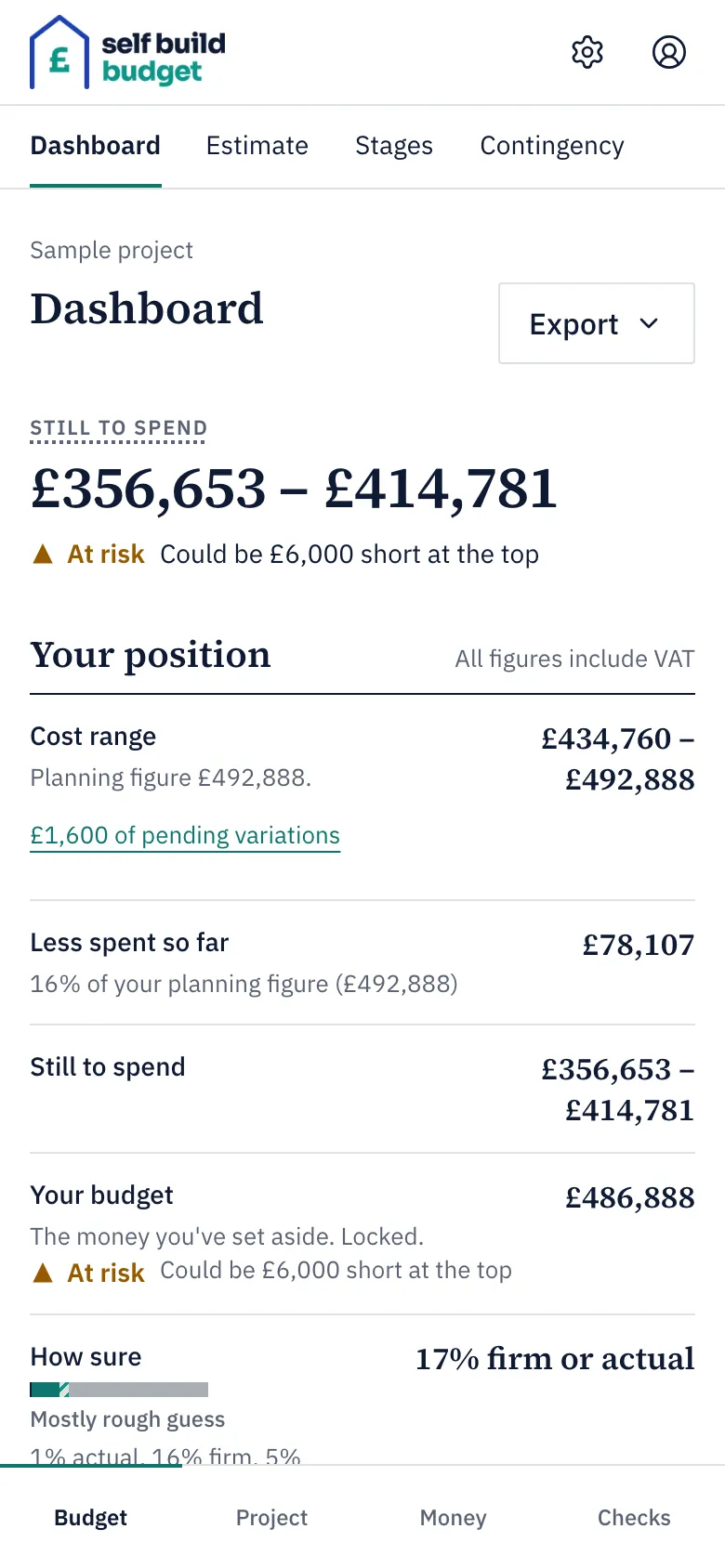
- Open the Timeline. On a desktop, choose Timeline in the menu on the left. On a phone, tap the Project tab at the bottom of the screen, then the Timeline tab at the top.
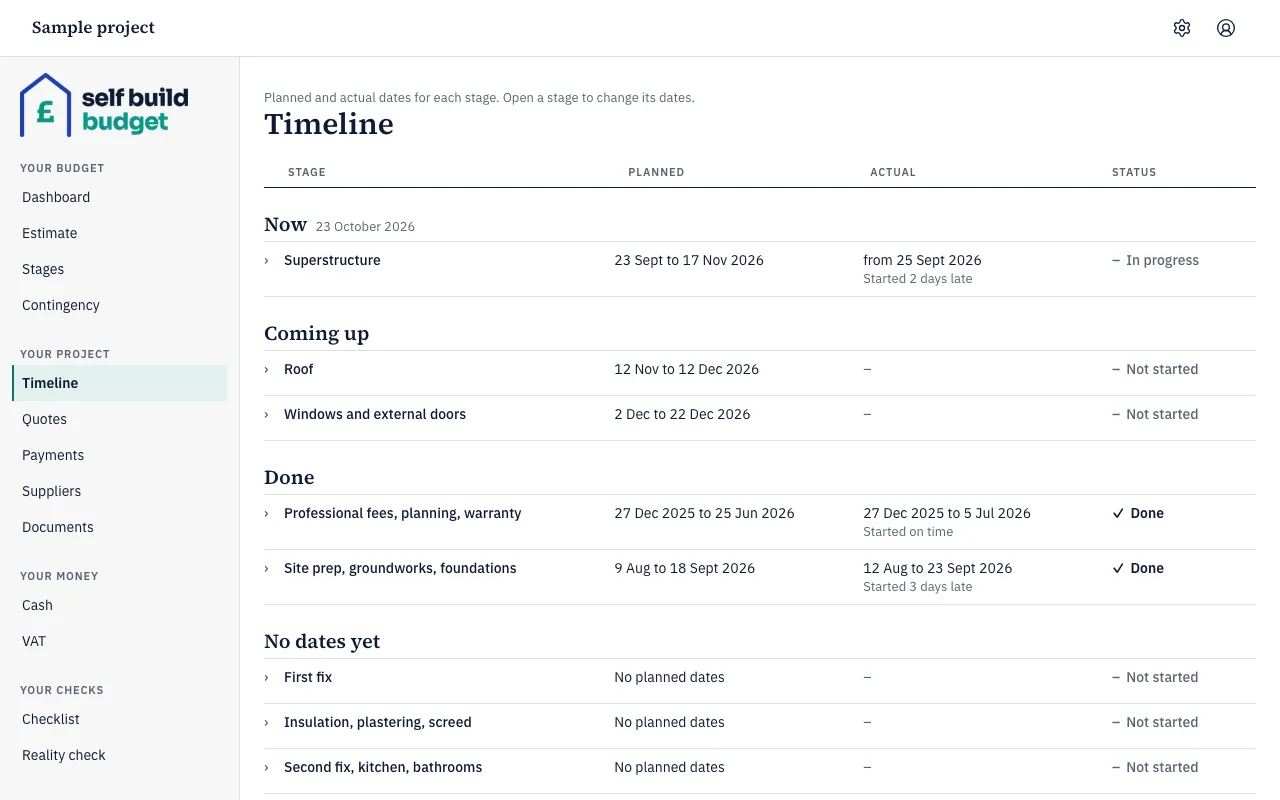
- Find your stage in the list. Stages are grouped under Now, Coming up, Done and No dates yet, with their dates in the Planned and Actual columns.
- Open the stage’s row to change its dates.
- Enter the date the stage should begin in Planned start.
- Enter the date it should finish in Planned end.
- Choose Save dates.
- When the stage really begins, open its row, enter the date in Actual start and choose Save dates. The stage shows In progress, and says how many days or weeks late it started, or that it started on time.
- When the stage is finished, open its row, enter the date in Actual end and choose Save dates. The stage shows Done.
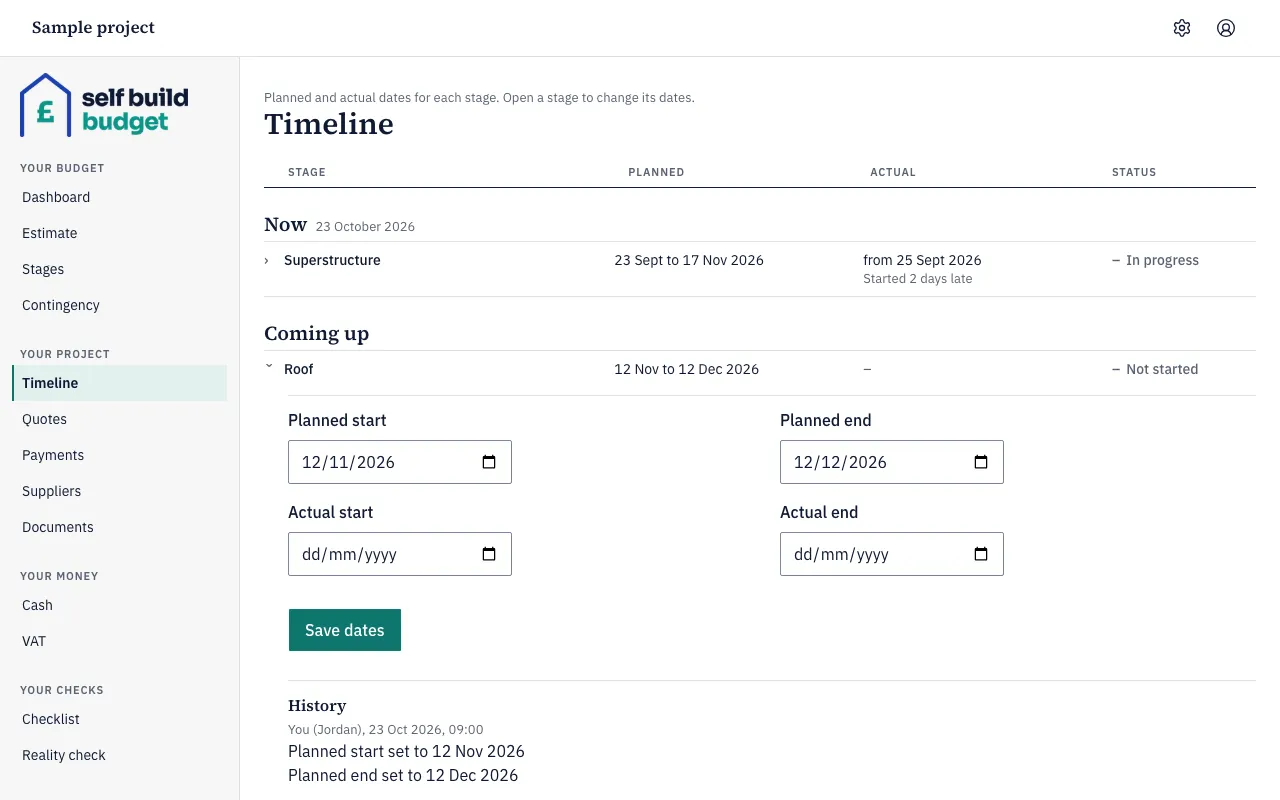
- To see what has changed, look under History in the open stage. It lists each date change and who made it.
Good to know
- Stages sit in groups, in this order: Now, Coming up, Done and No dates yet. A stage moves between groups as you add dates. For example, a stage with an actual end is under Done, and a stage with no dates is under No dates yet.
- The end date can’t be before the start date. If it is, you see “End date can’t be before the start date”, and you need to correct the dates before you can save them.
- A stage whose planned end has passed, with no actual end recorded, shows Late in the Status column.
- Every date change is kept in History, with the old and new date and who made the change.
- Cash is part of Professional. On Cash, you can link an expected item, such as a mortgage release or an instalment, to the start or end of a stage, plus a number of days. When you change that stage’s dates, the app tells you how many linked items will move (for example “1 linked item will move”) and the forecast moves with them. Once you record an actual date for the stage, the linked item uses that date instead of the planned one. Forecast your cash explains the forecast.
- If you unlink an item from a stage, it keeps its current expected date but no longer moves when the stage’s dates change. You can’t link an item to a stage that has no dates: you see “Add dates to” followed by the stage’s name, and then “first”.
Who can do this
Who can do this
Owner and partners can set and change stage dates. Viewers can’t open the Timeline.
On Free, this page is locked. See what each plan includes