

Use your contingency
PlanStandard and Professional
Your contingency is the money you set aside for the unexpected. You draw it down into the lines that need it, and you record variations when a supplier’s agreed price changes.
Steps
Set your contingency
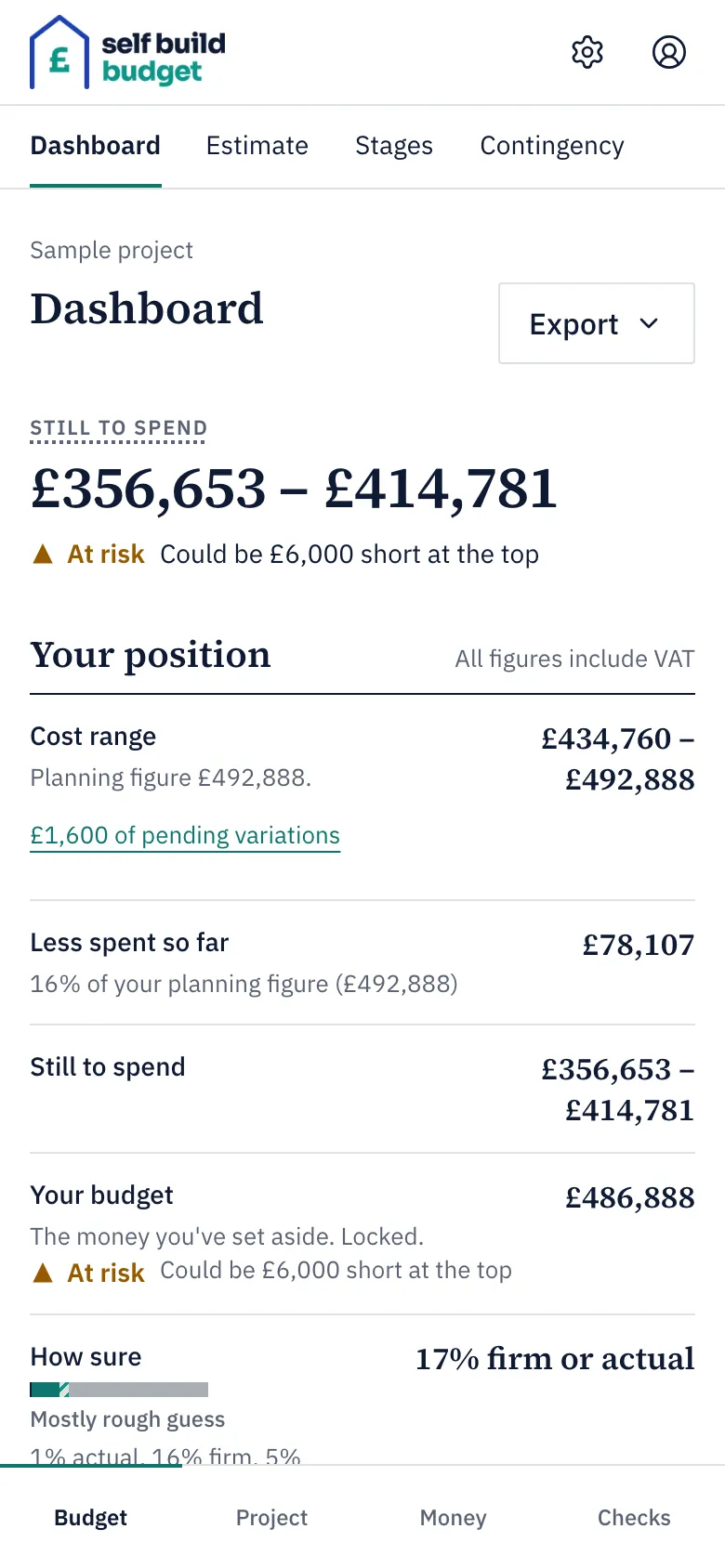
- Open the Contingency page. On a desktop, choose Contingency in the menu on the left. On a phone, tap the Budget tab at the bottom of the screen, then the Contingency tab at the top.
- Look at the top of the page. Contingency left shows what you have not yet drawn down, and the line under it shows how much you set and how much you have drawn down so far. Where it sits shows how your contingency is split.
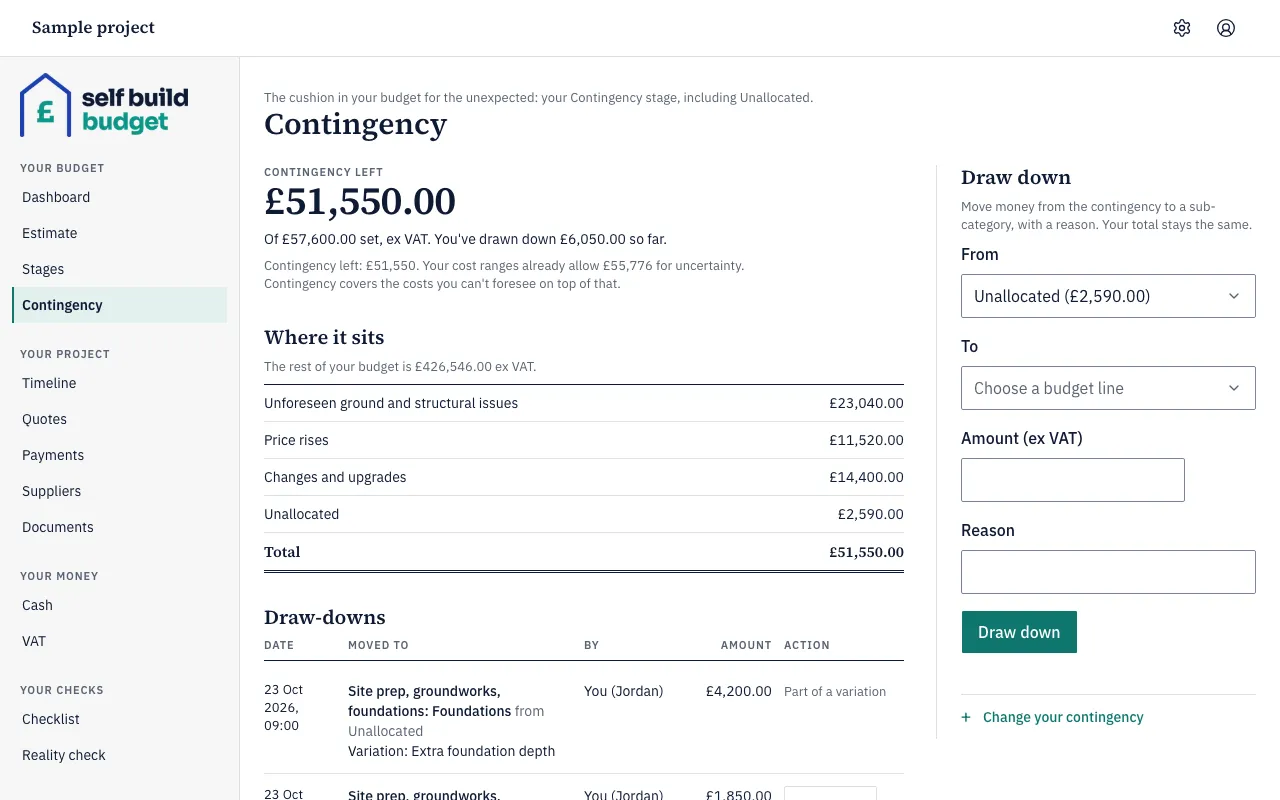
- To change the amount, choose Change your contingency.
- Choose Percentage of the rest of the budget and enter the percentage. For example, 10% of a rest of the budget of £400,000 ex VAT gives a contingency of £40,000.00.
Draw down from your contingency
- On the Contingency page, find the Draw down panel.
- In From, choose where the money comes from, such as Unallocated. Each choice shows how much it has left.
- In To, choose the budget line that needs the money from Choose a budget line.
- In Amount (ex VAT), enter the amount, for example 750.
- In Reason, say why, for example “Extra hardcore under the drive”.
- Choose Draw down.
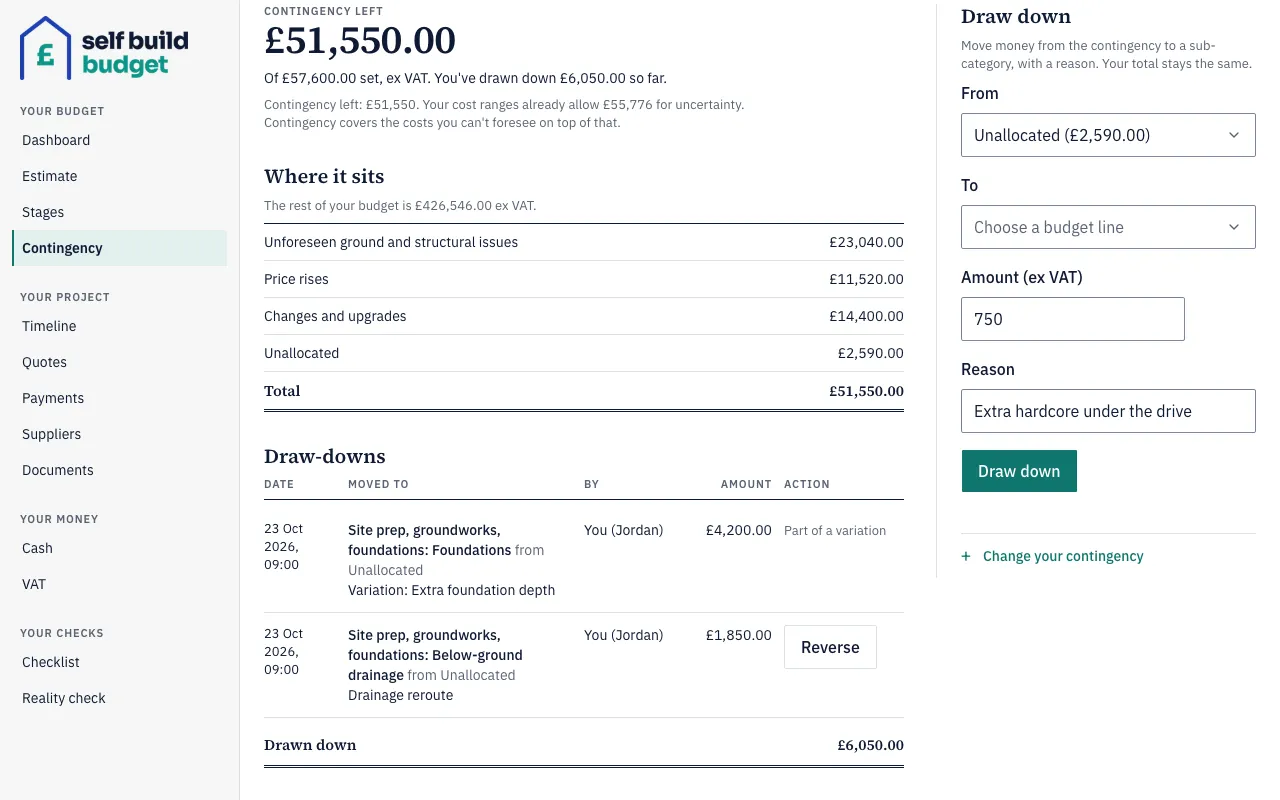
The line’s budget goes up by the amount you moved, and Contingency left goes down by the same amount. Your project total does not change. For example, drawing down £3,500 to Foundations from a £40,000.00 contingency leaves Contingency left at £36,500.00, with “You’ve drawn down £3,500.00 so far”.
Each draw-down is listed under Draw-downs, with its date, where it moved to, who made it, the amount and the reason.
Reverse a draw-down
- Find the draw-down under Draw-downs.
- Choose Reverse in its Action column.
The line’s budget goes back down by that amount and Contingency left goes back up. A draw-down that came from a variation shows “Part of a variation” instead of Reverse.
Record a variation on an accepted quote
- Open the Quotes page. On a desktop, choose Quotes in the menu on the left. On a phone, tap the Project tab at the bottom, then the Quotes tab at the top.
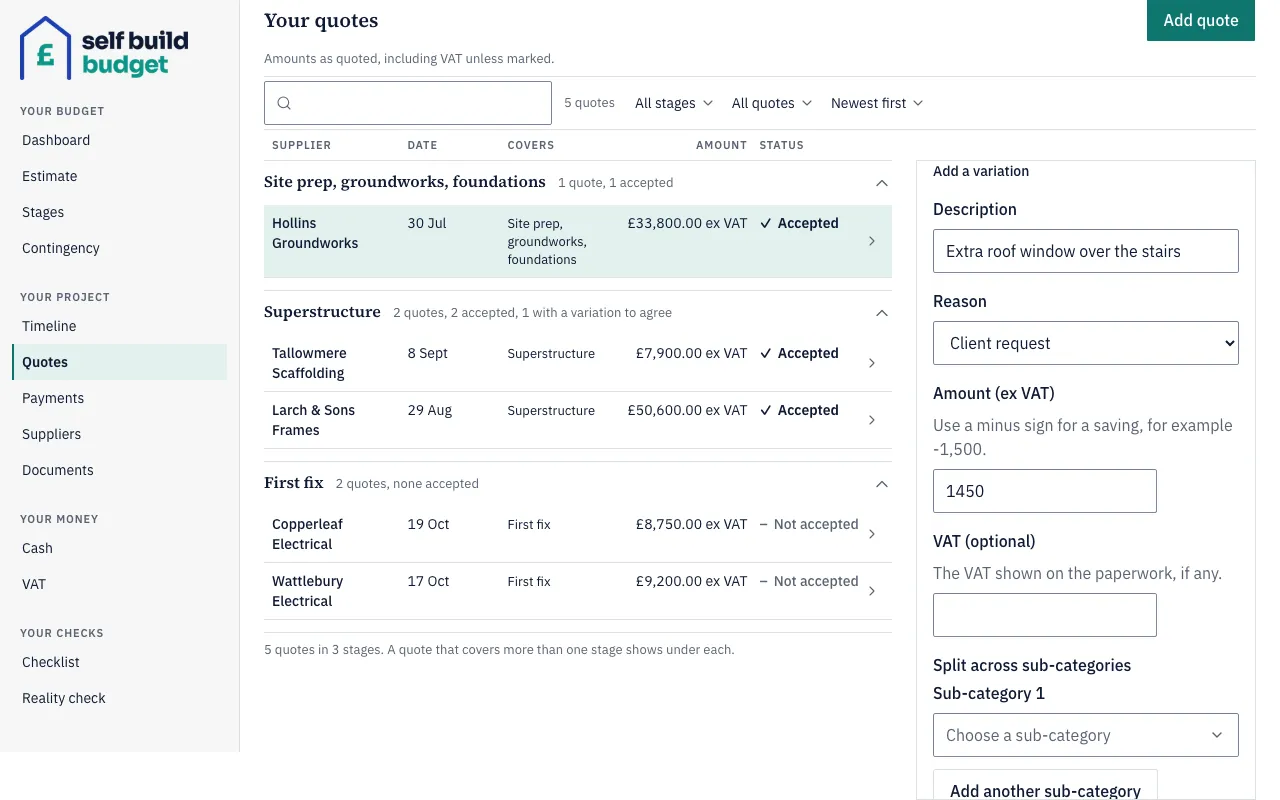
- Choose the accepted quote in the list. Find Add a variation.
- In Description, say what changed, for example “Extra roof window over the stairs”.
- In Reason, choose a reason from the list.
- In Amount (ex VAT), enter the change. For a saving, use a minus sign, for example -1,500.
- In VAT (optional), enter the VAT shown on the paperwork, if any.
- Under Split across sub-categories, choose a sub-category in Sub-category 1. Choose Add another sub-category if the variation covers more than one line.
- Agree the variation. Choose Fund from contingency if you want it paid for from your contingency. If you don’t, leave it unchosen. To turn the variation down, reject it instead.
If a line goes over its range
When a quote, payment or agreed variation takes a line over the top of its range, you see a message such as “Accepted quotes on Drainage now total £13,700, which is £1,700 above the top of your range (£12,000).” You can choose:
- Fund £1,700 from contingency, which records a draw-down to that line.
- Widen the range, which opens the line editor with Set high to £13,700.
- Leave it for now, which keeps the line flagged Over range.
Good to know
- Your contingency, your draw-downs and Contingency left are all ex VAT, on the Contingency page and on the Dashboard. Contingency left is already part of your cost range, so don’t add it on top.
- You can’t draw down more than is left. A line that is Firm and follows its accepted quotes won’t take a plain draw-down. Agree a variation funded from contingency instead.
- Proposing a variation changes no figures. The variation is marked Proposed on Quotes, and the Dashboard shows it as a note under Cost range such as “£1,600 of pending variations”, which links to Quotes. That note includes the variation’s VAT, so a +£2,800 variation with 20% VAT shows as £3,360.
- When you agree a variation funded from contingency, the line goes up by its amount straight away, Contingency left goes down, and your project total stays the same.
- When you agree a variation without using contingency, a Firm line that follows its accepted quotes updates by itself with no flag. A Rough guess, Quoted or overridden Firm line keeps its figures and is flagged Review range. If your total is locked, Your budget stays the same and your status is worked out again.
- If you leave the amounts you split across sub-categories short of the variation’s total, you’ll see “Allocations must add up” with the amount still to place. The split has to match the full amount.
The figures in this article are a guide, not financial or tax advice.
Who can do this
On Free, this page is locked. See what each plan includes