

Lock or float your budget
PlanStandard and Professional
Your total can float, following your cost range, or you can lock it to set your budget. Lock it when you know how much money you have set aside for the build and want to see whether your cost range fits.
Steps
- Open Stages. On a desktop, choose Stages in the menu on the left. On a phone, tap the Budget tab at the bottom of the screen, then the Stages tab at the top.
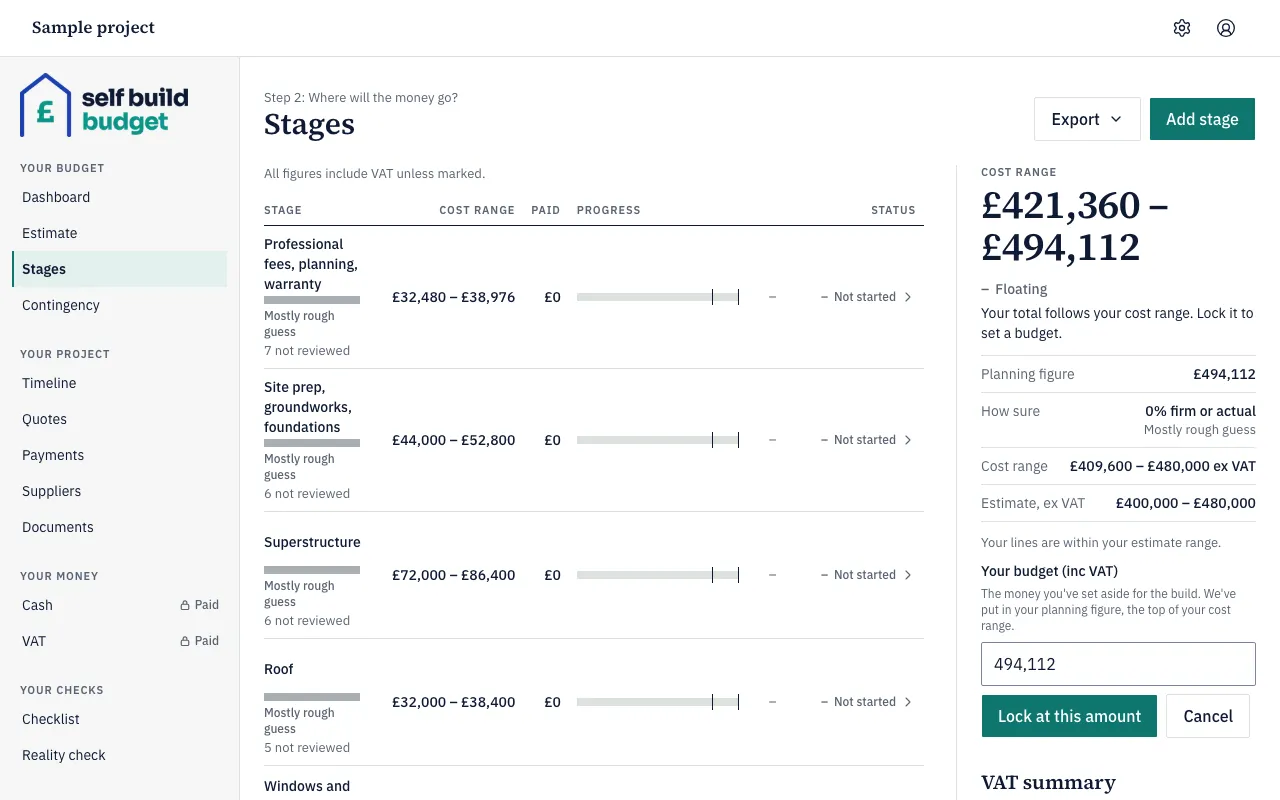
- Find the cost range panel. On a desktop it is on the right of the stage list. While your total is floating, it shows Floating and the words “Your total follows your cost range. Lock it to set a budget.”
- In that panel, start to lock the total. The panel shows Your budget (inc VAT) with an amount already filled in.
- Look at the amount. It is the planning figure, the top of your cost range. You can change it before you confirm.
- Choose Lock at this amount. To leave the total floating, choose Cancel instead.
- Check the panel again. Floating is replaced by a status and a sentence comparing your cost range with Your budget.
To unlock, use the unlock option in the same panel. Your budget goes, and the panel shows Floating again.
Good to know
- Floating is the starting state. The total just shows your cost range and moves as your lines change. There is no Your budget and no status.
- Your budget is one figure, inc VAT. It is never a range. In the example on screen, the cost range is £421,360 - £494,112, so the planning figure offered is £494,112.
- Once you lock, the status is Covered, At risk or Short. Covered means even the top of your cost range fits within Your budget. At risk means the bottom fits but the top doesn’t. Short means even the bottom doesn’t fit.
- For example, with Your budget locked at £485,000 and a cost range of £462,000 - £498,000, the status is At risk. You are covered at the low end but could be £13,000 short at the top.
- Changing your estimate doesn’t move Your budget once it is locked. Your cost range still moves as your lines change, so the status can change too.
- The cost range next to Your budget is shown inc VAT. The ex VAT range appears only beside the estimate, as “Your stages now” on the Estimate page and the Dashboard.
The figures here are a guide, not financial or tax advice.
Who can do this
The owner and partners can lock, unlock and change Your budget. Viewers can see Your budget, the cost range and the status, but can’t lock, unlock or change it.
On Free, this page is locked. See what each plan includes