

Free, Standard and Professional
PlanAll plans, including Free
Every project is on one of three plans: Free, Standard or Professional. This article shows what each plan includes and how to tell which pages your plan doesn’t cover.
- Free: the estimate, a read-only preview of your stages, up to 5 partners and viewers, and exporting your data.
- Standard: everything in Free, plus the working budget: stages you can edit, contingency, the Dashboard, quotes, payments, suppliers, documents, reading documents with AI, emailing documents in, the timeline, the checklist, the reality check, the summary PDF and support access.
- Professional: everything in Standard, plus the VAT claim and the cash-flow forecast.
Steps
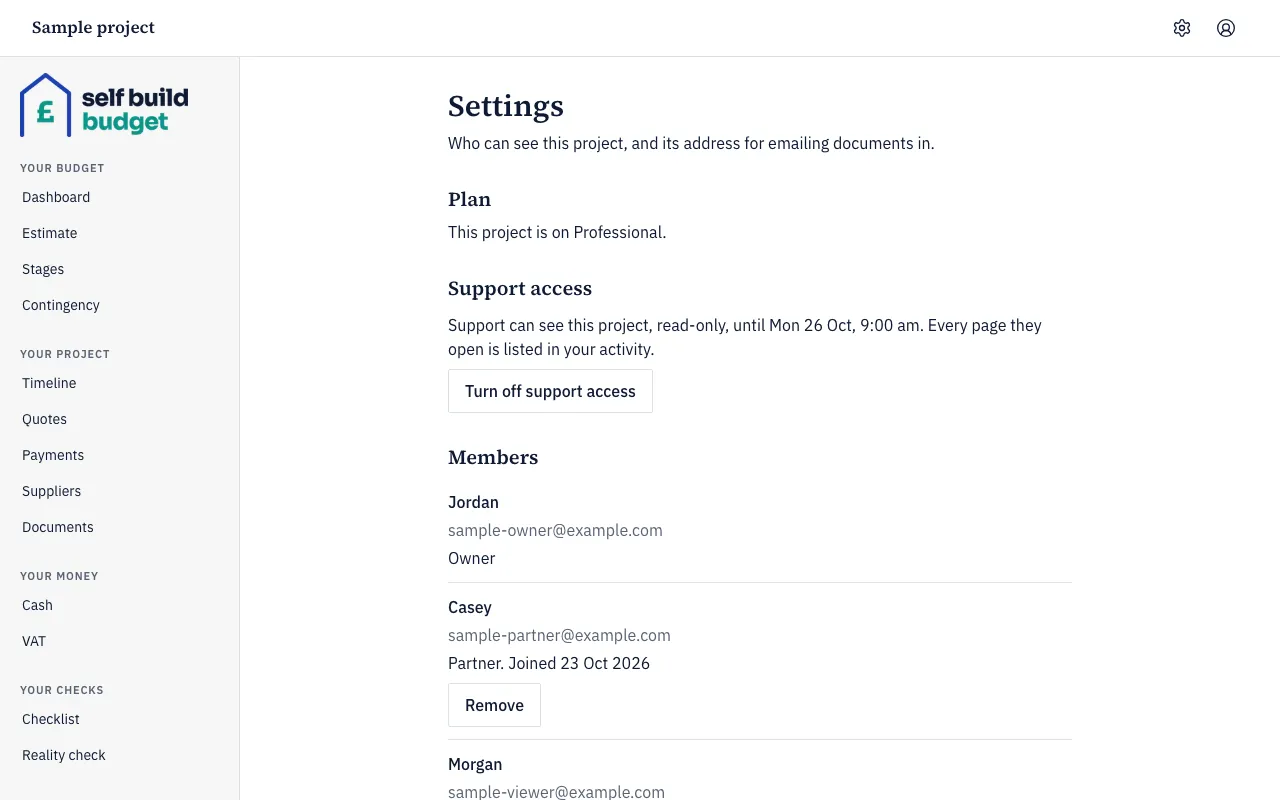
- Choose the Settings (cog) icon in the header.
- Under Plan, read which plan your project is on, such as “This project is on Professional.” Owners and partners see this.
- Look at the menu on the left on a desktop, or the tabs at the top on a phone. A page your plan doesn’t include has a small lock beside its name.
- To see a locked page, open Cash, which is part of Professional. On a desktop, choose Cash in the menu on the left. On a phone, tap Money at the bottom of the screen, then Cash at the top.
- Read the page. It is labelled “Sample project” and the blurred figures are a sample, not yours. A panel in front says what the page does for you and which plan includes it, such as “Included in Professional. You’re on Free.”
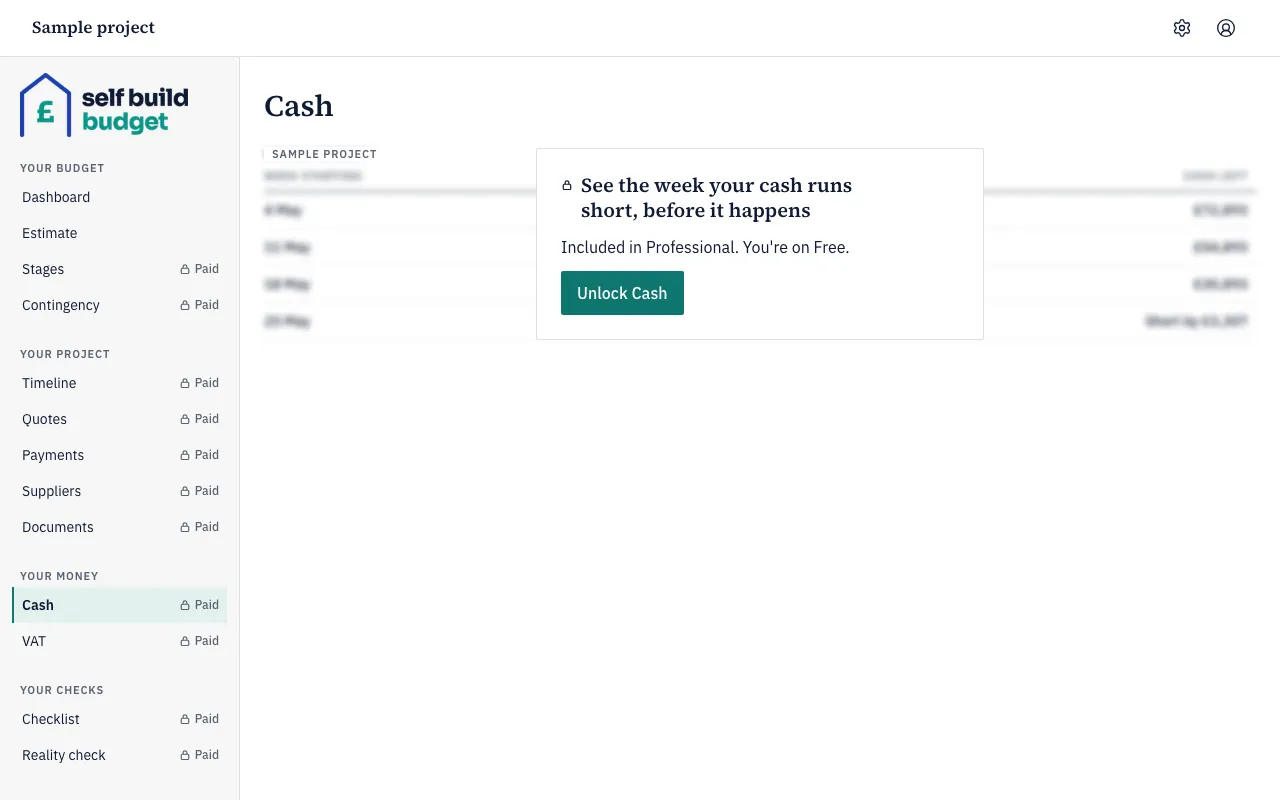
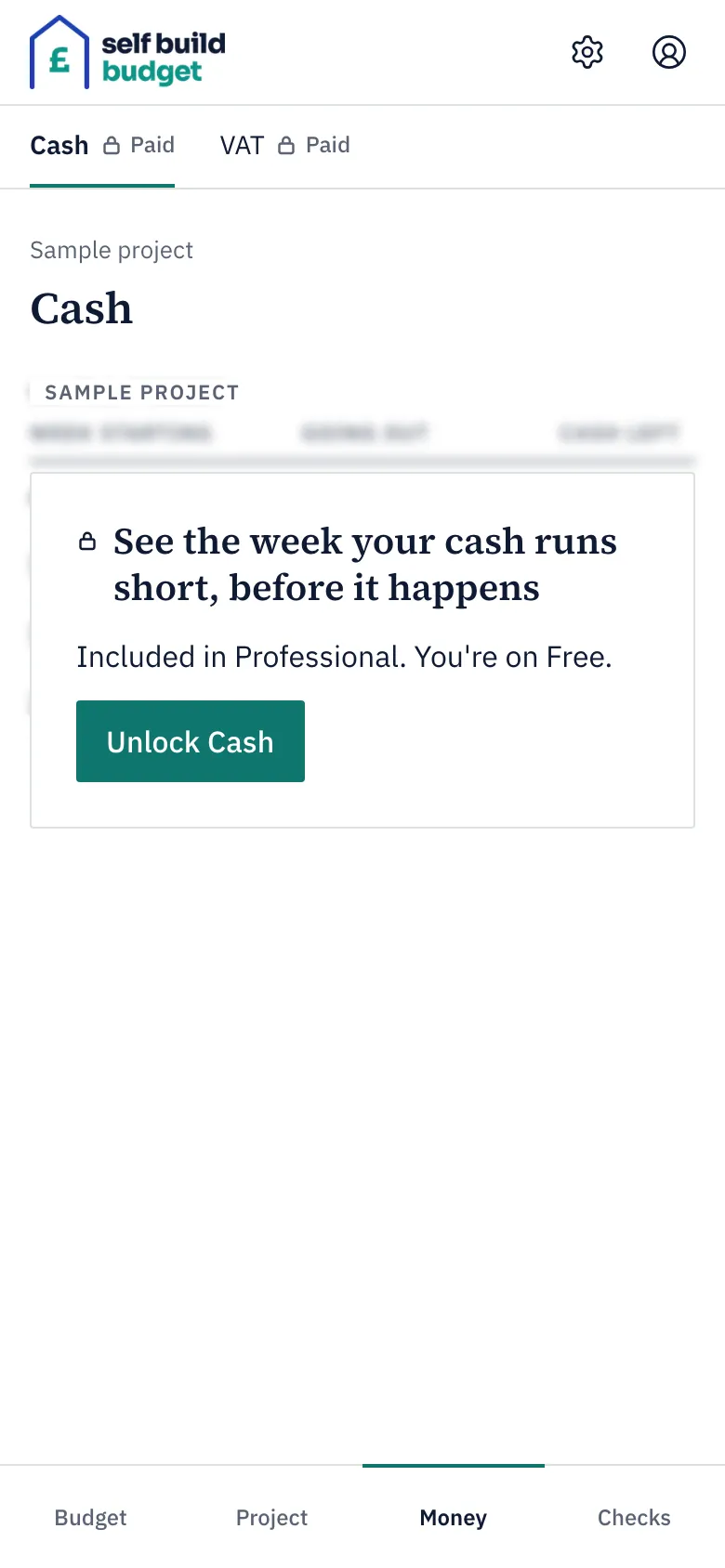
- If you are the owner, the panel has a button that names the page, such as Unlock Cash or Unlock Payments. Choose it to see your options.
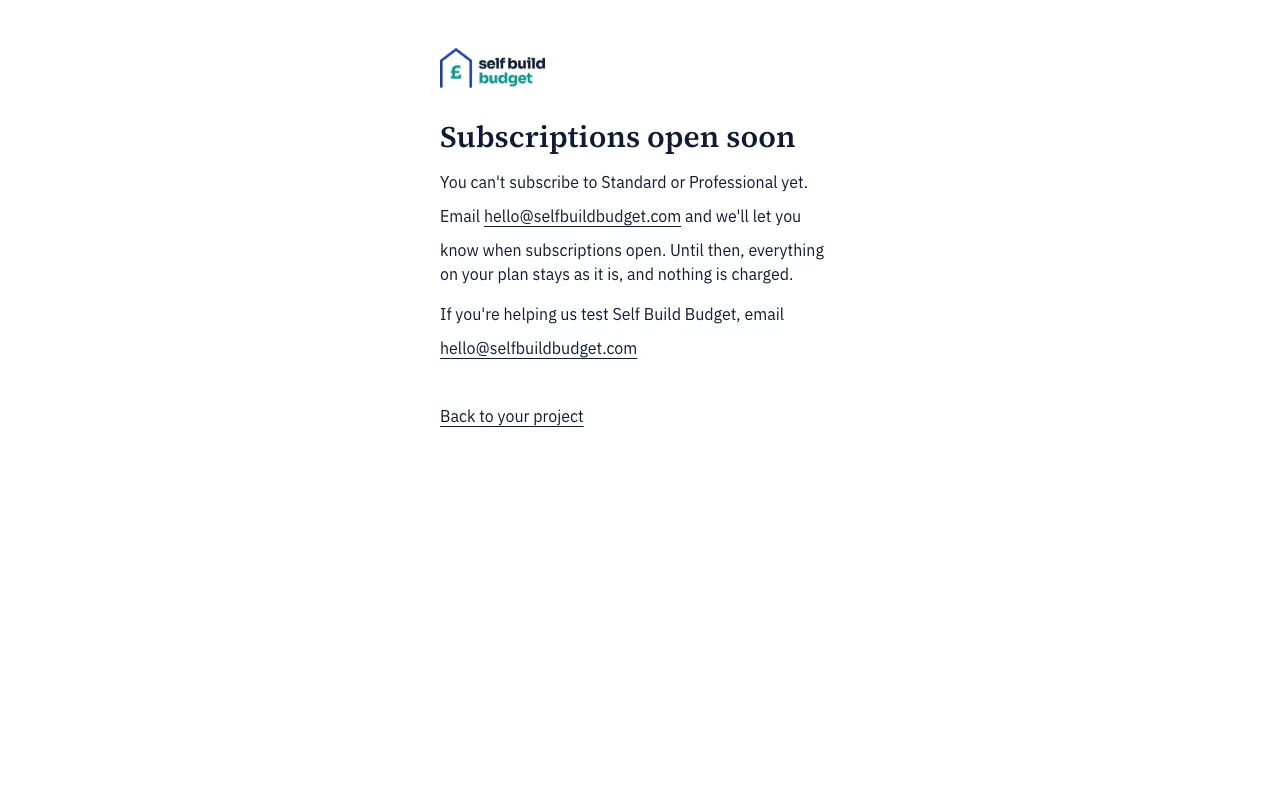
- Read the Subscriptions open soon page. You can’t subscribe to Standard or Professional yet, and nothing is charged. Everything on your plan stays as it is. Email hello@selfbuildbudget.com to hear when subscriptions open, or choose Back to your project to carry on. The Subscribe link on pages such as Stages leads here too.
- If you are a partner, you get no button. On Payments, which is part of Standard, you see a line asking the owner to subscribe to unlock it. On a desktop, choose Payments in the menu on the left. On a phone, tap Project at the bottom of the screen, then Payments at the top.
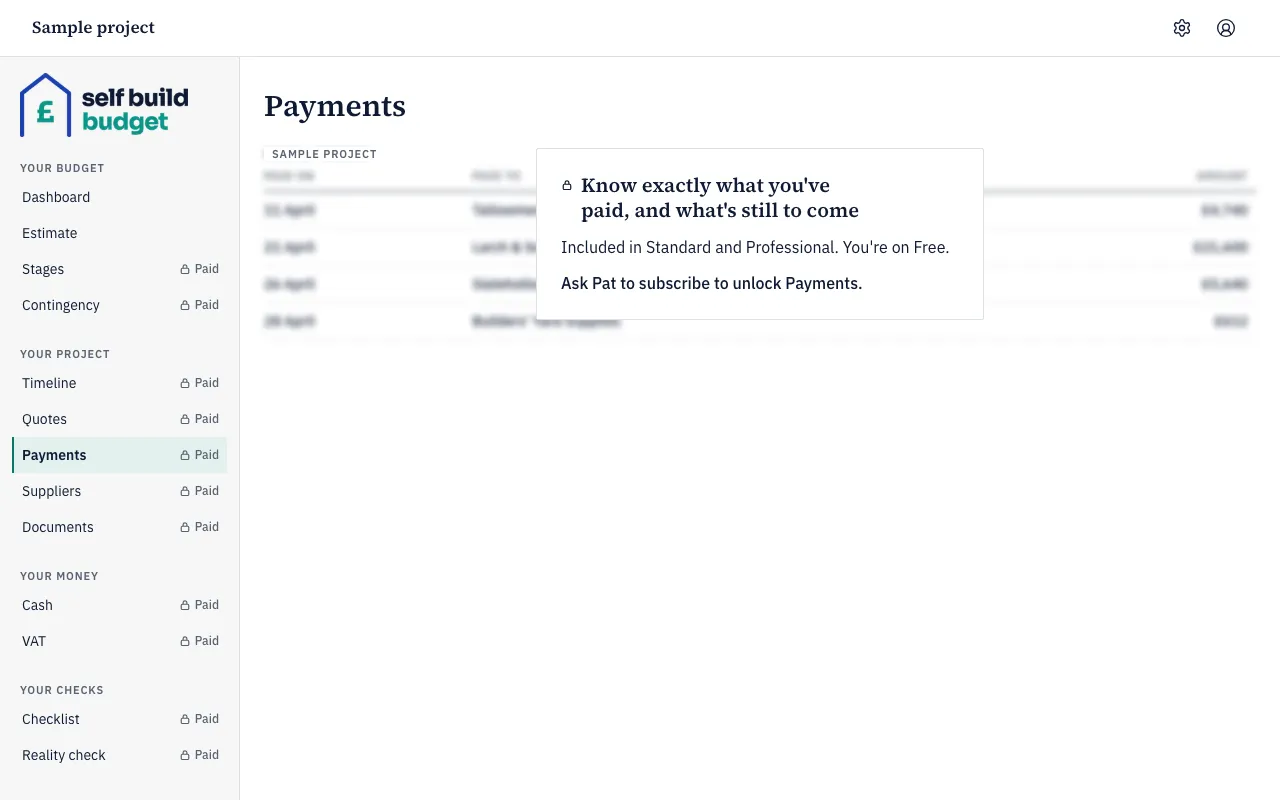
- If you are a viewer, you see the same blurred sample and no button. You can’t open Cash or VAT (both Professional), or Timeline, Contingency, Checklist or Reality check (all Standard).
Good to know
- The owner pays. Partners and viewers never pay: they get whatever the owner’s plan includes. A Free project can still have partners and viewers, up to 5 in total.
- On Free, the Dashboard still shows your estimate in the Cost range row. A lock and £ ••,••• replace Still to spend at the top and the Less spent so far, Still to spend, Reclaimable VAT (est.) and Cash today rows. On Standard, only Reclaimable VAT (est.) and Cash today are locked, because they are part of Professional. See Read your Dashboard.
- On Free, Stages is a read-only preview of your stages and their Rough guess ranges. Editing stages, adding quotes and tracking payments are part of Standard. Your estimate stays editable on Free. If there is no budget yet, an owner or partner can choose Create my budget. A viewer sees “The budget hasn’t been created yet” and no button.
- On Free, the Export menu lets you choose All my data (zip). Summary (PDF) is part of Standard. See Export all your data.
- If a plan ends or drops to a lower one, nothing is deleted. Pages the new plan doesn’t include show your own figures, read-only. Emailing documents in and AI reading of new uploads pause until the plan includes them again.
Questions about the VAT claim? Email us.
Who can do this
The owner, partners and viewers all see which pages are locked. Only the owner gets an unlock button. A partner is asked to speak to the owner, and a viewer sees the sample with no button. Owners and partners can see the project’s plan in Settings.