

Read your Dashboard
PlanStandard and Professional
The Dashboard sums up your budget, spending and paperwork on one page, so you know where you stand as soon as you open the app.
Steps
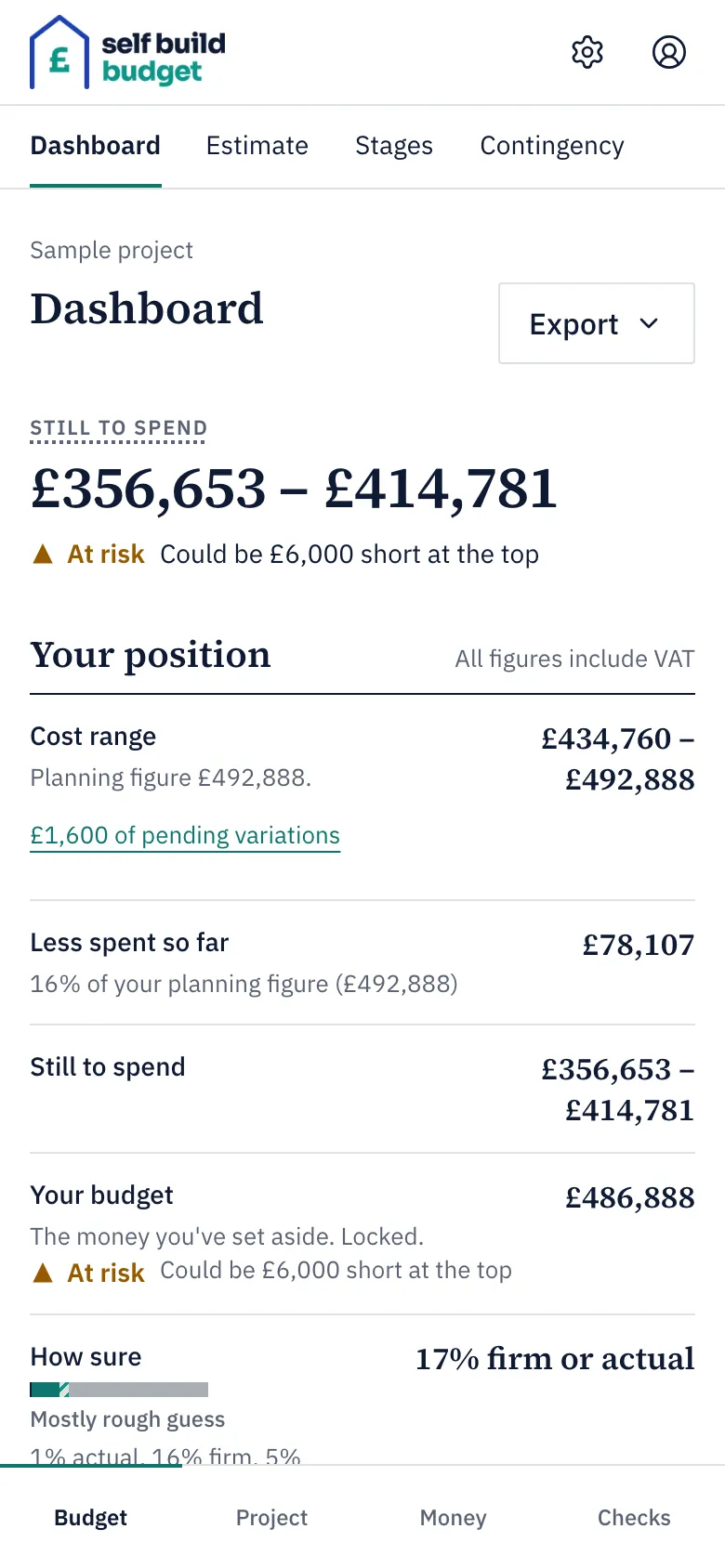
- Open the Dashboard. On a desktop, choose Dashboard in the menu on the left. On a phone, tap the Budget tab at the bottom of the screen, then the Dashboard tab at the top.
-
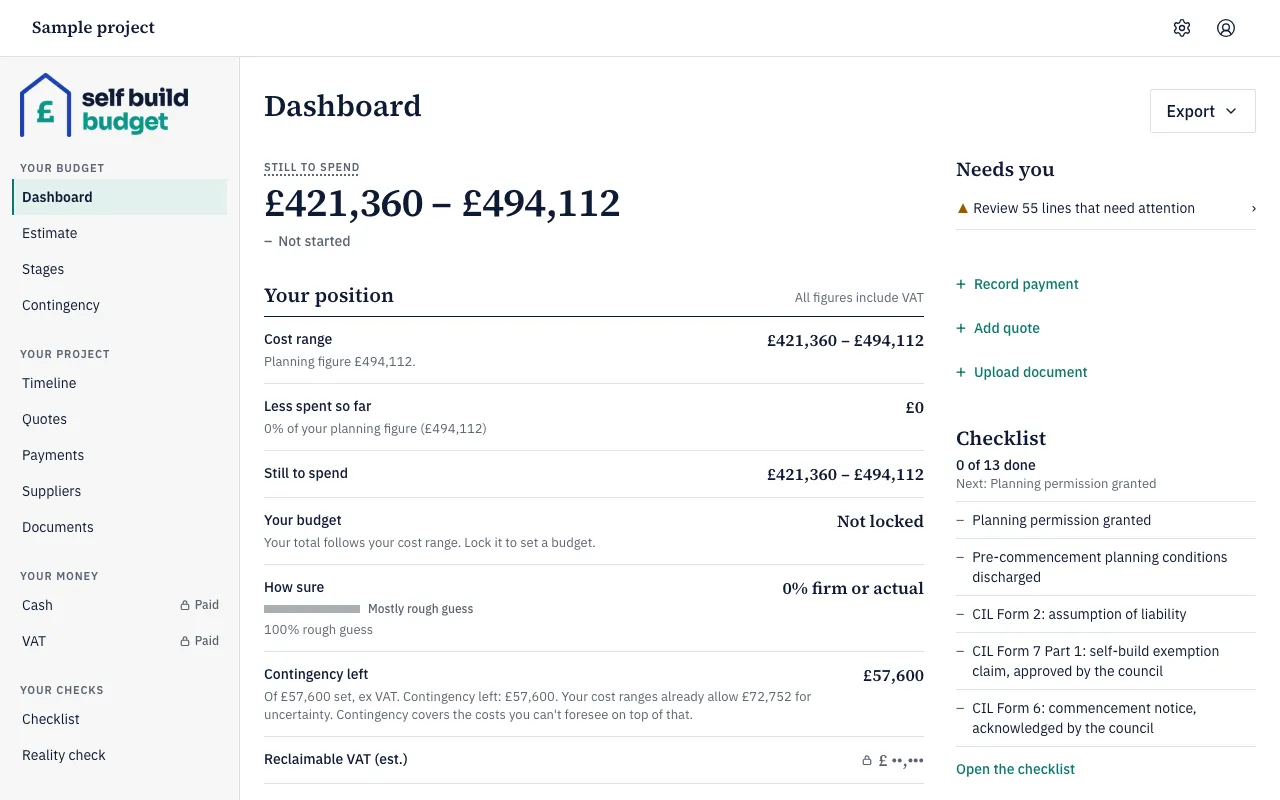
Read the big Still to spend figure at the top. It is a range, from low to high. Beside it is your budget’s status. The status is Covered, At risk or Short once your budget is locked. For example, the status is At risk when the bottom of your cost range fits within your budget but the top doesn’t.
-
Under Your position, read Cost range. It shows what your lines add up to, low to high. The Planning figure under it is the top of that range.
-
Read Less spent so far. It shows what you’ve paid, and its note gives the share of your planning figure. Then read Still to spend again in this list. It is your cost range, low and high, each less what you’ve paid.
-
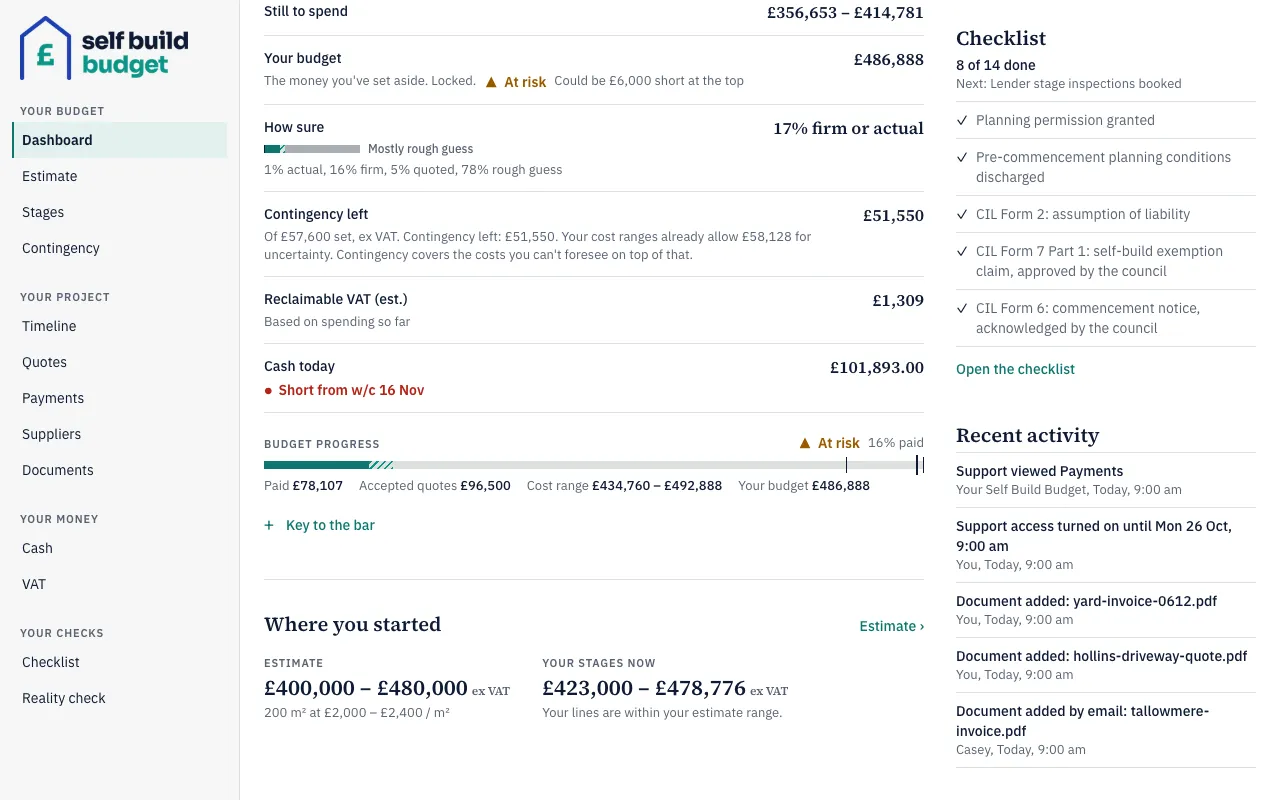
Read Your budget. Once you’ve locked the total, it shows your budget figure and its status. Until then it says Not locked, and your total follows your cost range. To set a budget, see Lock or float your budget.
-
Read How sure. It shows how much of your budget is firm or actual, with a bar and a breakdown into actual, firm, quoted and rough guess. See How sure: Rough guess, Quoted, Firm and Actual.
-
Read Contingency left. It shows what remains of the contingency you set, and it says ex VAT. It is already part of your cost range, so don’t add it on top.
-
Read Reclaimable VAT (est.) and Cash today. Reclaimable VAT (est.) is worked out from what you’ve spent so far. Cash today is the money you’ve received so far, less what you’ve paid, shown in pounds and pence. If the forecast shows a week when your cash runs short, a Short from date appears under it. Both rows are part of Professional. On Standard they show a lock and £ ••,••• instead of an amount.
-
Look at the Budget progress meter. It shows what you’ve spent against your planning figure, with brackets for your cost range and, once locked, a marker for your budget. Under it, the labels Paid, Accepted quotes, Cost range and Your budget each name their figure. Choose Key to the bar to open the key.
-
Read Where you started. It shows your Estimate and Your stages now, both ex VAT, so you can compare where you began with where your stages stand. Choose Estimate to go to your estimate.
-
Use the quick actions to start a common task. On Standard and Professional you can choose Record payment, Add quote or Upload document. On Professional you can also choose Add money in. Each one opens its own page, and saving takes you to the matching list. Choose Cancel to go back without saving.
-
Check the Checklist. It shows how many items are done, such as 8 of 14 done, and the next item to do. A tick marks a done item and a dash marks one still to do. Choose Open the checklist to go to the full Checklist.
-
Scroll to Recent activity. It lists the five newest things that happened on the project, newest first, with who did each one and when. It includes payments, accepted quotes, money in, documents (including ones emailed in), checklist items, line changes and contingency draw-downs. It also lists any time Self Build Budget support looks at your project.
- To take the numbers away, choose Export. You can download Summary (PDF) or Stages (CSV).
Good to know
- Your position says All figures include VAT once. Cost range, Planning figure, Your budget, Less spent so far and Still to spend all include VAT. Contingency left and Where you started are ex VAT.
- The refund you expect doesn’t reduce your budget figures. Reclaimable VAT (est.) appears as its own row.
- Budget figures are in whole pounds. For example, £462,123.45 shows as £462,123. Cash today and payments show pounds and pence.
- On Free, Still to spend, Less spent so far, Reclaimable VAT (est.) and Cash today show a lock and £ ••,•••. The first two are part of Standard. The other two are part of Professional. Cost range, Planning figure, Your budget, How sure, Contingency left and your estimate still show. The Budget progress meter and the quick actions are hidden, and payments, quotes, money in and contingency are left out of Recent activity.
- Where a figure is locked, the owner sees a Subscribe link under it. A partner sees “Ask” and the owner’s first name, then “to subscribe to see these figures”.
- The quick actions only offer what your plan allows. Add money in is part of Professional.
The figures on the Dashboard are a guide, not financial or tax advice.
Questions about the VAT claim? Email us.
Who can do this
On Free, the Dashboard shows your estimate, and its other figures are locked. VAT you can reclaim and Cash today are part of Professional. See what each plan includes