

What Self Build Budget does
PlanAll plans, including Free
Self Build Budget helps you plan, track and check the money for your self build, on your phone on site or on a desktop at home. This article walks through the pieces in the order most people meet them.
Steps
- Find the four areas: Budget, Project, Money and Checks. On a desktop, choose a page in the menu on the left. On a phone, tap the area’s tab at the bottom of the screen, then the page’s tab at the top. Settings is the Settings (cog) icon in the header.
- In Budget, open Estimate. This is the starting figure for the whole build, worked out from the floor area and a low and high cost per m². An owner or a partner can change it, and can choose Create my budget.
- In Budget, open Stages. Your build is split into stages, such as “Roof”, and each stage into lines. Each line has its own low, high, How sure level and VAT. On Free, Stages is a read-only preview with a lock. Editing needs Standard.
- On Stages, choose Lock the total when you are ready to set Your budget. Until you lock it, the total simply shows your cost range.
- In Budget, open Contingency. This is money set aside for the unexpected, which you can draw down into other lines. It is part of Standard.
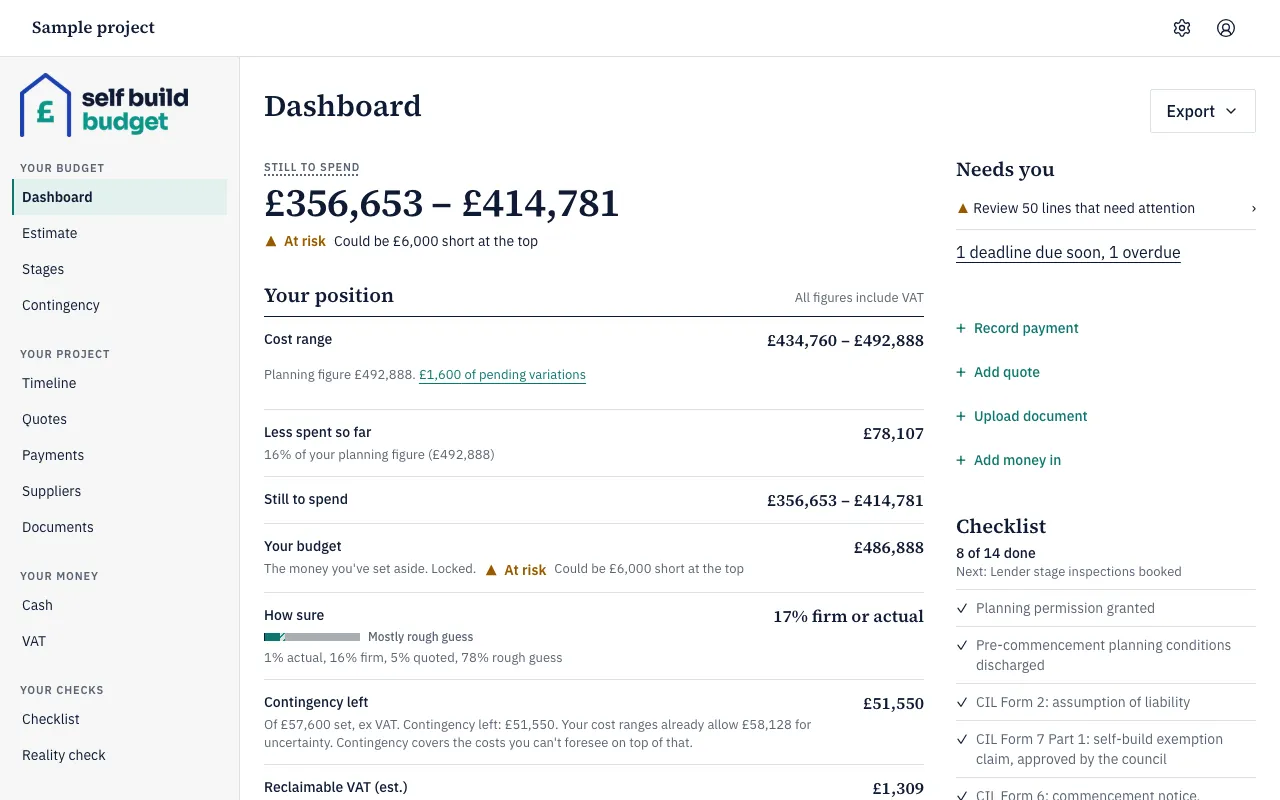
- In Budget, open Dashboard. Under Your position you see your Cost range, Less spent so far, Still to spend, Your budget and How sure, and whether you are Covered, At risk or Short. Needs you points to lines to review and deadlines. The quick actions are Record payment, Add quote and Upload document on Standard and Professional, and Add money in on Professional only.
- In Project, open Quotes, Payments, Suppliers and Documents. Add and accept quotes, record what you pay, keep your suppliers in one list, and store your paperwork. These are part of Standard. Accepted quotes and payments feed back into your lines and your cost range.
- In Money, open Cash to forecast your cash, and VAT to track the DIY housebuilders’ claim. Both are part of Professional.
- In Checks, open Checklist to work through your paperwork, and Reality check to compare how your budget is split across the stages with a typical split, before you start building. Both are part of Standard.
Good to know
- Your budget figures include the VAT you pay, and the refund you expect doesn’t reduce them. The app shows the refund separately, under a different name on each screen: Reclaimable VAT (est.) on the Dashboard, Expected VAT refund on the VAT screen and the summary PDF, and as money in on Cash once you add it. Reclaimable VAT (est.) is part of Professional. On Free and Standard it shows a lock.
- Your budget is one figure that you lock. Your Cost range is what your lines add up to, low to high. The planning figure is the top of that range. For example, a cost range of £410,000 to £480,000 has a planning figure of £480,000.
- Contingency left is part of your cost range, not extra on top of it, so don’t add the two together. It is shown ex VAT.
- On Free, the Dashboard shows Cost range, Planning figure, Your budget, How sure and Contingency left. Still to spend, Less spent so far, Reclaimable VAT (est.) and Cash today show a lock, and there are no quick actions. A page your plan doesn’t include shows a blurred sample with a lock.
- Free includes your estimate, a read-only preview of your stages, up to 5 partners and viewers, and exporting your data. Standard adds the working budget, documents, the timeline, the checklist and the summary PDF. Professional adds the VAT claim and the cash-flow forecast.
- When the app reads a document for you, its suggestion stays marked until you confirm or change it. Nothing counts until you do.
The figures in the app are a guide, not financial or tax advice.
Questions about the VAT claim? Email us.
Who can do this
Owners have every right, including billing, deleting the project and managing members, and partners have every right except billing, deleting the project and managing members. Viewers are read-only: they see the Dashboard, Estimate, Stages, Quotes, Payments, Suppliers and Documents and change nothing, and they don’t see Cash, Timeline, VAT, Contingency, Checklist, Reality check, Members or unconfirmed AI suggestions; on the Dashboard they also don’t see Contingency left, Reclaimable VAT (est.), Cash today, deadlines, quick actions or the checklist, and the summary PDF and data export they download leave out cash flow, the timeline, the VAT claim, Contingency left and draw-downs, and the checklist.