

Invite a partner or a viewer
PlanAll plans, including Free
Invite your partner, or an adviser such as an architect or quantity surveyor, to work on the same project as you. Each person gets an invitation by email and joins as a partner or a viewer.
Steps
Invite someone
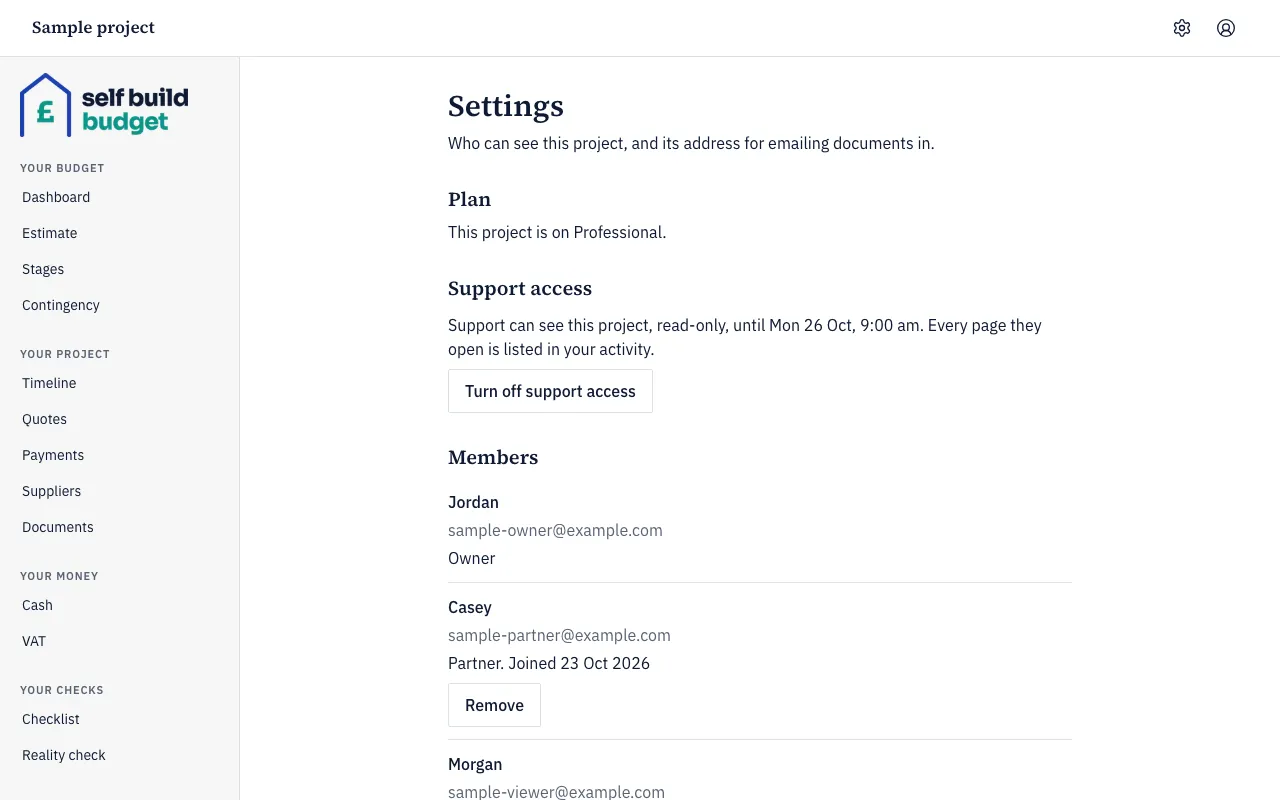
- Choose the Settings (cog) icon in the header.
- Find the Members section. It lists everyone on the project.
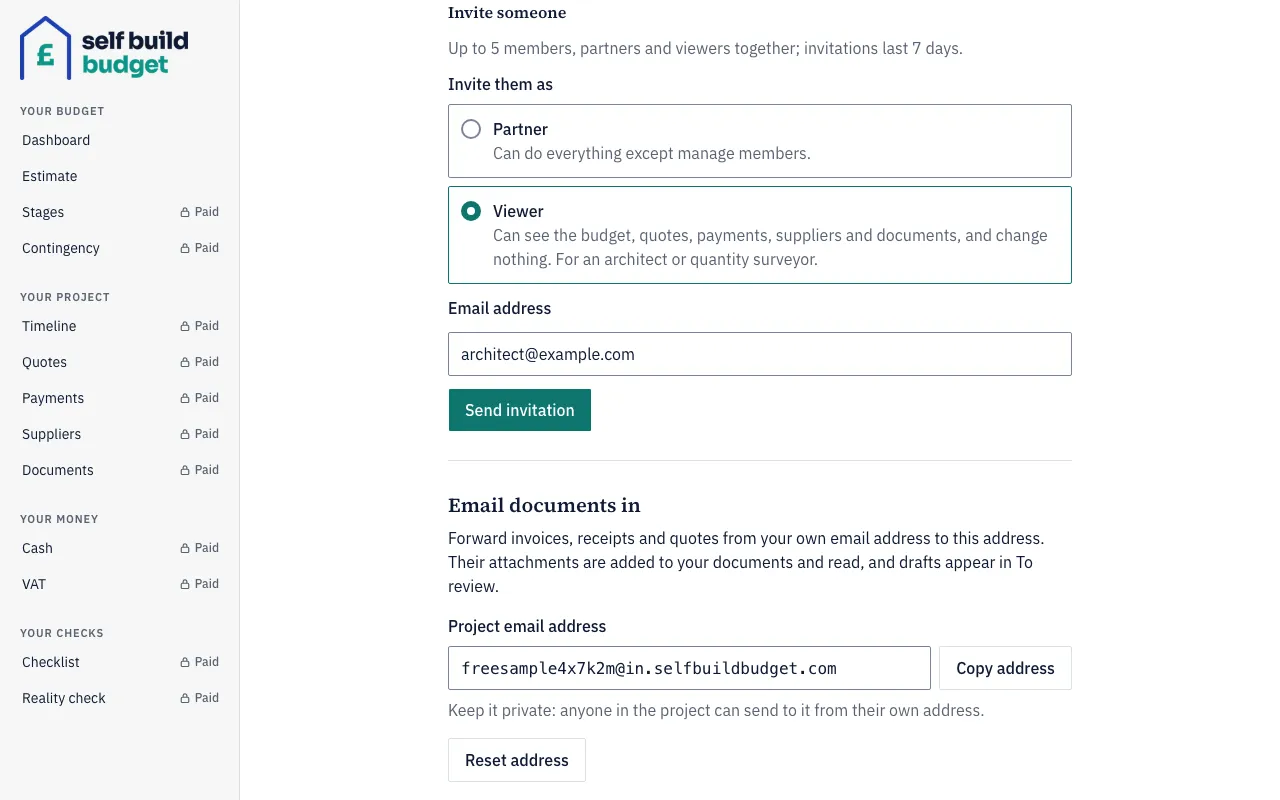
- Scroll down to Invite someone.
- Under Invite them as, choose Partner or Viewer. Partner is already chosen when the form opens.
- In Email address, type the email address of the person you are inviting.
- Choose Send invitation.
The invitation appears in the Invitations list in Settings, showing that it expires in 7 days. We also send an email to the address you typed.
Accept an invitation
These steps are for the person you invited.
- Open the link in the invitation email.
- Sign in with the email address the invitation was sent to. If you sign in with a different address, you will be asked to sign in with the right one.
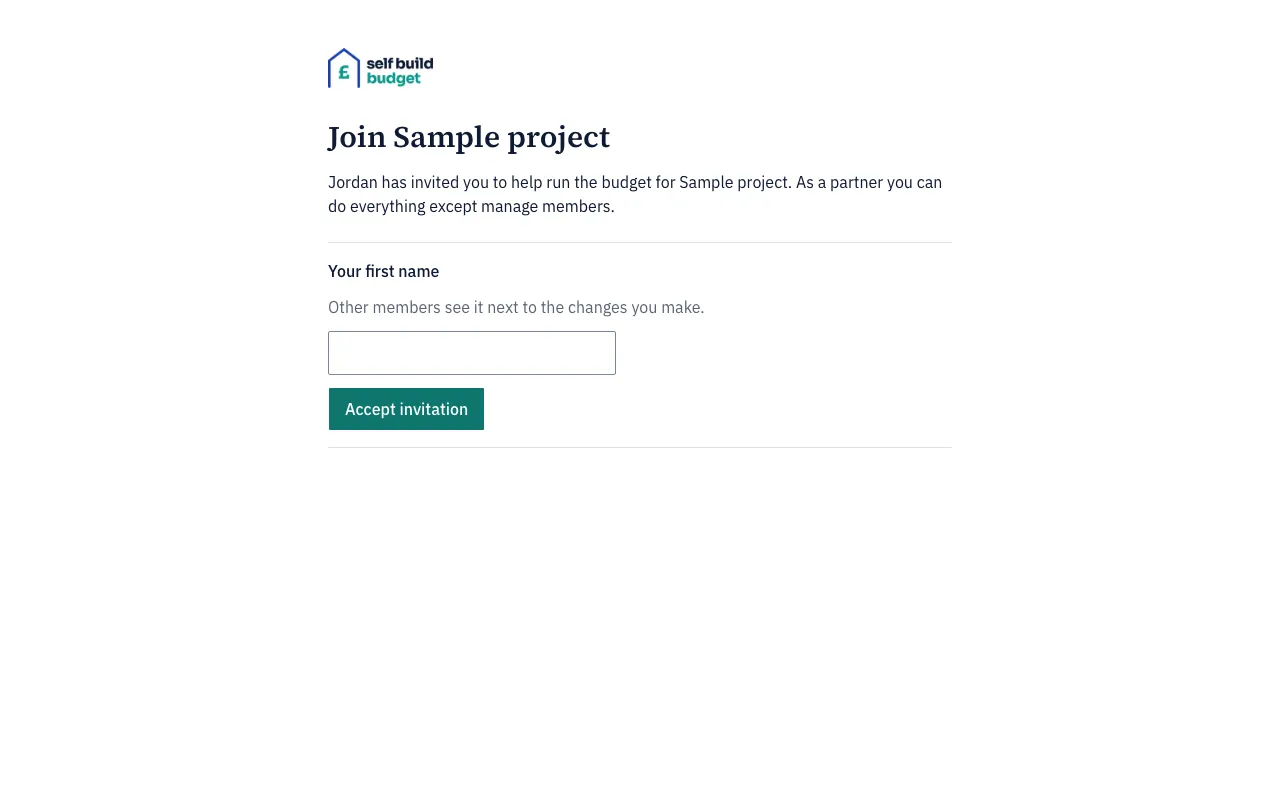
- In Your first name, type your first name. Other members see it next to the changes you make.
- Choose Accept invitation.
A partner then sees the project’s budget. A viewer sees the Dashboard.
Send an invitation again or cancel it
- Choose the Settings (cog) icon in the header.
- In the Invitations list, find the pending invitation.
- To send it again, use the option beside the invitation to re-send it. The invitation then expires 7 days from now, and the earlier link stops working.
- To cancel it, use the option beside the invitation to cancel it. It is no longer shown as pending, and its link stops working.
Remove a member
- Choose the Settings (cog) icon in the header.
- In Members, find the person.
- Choose Remove.
They can no longer open the project, even in a tab they already had open. Changes they made earlier still show their name in the history. Their place is free for someone else.
Leave a project
If you are a partner or a viewer, you can leave at any time.
- Choose the Settings (cog) icon in the header.
- Choose Leave project.
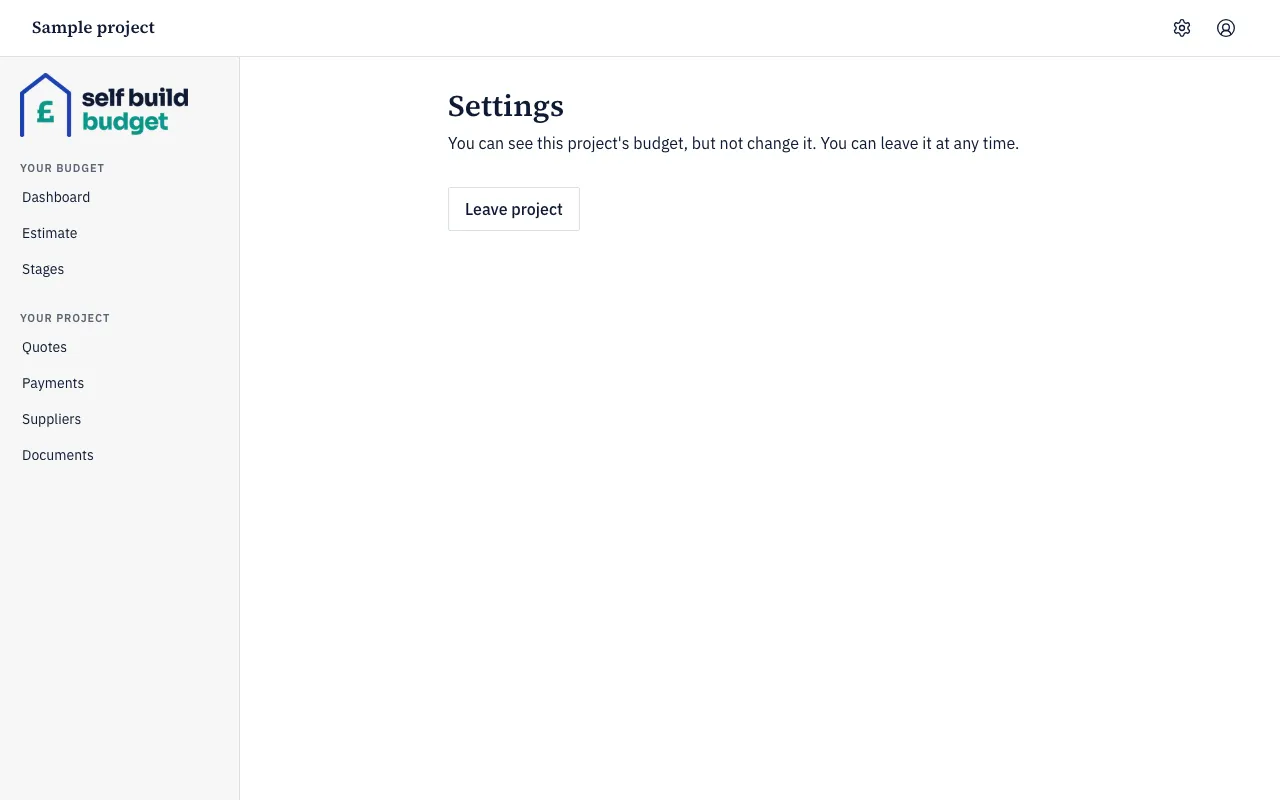
You are no longer a member, and your place is free for someone else. The owner can’t leave or be removed.
Good to know
- Partner: a partner can do everything except billing, deleting the project and managing members. Only the owner can invite, re-send, cancel or remove.
- What a viewer sees: a viewer is read-only and changes nothing. A viewer sees the Dashboard, Estimate, Stages, Quotes, Payments, Suppliers and Documents. The Dashboard, Quotes, Payments, Suppliers and Documents are part of Standard, and Stages is a read-only preview on Free. On a phone a viewer sees only the Budget and Project tabs.
- What a viewer doesn’t see: a viewer doesn’t see Cash or VAT (both part of Professional), Timeline, Contingency, Checklist or Reality check (all part of Standard), Members or unconfirmed AI suggestions. On the Dashboard (part of Standard), a viewer doesn’t see Contingency left, Reclaimable VAT (est.), Cash today, deadlines, quick actions or the checklist. The summary PDF a viewer downloads (part of Standard) and the data export (included in Free) leave out cash flow and the VAT claim (Professional), and the timeline, Contingency left and draw-downs, and the checklist (Standard).
- Places and expiry: a project can have up to 5 partners and viewers together. An invitation lasts 7 days, and re-sending it renews it.
- One project at a time: someone who already owns a project can’t join another. They are asked to email hello@selfbuildbudget.com. Someone who is a partner or viewer on another project must leave it first, from its Settings.
- Plans: partners and viewers never pay, and they get what the owner’s plan includes. Free includes up to 5 partners and viewers, so you can invite people before you subscribe. A page the plan doesn’t include shows a small lock beside it in the menu. On a locked page such as Payments (part of Standard and Professional), a partner sees “Ask [the owner’s first name] to subscribe to unlock Payments” and no button. A viewer sees no button. The owner sees an Unlock button.