

Flags, filters and the activity log
PlanStandard and Professional
Flags show you which budget lines need a look. A line’s history and the Recent activity list on the Dashboard show what has changed, who changed it and when.
Steps
- Open Stages. On a desktop, choose Stages in the menu on the left. On a phone, tap the Budget tab at the bottom of the screen, then the Stages tab at the top.
- Look at each line under its stage. Every line shows its How sure badge, such as Rough guess. It also shows markers for its quotes and payments, such as “1 quote”, “1 accepted” or “1 payment”. A line with nothing to look at shows no flags. Every badge and flag has a text label, so you never have to rely on colour.
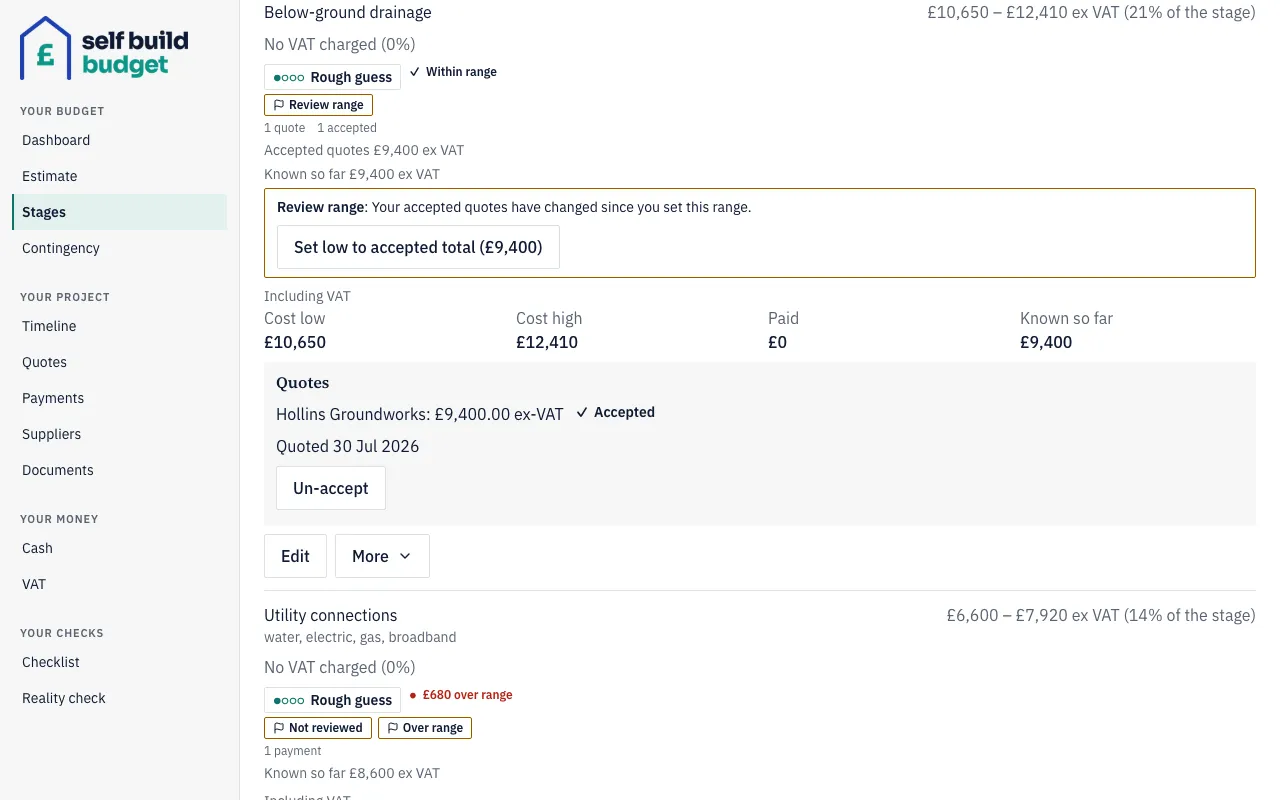
- Read any flags on a line:
- Not reviewed: the line still holds the starting figures from your estimate.
- Review range: your accepted quotes have changed since you set the line’s range, so its low and high may need a look.
- Overridden: you set the line yourself rather than from your accepted quotes, and gave a reason.
- Over range: what is known so far for the line is more than its high.
- If a line shows Review range, check the box that explains why. It has a button, such as Set low to accepted total (£9,400), that sets the low to your accepted total. Choose it if that is what you want, or leave the range as it is.
- Look at the row for the stage in the stage list. It counts flagged lines, for example “4 not reviewed”.
- To narrow a stage’s lines, use the filter for the stage’s lines. Choose a level such as Rough guess to see only lines at that level. Choose the “Needs attention” filter to see every line with any flag. Choose the Overridden filter to see lines you have set yourself.
- To see every flagged line in the project at once, open the Dashboard. On a desktop, choose Dashboard in the menu on the left. On a phone, tap the Budget tab at the bottom, which opens the Dashboard. Choose the link that begins “Review” and ends “lines that need attention”. It shows those lines, each with its stage.
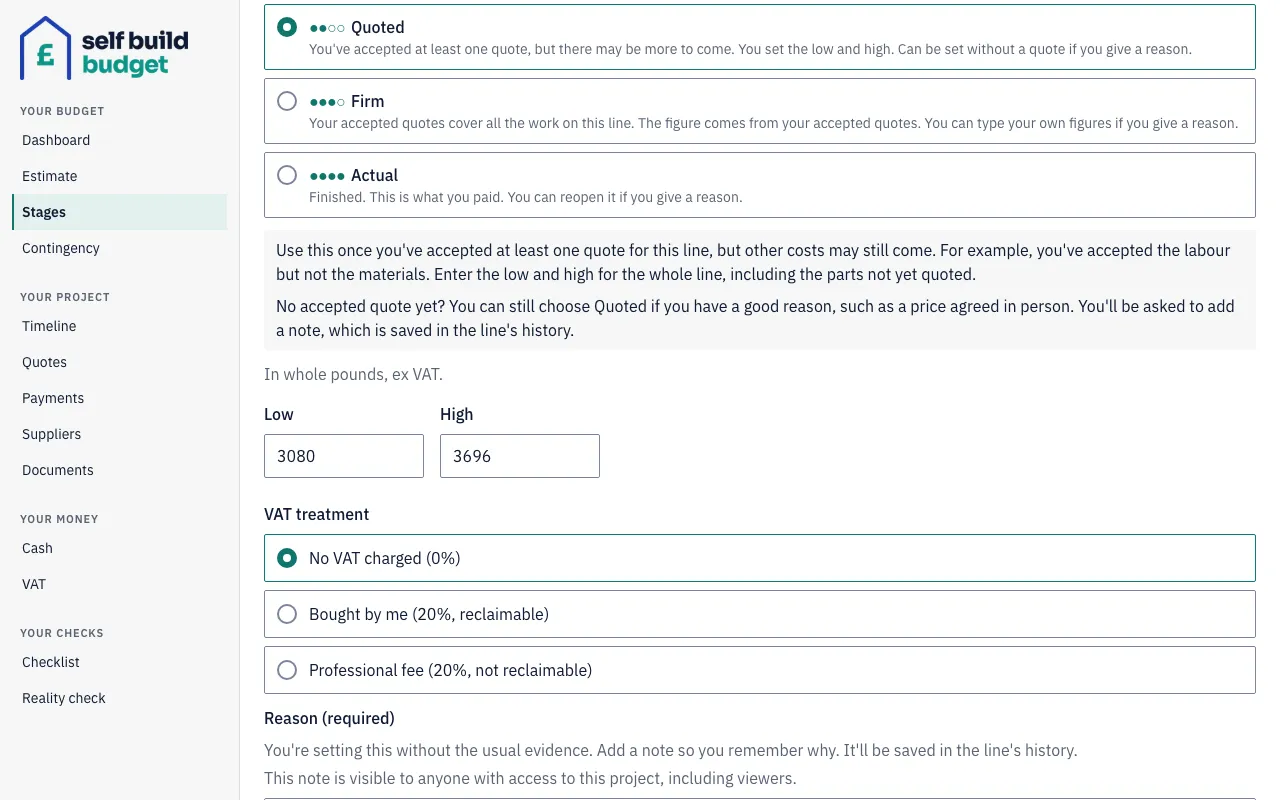
- To move a line up to Quoted without an accepted quote, choose Edit on the line, then choose Quoted. Enter the low and high, and fill in Reason (required). Then save the line. The line is then marked Overridden.
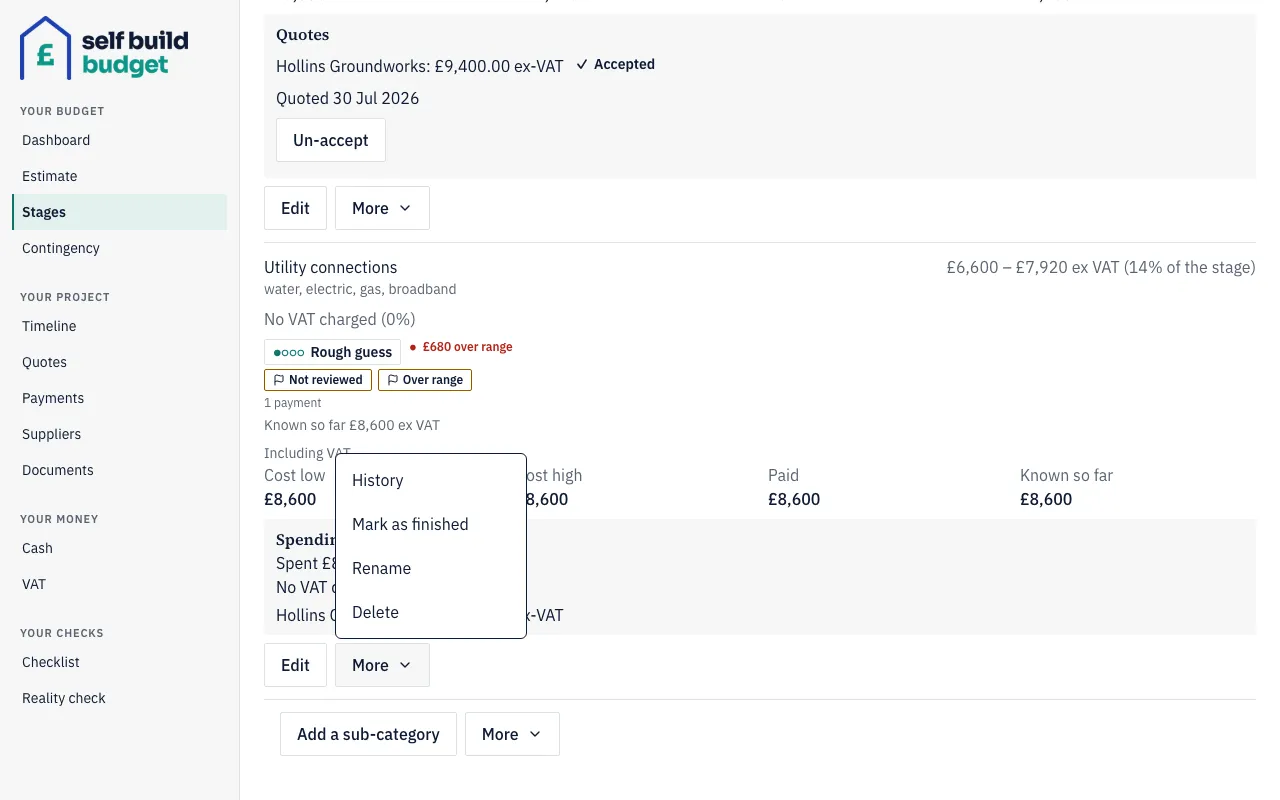
- To see a line’s history, choose More beside Edit on the line, then choose History. It records each change with who made it and when. It also shows the reasons for overrides and reopens, and says where automatic changes came from. For example, “Updated from accepted quotes: variation agreed +£2,400”.
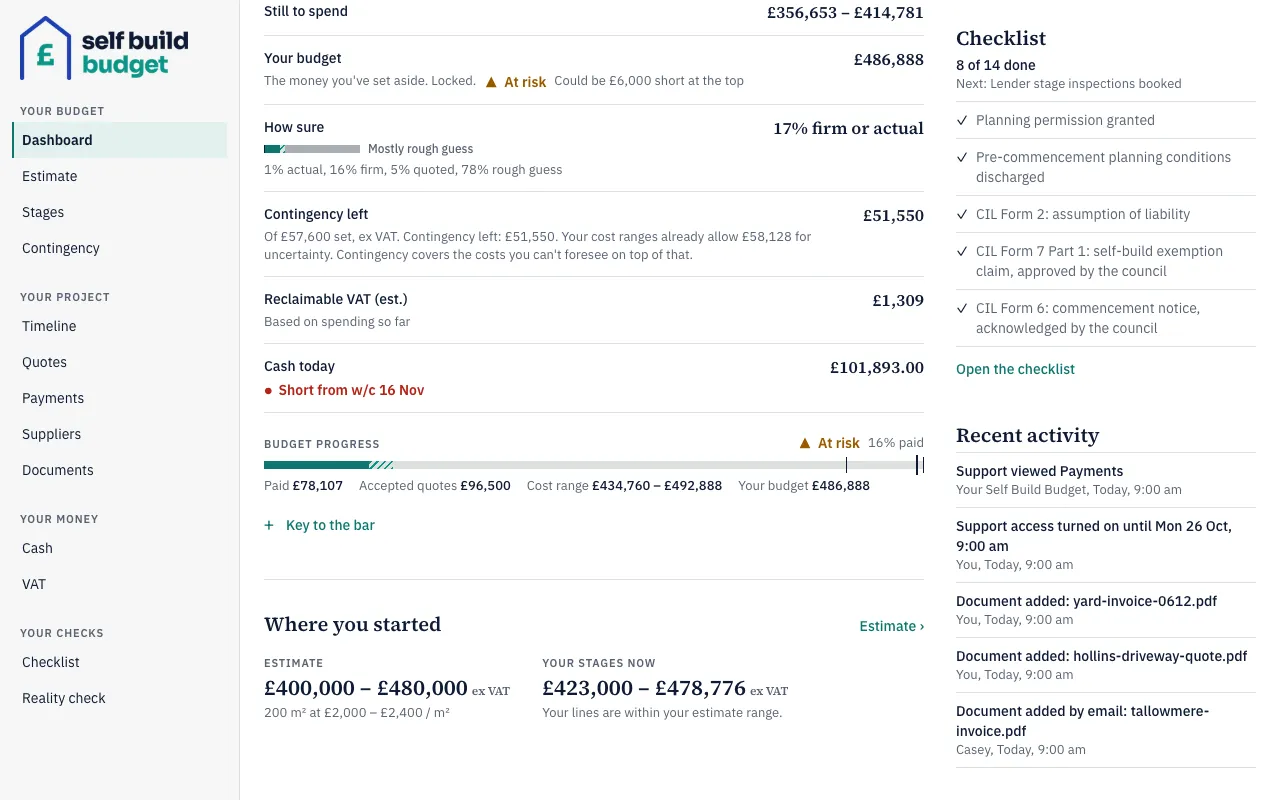
- To see what has happened across the project, open the Dashboard and look at Recent activity. It shows who did each thing and when.
Good to know
- Not reviewed clears the first time you change the line.
- Overridden means only this: a Quoted line with no accepted quote, or a Firm line with figures you typed in, each with a reason. Once a quote on a Quoted line is accepted, the line is no longer marked Overridden. Your reason is visible to anyone with access to the project, including viewers.
- You need a reason to move a line up to Quoted or Firm without an accepted quote. You also need one to move a Firm line down to Quoted if it has no accepted quote, and always to reopen a finished line. Moving a line down to Rough guess never needs one.
- Proposing a variation changes no figures. When a variation is agreed, a Firm line that follows its accepted quotes updates by itself, with no flag. A Rough guess, Quoted or overridden Firm line keeps its figures and gets Review range. A variation funded from contingency adds its amount to the line straight away.
- Over range compares the line’s high with Known so far. Known so far is the higher of what you’ve paid and your accepted quotes, including agreed variations.
- Recent activity shows the five newest things, newest first. It includes earlier payments and line changes, with their original dates. Its entries can’t be changed or deleted. It records level changes such as “Groundworks: Excavation moved to Firm” and lines going over range. Once Your budget is locked, it also shows when the status changes, for example from At risk to Covered. A document emailed in shows as “Document added by email” with its file name only.
The figures in the app are a guide, not financial or tax advice.
Who can do this
Owners and partners can change lines, clear flags and give reasons. Viewers can see the flags and the reasons in a line’s history, but can’t change anything.
On Free, this page is locked. See what each plan includes