

Compare and accept quotes
PlanStandard and Professional
Use the Quotes page to see what suppliers have quoted side by side, then accept the quote you are going with so your budget shows what you have agreed to pay.
Before you start
You need at least one quote on the project. If you haven’t added one yet, see Add a quote and split it across lines.
Steps
- Go to Quotes. On a desktop, choose Quotes in the menu on the left. On a phone, tap the Project tab at the bottom of the screen, then the Quotes tab at the top.
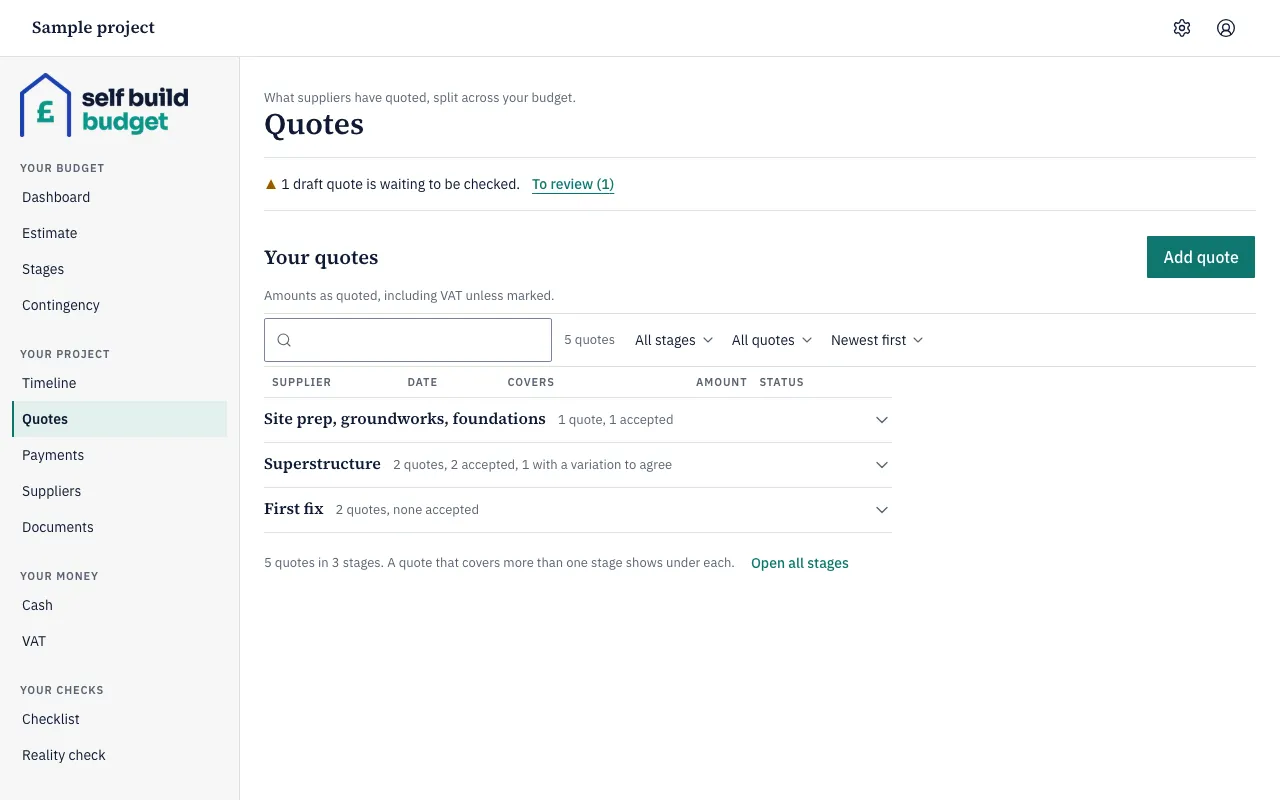
- Choose a stage to open it. Each stage shows how many quotes it has and how many are accepted. To open every stage at once, choose Open all stages.
- Compare the quotes. For each one you see the supplier, the date, what it covers, the amount and the status. A quote you haven’t accepted shows Not accepted. Amounts are as quoted, including VAT unless marked, so a quote marked “ex VAT” is shown without it.
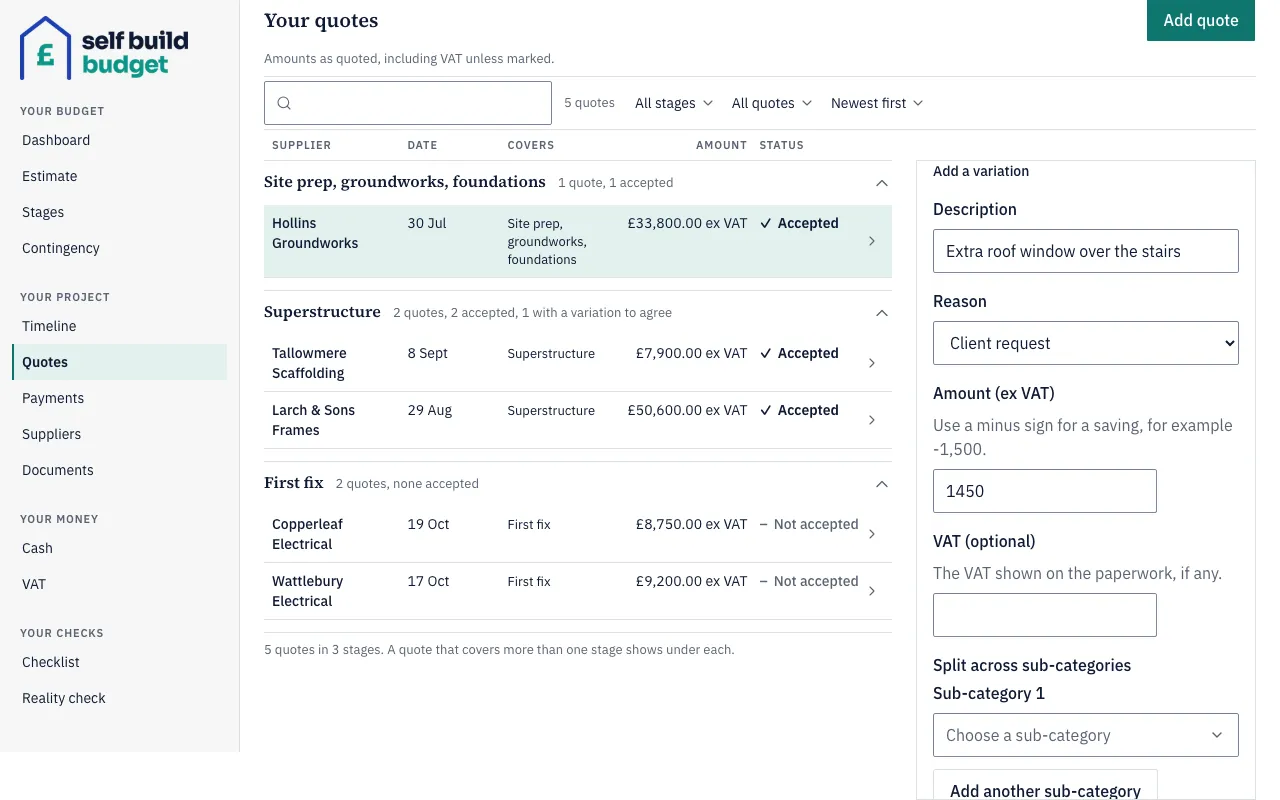
- Choose the row of the quote you are going with to open it, then accept it.
- Check the result. The quote now shows Accepted. Your line keeps the range you set, and it is flagged Review range with Set low to accepted total and the accepted figure, for example Set low to accepted total (£31,500).
- To bring the line’s low up to the accepted figure, choose Set low to accepted total on the flagged line. A line set at £28,000 to £36,000 with £31,500 accepted becomes £31,500 to £36,000, and the flag clears. If you would rather keep your own figures, leave the flag as it is.
- To accept a second quote on a line that already has an accepted one, accept it as before. You are asked whether it is Instead of or As well as the quote already accepted. Nothing changes until you choose. If you cancel, the first quote stays as the only accepted one.
- Choose As well as when both quotes count, for example labour and materials from different suppliers, or a main contract plus an extra. With £12,500 already accepted, accepting a £6,000 quote As well as makes the accepted total £18,500.
- Choose Instead of to replace the accepted quote. With £12,500 accepted, accepting a £6,000 quote Instead of it makes the accepted total £6,000.
- If more than one quote is already accepted, Instead of lists them all with tick boxes, all ticked. Untick any quote you want to keep, then confirm. If you untick every quote, it counts as As well as.
- If the quote you are replacing is split across more than one line, you are told before you confirm that replacing it also un-accepts it on the other lines. Confirm to go ahead.
- If the accepted quotes now total more than the top of the line’s range, you see a message such as “Accepted quotes on Drainage now total £13,700, which is £1,700 above the top of your range (£12,000).” The quote is still accepted. Choose one of the offers:
- Fund £1,700 from contingency moves that amount from your contingency onto the line. The line’s range goes up by the same amount, for example £8,000 to £12,000 becomes £9,700 to £13,700.
- Widen the range opens the line editor with Set high to £13,700.
- Leave it for now keeps the line flagged Over range.
- To undo an acceptance, open the accepted quote and un-accept it. It is no longer marked Accepted, and the line keeps the range you set.
Good to know
- Only accepted quotes count towards a line. A quote that is still Not accepted never changes your figures.
- Accepting a quote never overwrites a range you typed on a Rough guess or Quoted line. It flags the line Review range (or Over range if the quote goes past the top of your range) so you decide what to do.
- A Firm line normally follows its accepted quotes. If you change How sure to Firm on a line with accepted quotes, you are asked “Do your accepted quotes cover all the work on this line? If more costs could still come in, choose Quoted instead.” After that, accepting another quote As well as updates the line by itself, and its history shows “Updated from accepted quotes”.
- To type your own figures on a Firm line, choose Type my own figures instead and give a reason. The line is then Overridden, and its high can be no more than 5% above its low. Use my accepted quotes switches it back. If you un-accept the last quote on a Firm line that follows its quotes, the line becomes Quoted with its last figures and is flagged Review range.
- A line’s low and high are typed ex VAT, so on the line a quote counts ex VAT. A £24,000 quote that includes £4,000 VAT shows on its line as Accepted quotes £20,000 ex VAT, while the figures headed Including VAT show it with VAT.
- Each accepted quote keeps its own variations. You can record a variation on any of them, and agreed variations are counted once in the line’s accepted total and in Known so far. Scheduling payments against an accepted quote happens on Cash, which is part of Professional.
The figures in this article are a guide, not financial or tax advice.
Who can do this
Owners and partners can compare and accept quotes. Viewers can see the Quotes page but can’t change anything.
On Free, this page is locked. See what each plan includes