

Upload and organise documents
PlanStandard and Professional
Keep your quotes, invoices, receipts, certificates and photos in one place. Each document gets a type and a clear name, so you can find it later.
Steps
Upload one document
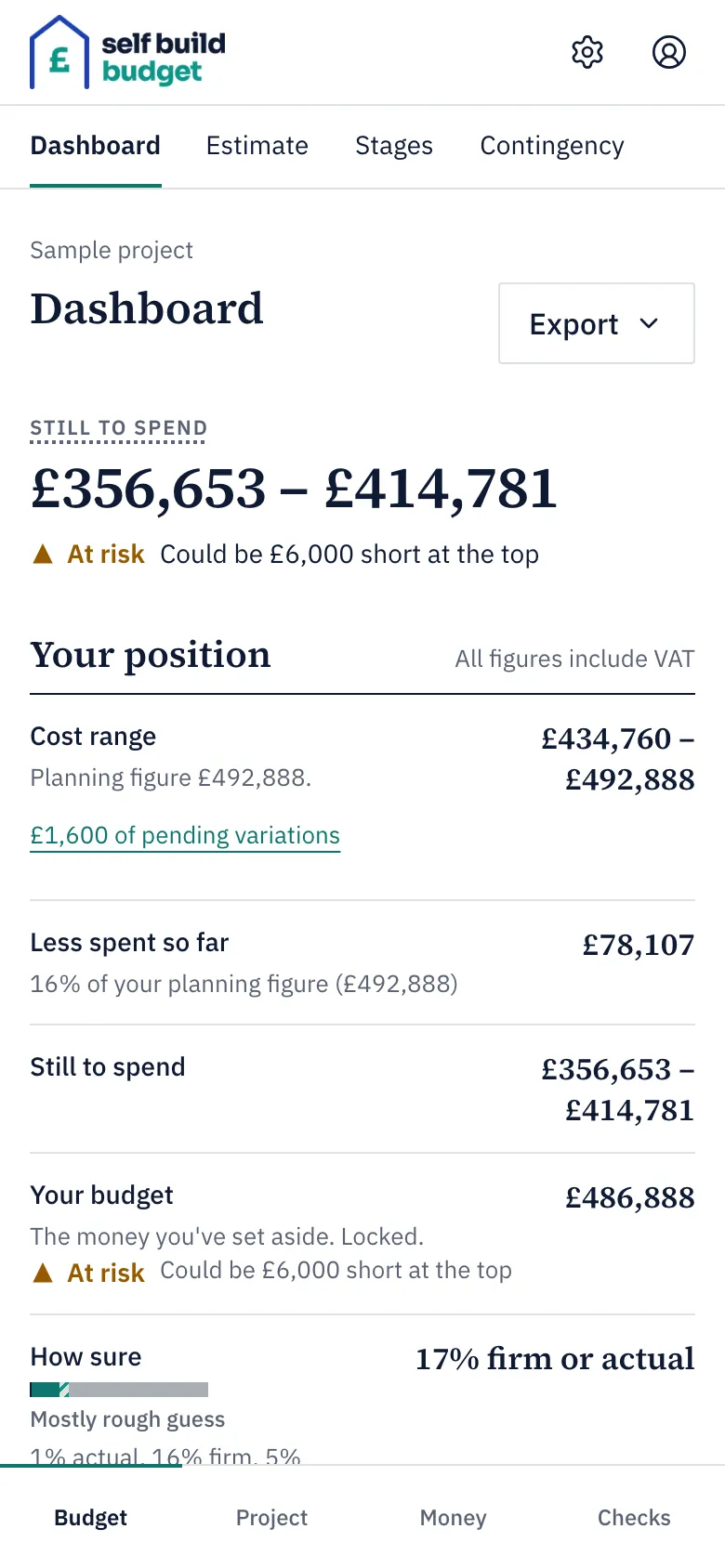
- Go to Documents. On a desktop, choose Documents in the menu on the left. On a phone, tap the Project tab at the bottom of the screen, then the Documents tab at the top.
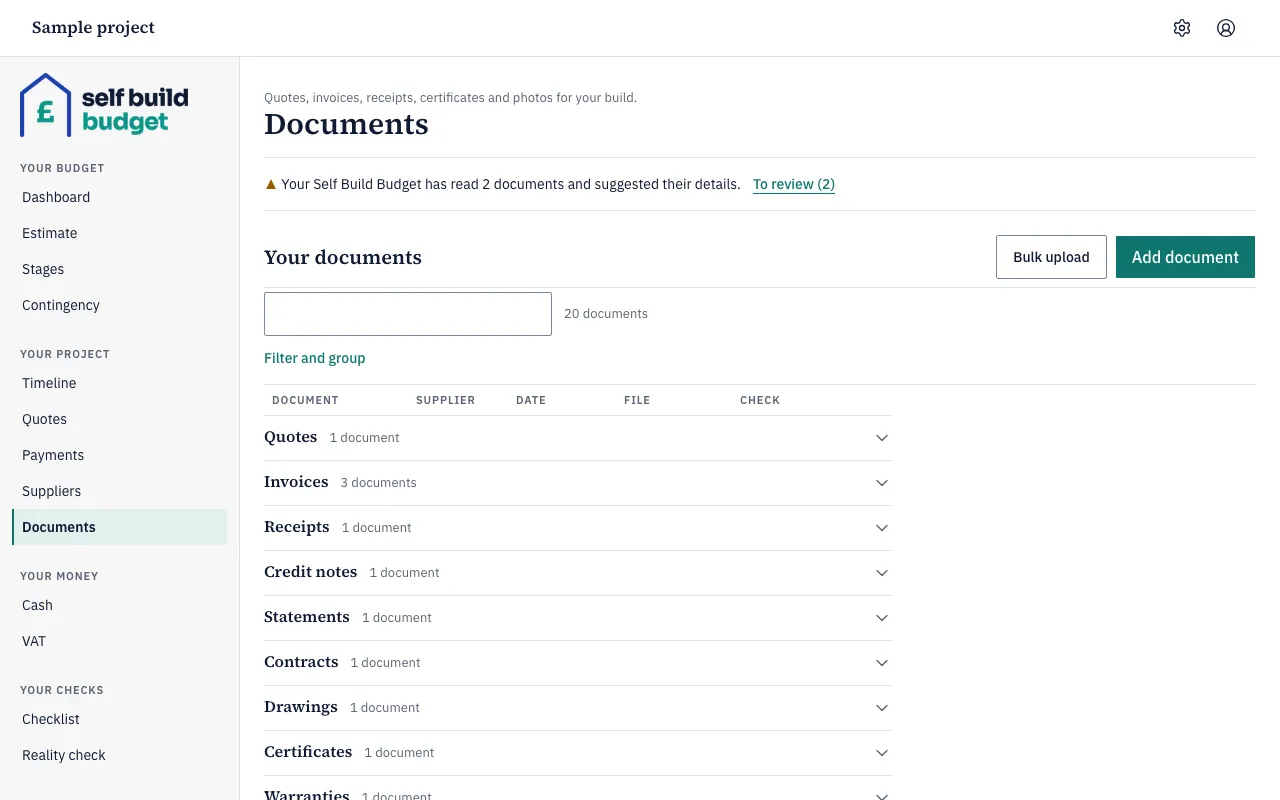
- Choose Add document.
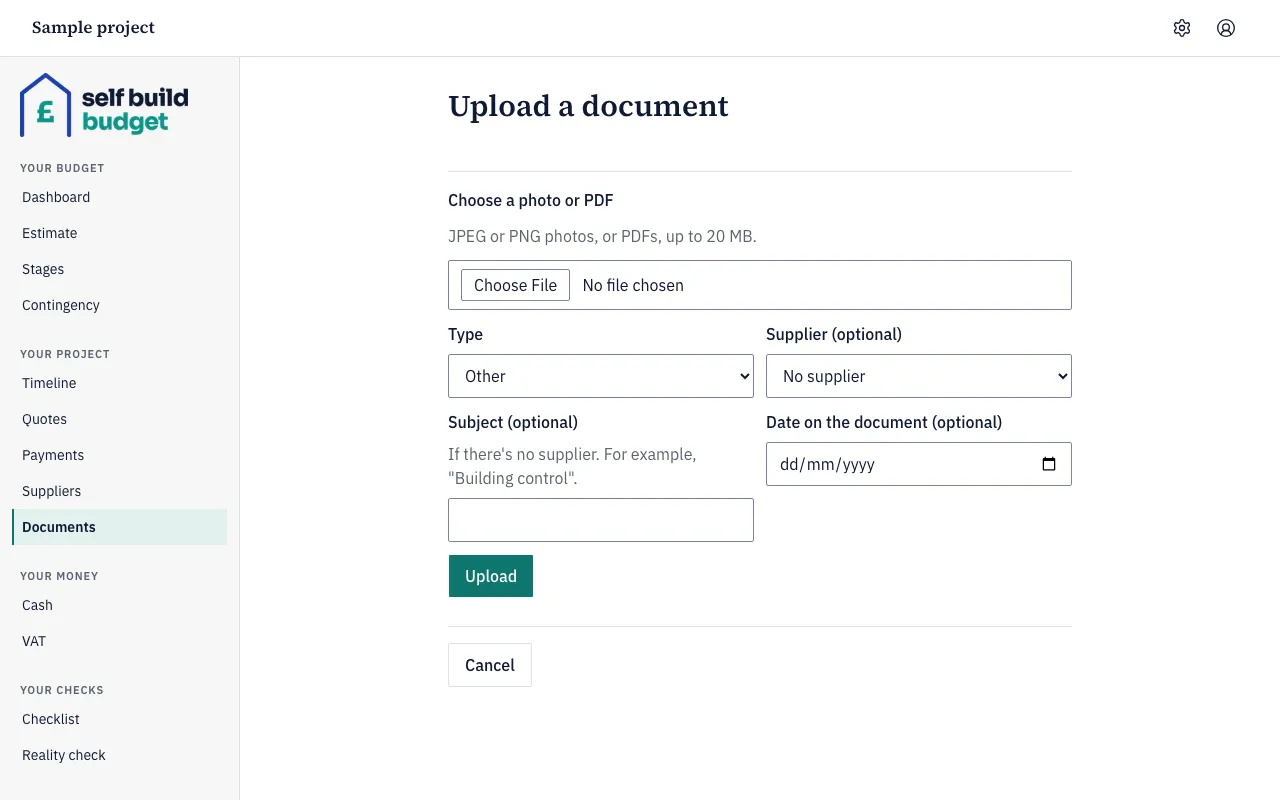
- Under Choose a photo or PDF, choose Choose File and pick a JPEG or PNG photo, or a PDF, up to 20 MB.
- In Type, pick the kind of document. It starts as Other.
- If the document is from a supplier, pick them in Supplier (optional).
- If there’s no supplier, type a short label in Subject (optional), such as “Building control”.
- If you want, fill in Date on the document (optional).
- Choose Upload.
Types and names
A document’s type is one of: quote, invoice, receipt, credit note, statement, contract, drawing, certificate, warranty, insurance, planning, council/CIL, building control, photo or other. The Documents page groups your documents by type and shows how many are in each group.
Self Build Budget names each document after the supplier, its type and a number, for example “Kent Roofing - quote 1”.
- The numbers count up for each supplier and type, so the next quote from the same supplier is “Kent Roofing - quote 2”.
- With no supplier, the name uses the subject instead, for example “Building control - certificate 1”.
- The original file name is shown alongside the new name.
- When you download a document, the file uses the new name.
- If you rename a document yourself, your name stays, even if you later rename the supplier.
Upload many documents at once
- On the Documents page, choose Bulk upload.
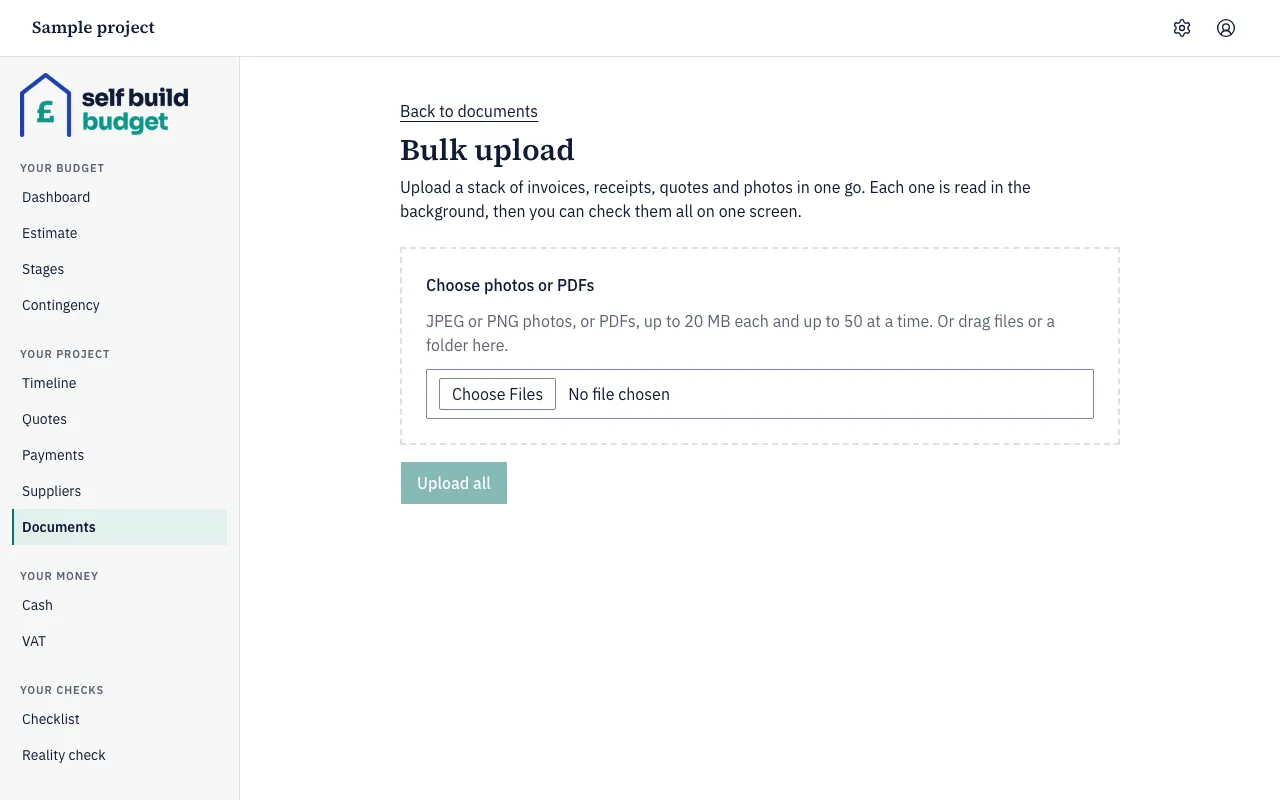
- Choose Choose Files and pick up to 50 photos or PDFs, each up to 20 MB. On a desktop you can also drag files or a folder onto the box. On a phone, use the file picker.
- Read any message shown beside a file before you carry on. For example, “Upload a photo (JPEG or PDF)” is not shown as written: a spreadsheet shows “Upload a photo (JPEG or PNG) or a PDF”, and a file over 20 MB shows “Files must be 20 MB or smaller”. Only the files without a problem are uploaded.
- If a file shows “A file with this name and size already exists. Upload anyway?”, choose Skip to leave it out or Upload anyway to add it.
- Choose Upload all.
- Wait until each file shows “Done”. The summary line tells you how many were uploaded, failed, rejected or skipped. If a file fails, choose Retry beside it.
- Choose Review suggestions. The Review uploaded documents page opens and shows what the app read from each file. A document still being read shows “AI reading…” until it is ready.
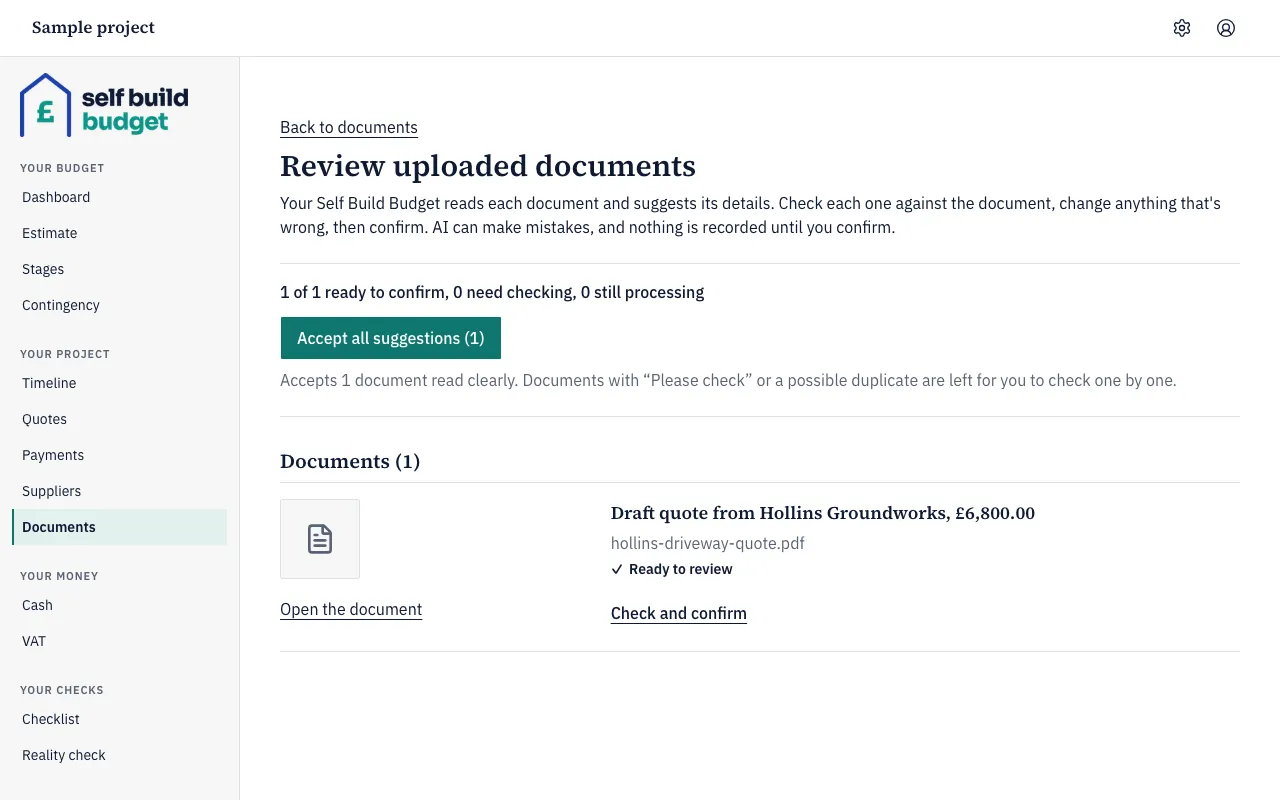
- For each document, choose Open the document to compare it with the suggestion, then choose Check and confirm.
- To confirm several at once, choose Accept all suggestions instead. Documents marked “Please check”, and any with a possible duplicate, are left for you to check one by one.
If you leave the page and come back later, a document from a bulk upload that is still waiting shows To review on the Documents page. Its Review suggestion link opens the same Review uploaded documents page. For a document you uploaded on its own, Review suggestion opens that document’s page.
Find a document
- On the Documents page, type in the search box above the list. A search for “roofing” finds “Kent Roofing - quote 1”.
- Choose Filter and group to narrow the list by type, by supplier or by a date range.
- To browse instead, open a group such as Invoices or Receipts.
Good to know
- Only JPEG or PNG photos and PDFs are accepted, up to 20 MB each. HEIC photos can’t be read yet, so save them as a JPEG and try again.
- Change a document’s type later and it moves to the matching group. It also takes the next number in that group, so an invoice changed to a receipt becomes “Kent Roofing - receipt 1”, if there are no other receipts from that supplier.
- Numbers aren’t reused. If you delete “invoice 2” and upload another invoice from that supplier, it becomes “invoice 3”. Numbering is kept separately for each project.
- If you delete a document and confirm, it’s removed from your documents list.
- The app suggests details from each document, but it can make mistakes, and nothing is recorded until you confirm. Check each suggestion against the document. For a confirmed invoice with a draft payment, the payment is recorded and the document shows “Confirmed”.
- If you leave the Bulk upload page while files are still uploading, you’re asked to confirm first.
Who can do this
On Free, this page is locked. See what each plan includes