

Record a payment
PlanStandard and Professional
Record what you have actually paid, split it across the parts of your budget it belongs to, and see how your spending compares with your budget.
Before you start
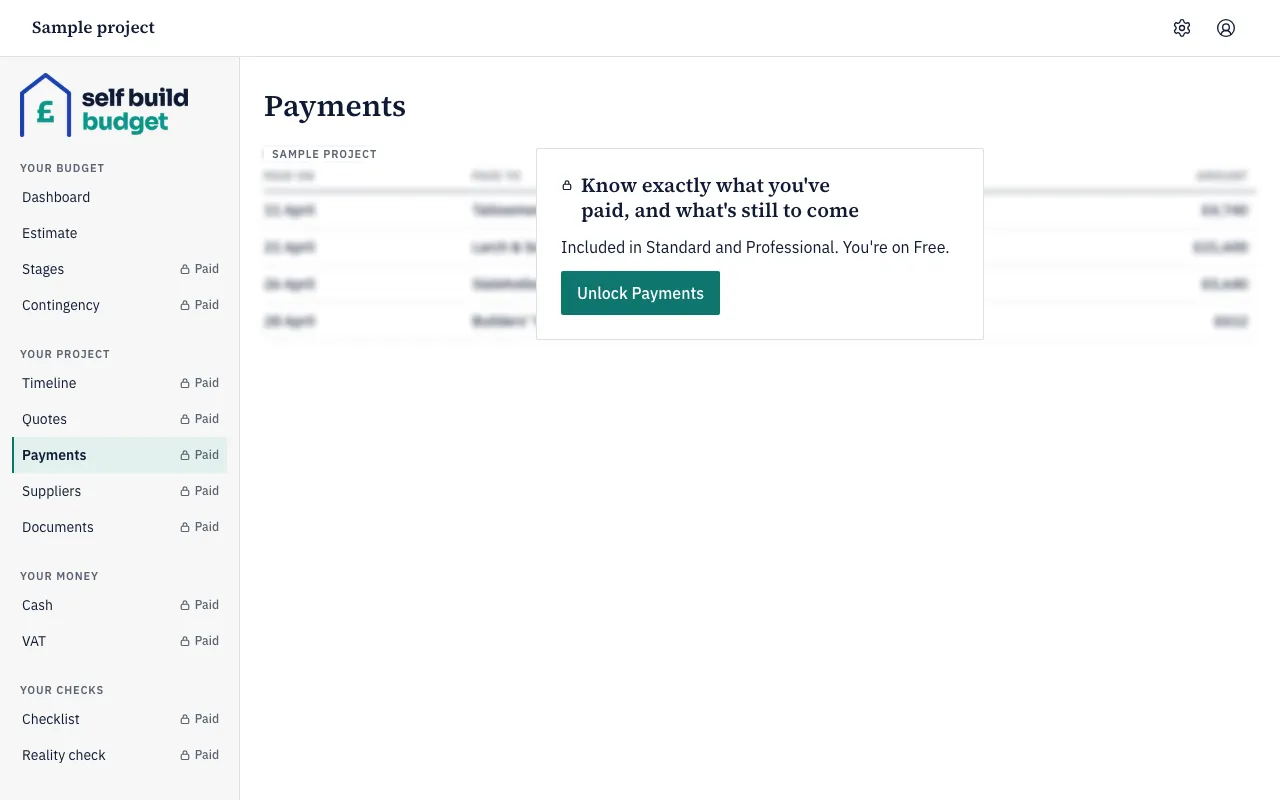
You need a project with a budget, so there are sub-categories to put the payment against. Payments are part of the Standard plan. On Free you see a blurred sample project and an Unlock Payments button instead.
Steps
Record a payment
- Open Payments. On a desktop, choose Payments in the menu on the left, under Your project. On a phone, tap the Project tab at the bottom of the screen, then the Payments tab at the top.
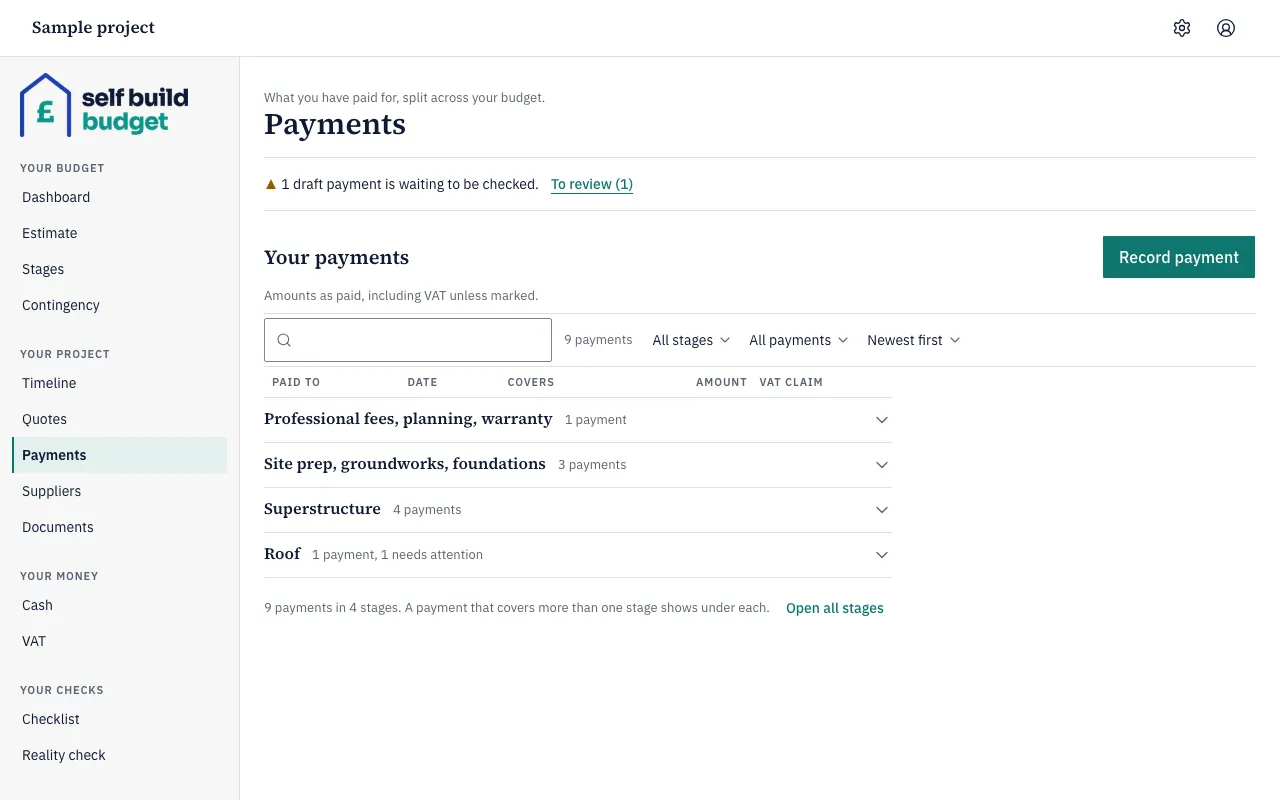
- Choose Record payment. The Record a payment panel opens beside the list on a desktop, and full screen on a phone.
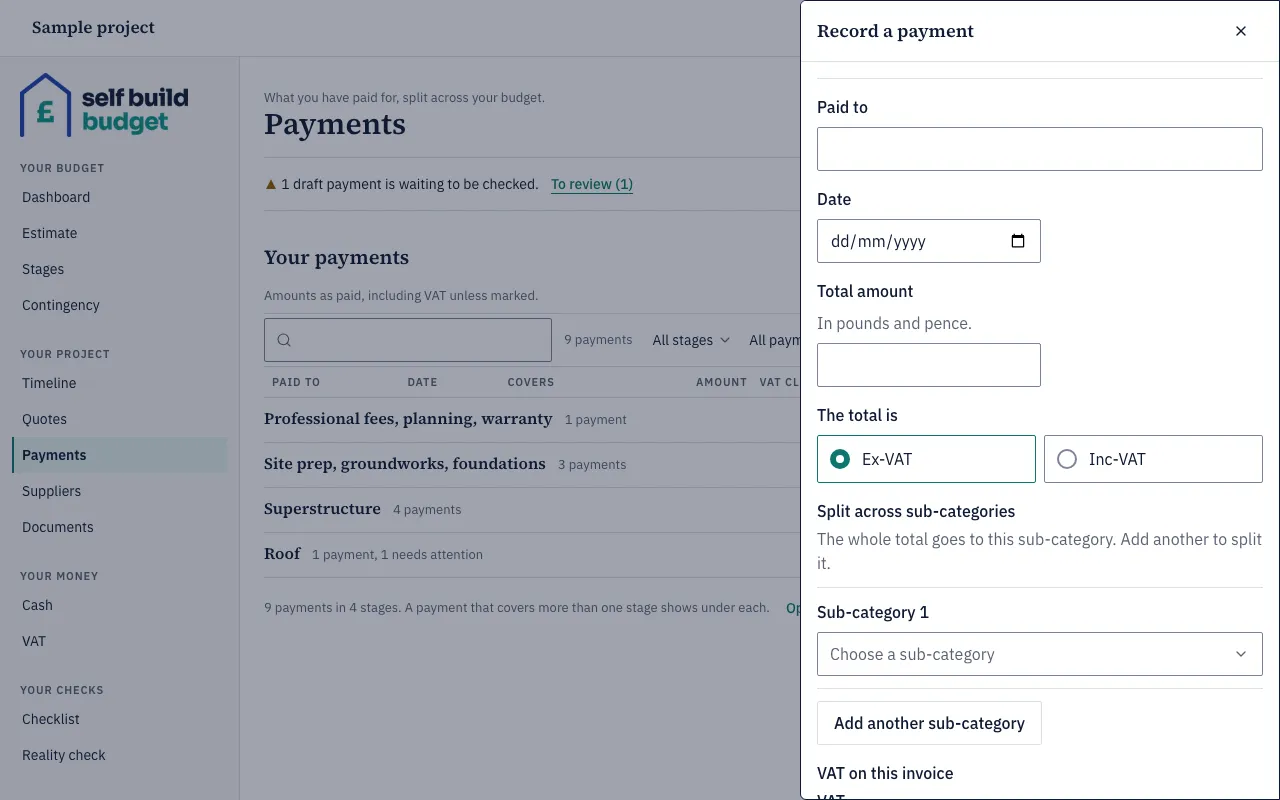
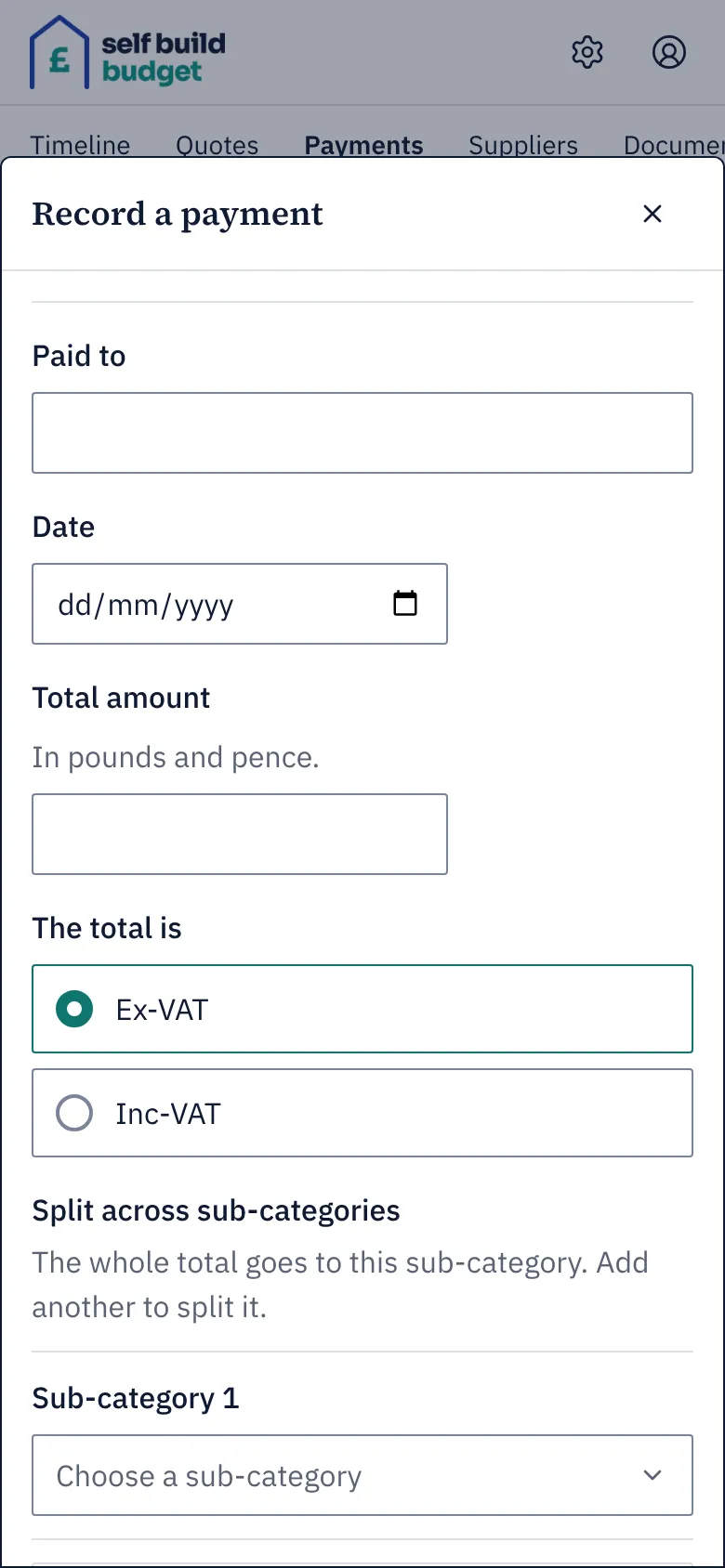
- In Paid to, choose a supplier from your supplier list, or type a new name to add one. Every payment is linked to a supplier.
- In Date, enter the date you paid.
- In Total amount, type the amount in pounds and pence.
- Under The total is, choose Ex-VAT or Inc-VAT, to match the amount you typed.
- Under Sub-category 1, choose Choose a sub-category and pick where the payment belongs. The list is grouped by stage, and you can type to search it. The whole total goes to this sub-category.
- To split the payment, choose Add another sub-category, pick a second sub-category, and enter how much goes to each. The amounts must add up to the total.
- Under VAT on this invoice, type the VAT shown on the invoice, then check the VAT treatment. The form suggests both from the first sub-category you chose, and you can change them. What you save is what you typed.
- Save the payment. You don’t need to attach a receipt. It saves without one.
The payment appears under its stage on the Payments page. A payment that covers more than one stage shows under each. Choose a stage to open its group, or choose Open all stages. To find a payment, use the search box or the All stages, All payments and Newest first controls above the list.
Edit a payment
- On the Payments page, open the stage and choose the payment. It opens with its VAT, split, receipt, Edit, Delete and History.
- Choose Edit.
- Change the amount, the split or anything else. If you move money between sub-categories, for example £10,000.00 to one and £4,000.00 to another, the total must still match the payment.
- Save your changes.
Delete a payment
- Choose the payment on the Payments page.
- Choose Delete, then confirm.
The payment disappears from the list, and your figures drop by the whole payment, including its VAT.
Good to know
- Paid includes VAT. A budget line’s main figure is Paid, in whole pounds, and it includes the VAT on the payment. For example, £14,000.00 entered ex-VAT with £2,800.00 VAT shows as £16,800. A £24,000.00 payment entered inc-VAT shows as £24,000. The stage page’s Paid, the Paid column on Stages and Less spent so far on the Dashboard also include VAT.
- The Spending box shows the ex-VAT figure. Under a line, a smaller box lists the ex-VAT amount, such as Spent £14,000.00 ex-VAT, and the VAT figure.
- Allocations must add up. If you allocate £20,000.00 of a £30,000.00 payment, you see “Allocations add up to £20,000.00 but the payment is £30,000.00”, and the payment is not saved.
- Editing keeps your VAT. The form doesn’t suggest the VAT again when you edit a payment. It keeps what you typed until you change VAT on this invoice yourself. If a supplier has charged VAT you think they shouldn’t have, choose Wrongly charged as the VAT treatment, and the app shows you what to do next.
- Changes are logged. History shows the old and new amounts, the date and who changed the payment.
- Higher plans. Scheduled instalments and invoice checks are part of Professional. If your project is on Free, the owner sees Unlock Payments. A partner sees a message asking the owner to subscribe, with no button. A viewer sees no button.
These figures are a guide, not financial or tax advice.
Questions about the VAT claim? Email us.
Who can do this
On Free, this page is locked. See what each plan includes